
Chromebook · Get started
Set up LeadMeNot on Chromebook
Add the extension, sign in, allow Incognito, and check it works.
Browser
Open app.leadmenot.orgStep 1 of 7
First, create your account at app.leadmenot.org
On Chromebook, your account, plan, Safe Wall and standard rules are set up in the browser at app.leadmenot.org. New? Follow Your first day with LeadMeNot. Already have an account from your phone? Carry on.
Chrome Web Store
Open Chrome Web StoreStep 2 of 7
Add the extension
Open LeadMeNot for Chromebook in the Chrome Web Store and click Add to Chrome. Then click the puzzle-piece icon next to the address bar and pin LeadMeNot.
Step 3 of 7
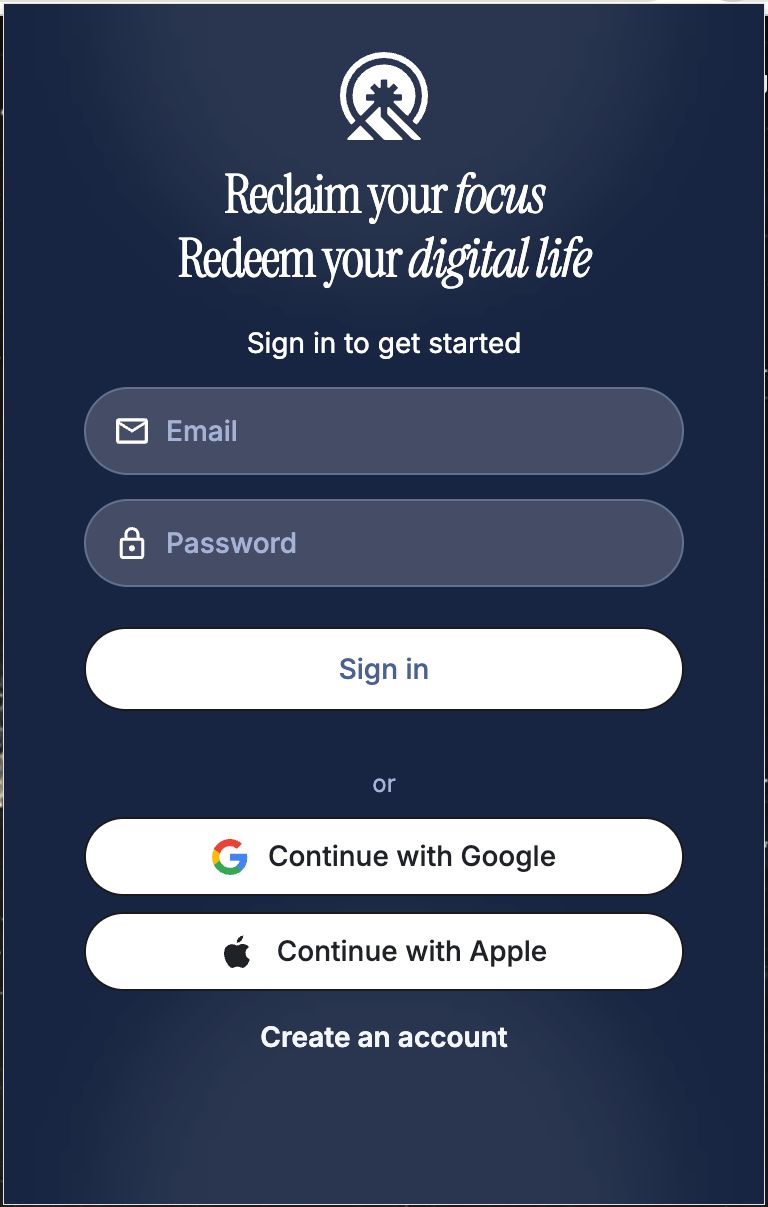
Sign in with your existing account
Click the LeadMeNot icon and sign in the same way as on your phone: email, Google or Apple. Your rules and partner come with you.
New to LeadMeNot? Click Create an account.
Step 4 of 7
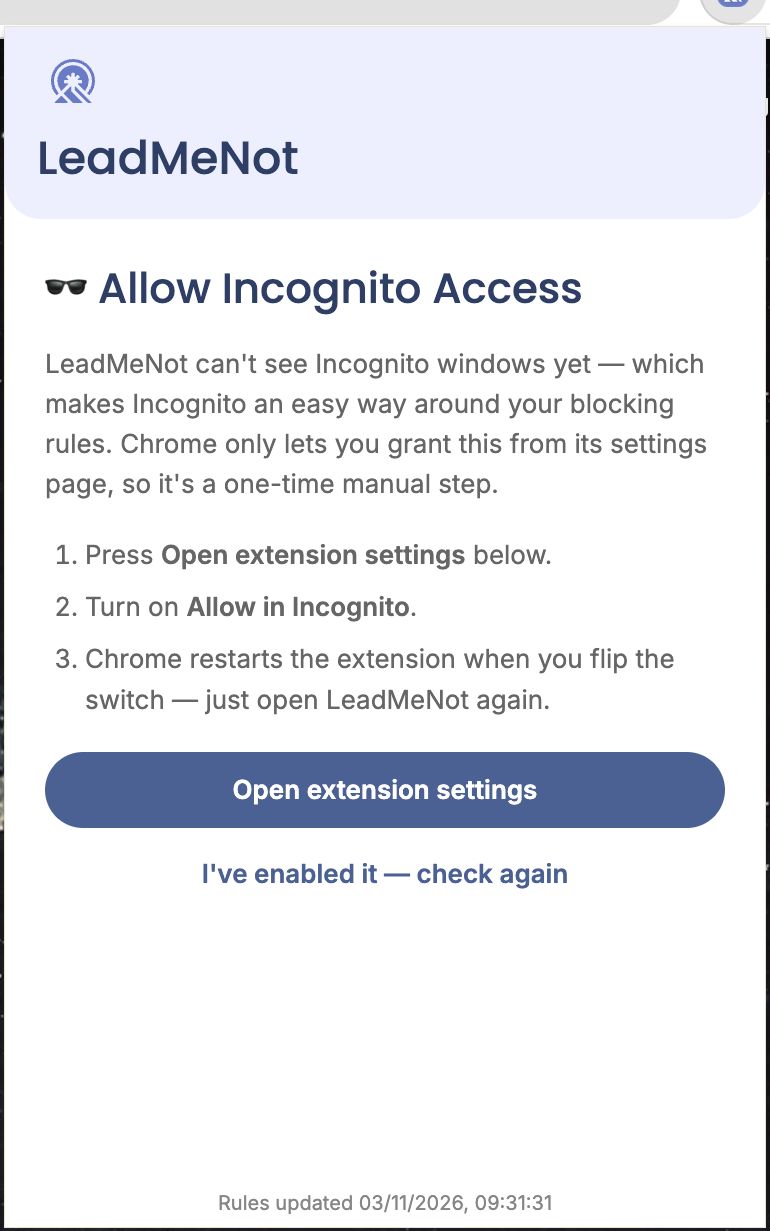
Allow Incognito access
Chrome can't let extensions see Incognito windows unless you allow it, so LeadMeNot asks. Click Open extension settings.
Skip this and Incognito windows aren't protected.
Step 5 of 7
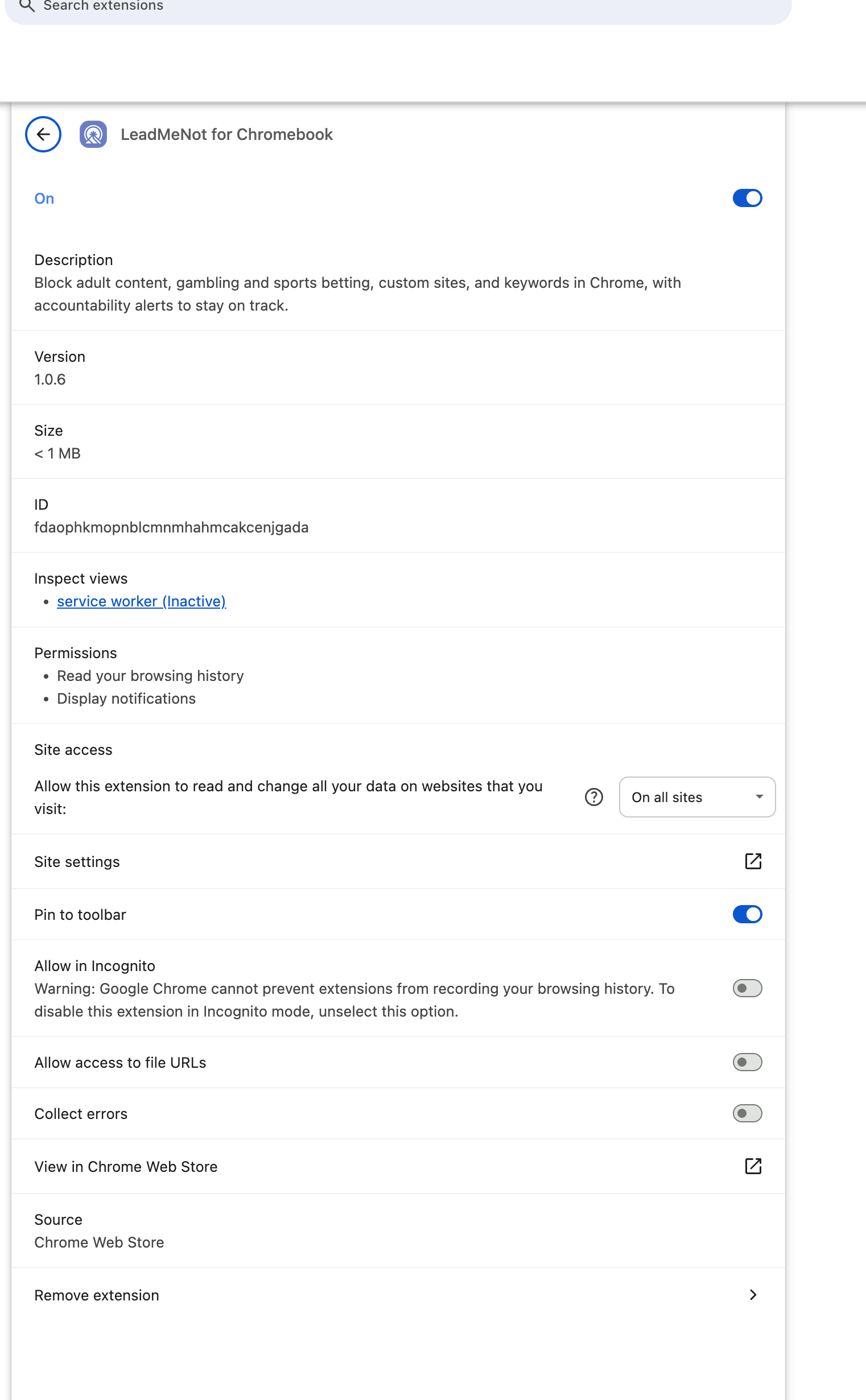
Turn on Allow in Incognito
On the extension's details page, switch on Allow in Incognito. Chrome restarts the extension. Open LeadMeNot again and click I've enabled it — check again.
Step 6 of 7
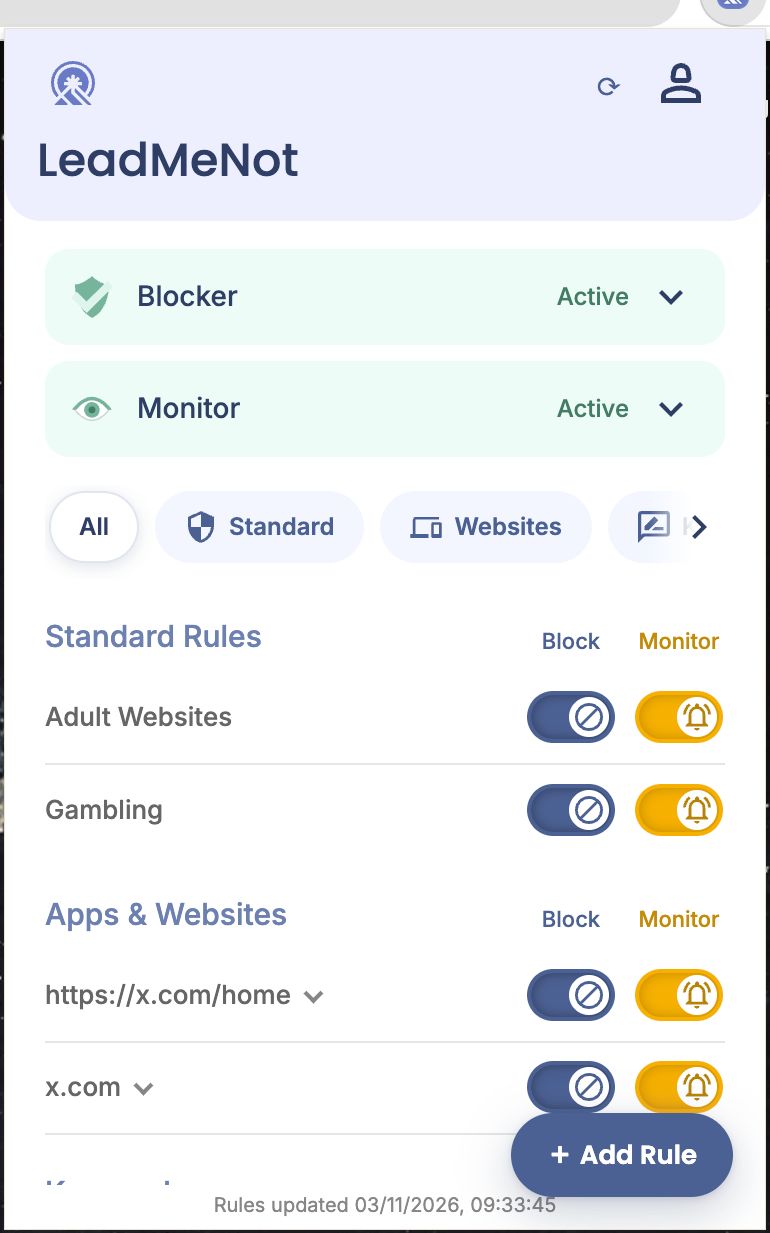
Check Blocker and Monitor are Active
The main screen shows both. Switch on Block for Adult Websites and Gambling under Standard Rules, and Monitor if your partner should hear about them.
Chrome
Step 7 of 7
Test it: type leadmenottest
Open Chrome, type leadmenottest into the address bar and go. If LeadMeNot blocks the page, everything is working.
Not blocked? Check the extension is switched on at chrome://extensions, you're signed in, and Adult blocking is on. For Incognito, Allow in Incognito must be on too.
The test only works while blocking is on, for example with Adult Websites & Apps switched on.
Did this work?
Great. Here's what people usually do next:
Sorry about that. Email Jason and we'll include which guide and step you were on, or ask our assistant.