
iPhone & iPad · Block porn & explicit content
Turn on Safari protection
Our recommended browser protection: the Safari Extension (LeadMeNot Shield), plus blocking other browsers.
Step 1 of 12
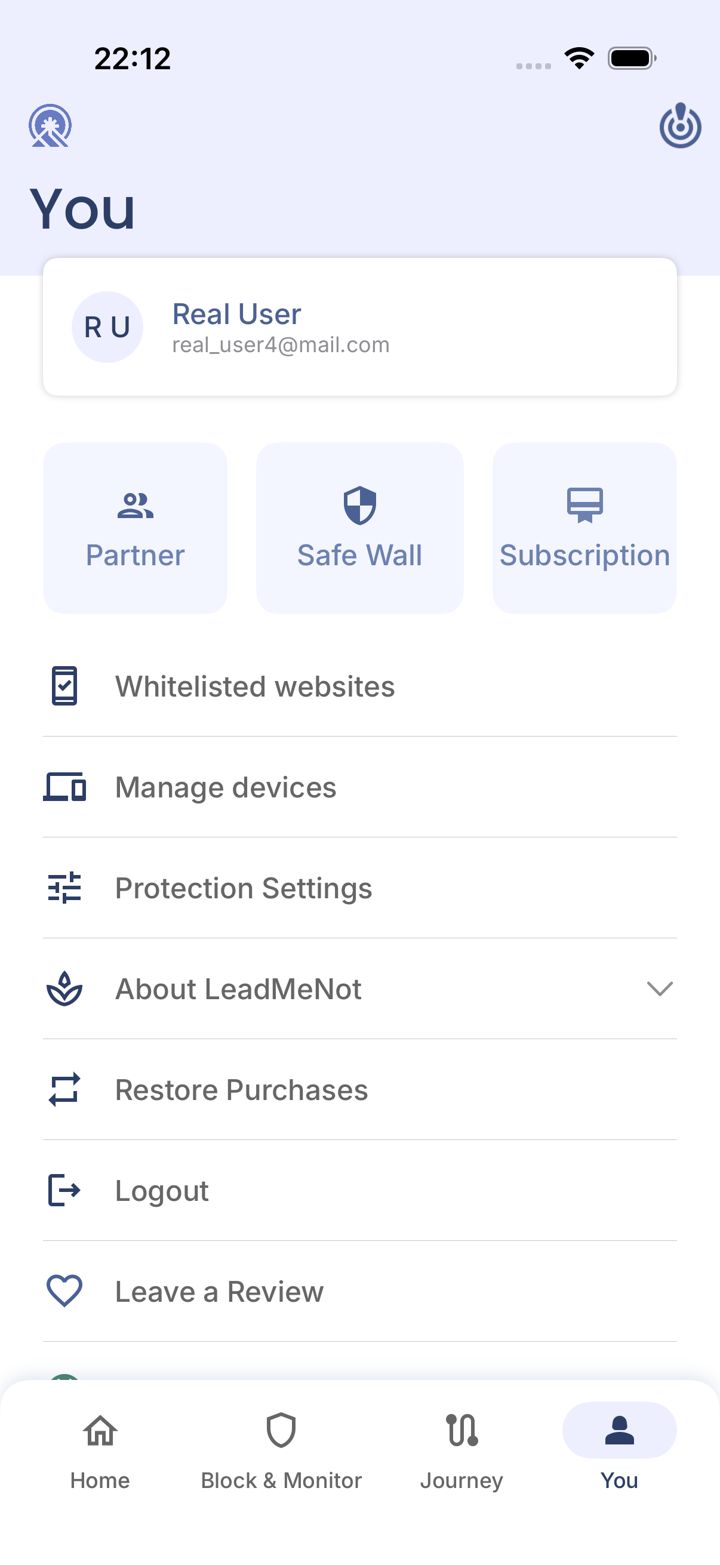
Open the You tab
Tap You in the bottom right of the app.
Step 2 of 12
Tap Protection Settings
Tap Protection Settings.
Step 3 of 12
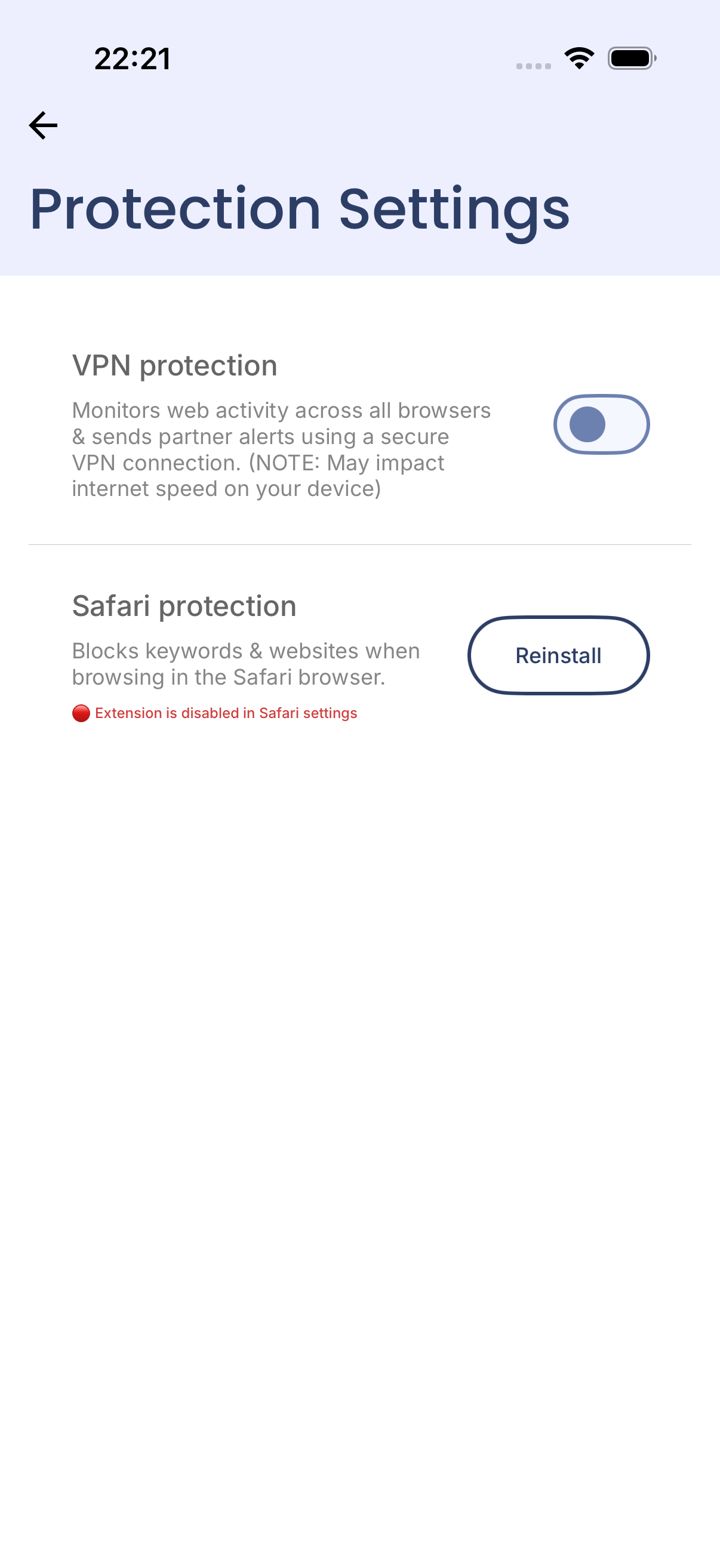
Check Safari protection
Look under Safari protection. A red message saying Extension is disabled in Safari settings means it's off. Tap Reinstall to get the Safari setup screen.
You'll also see this setup screen the first time you add a keyword rule.
Step 4 of 12
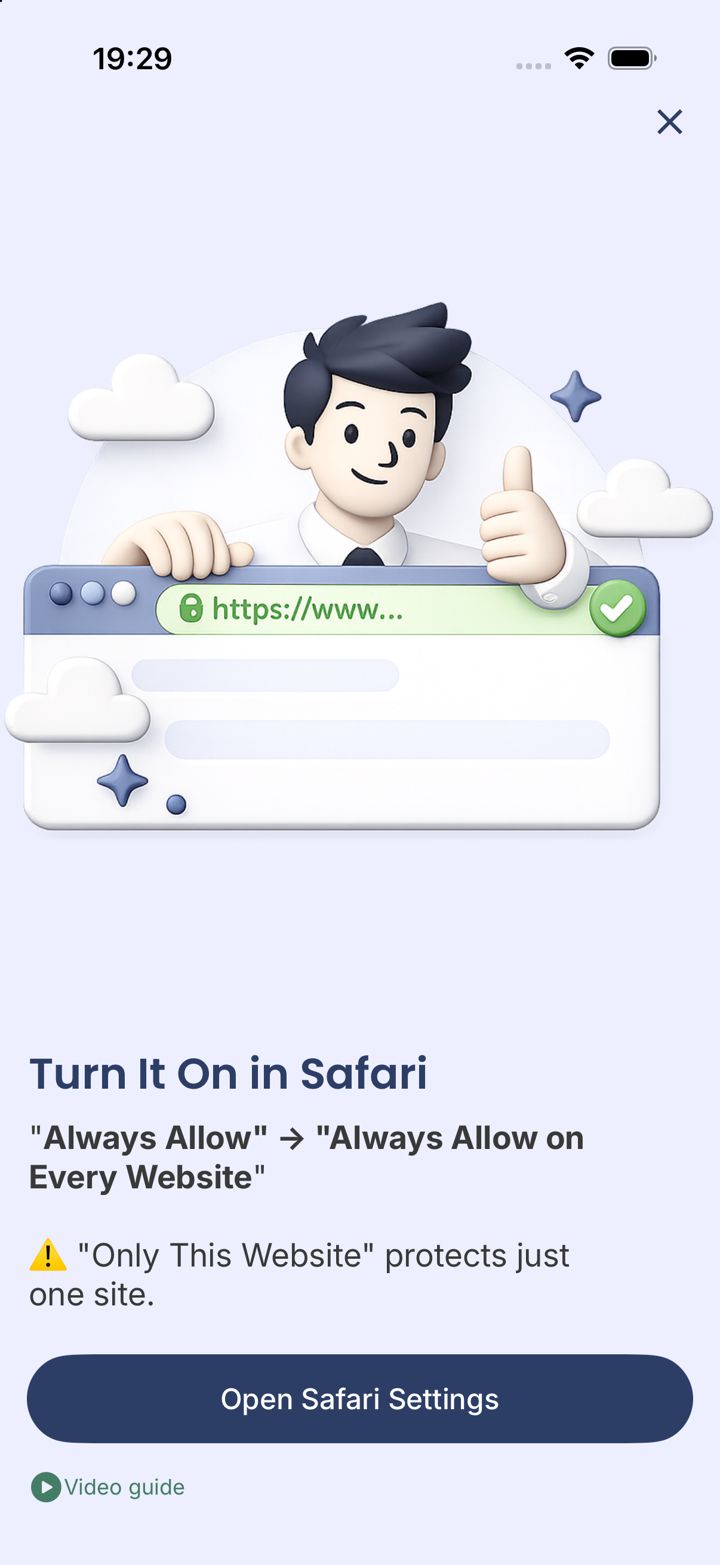
Tap Open Safari Settings
LeadMeNot explains what to pick: Always Allow, then Always Allow on Every Website. Tap Open Safari Settings.
Only This Website protects just one site. Pick Every Website.
Step 5 of 12
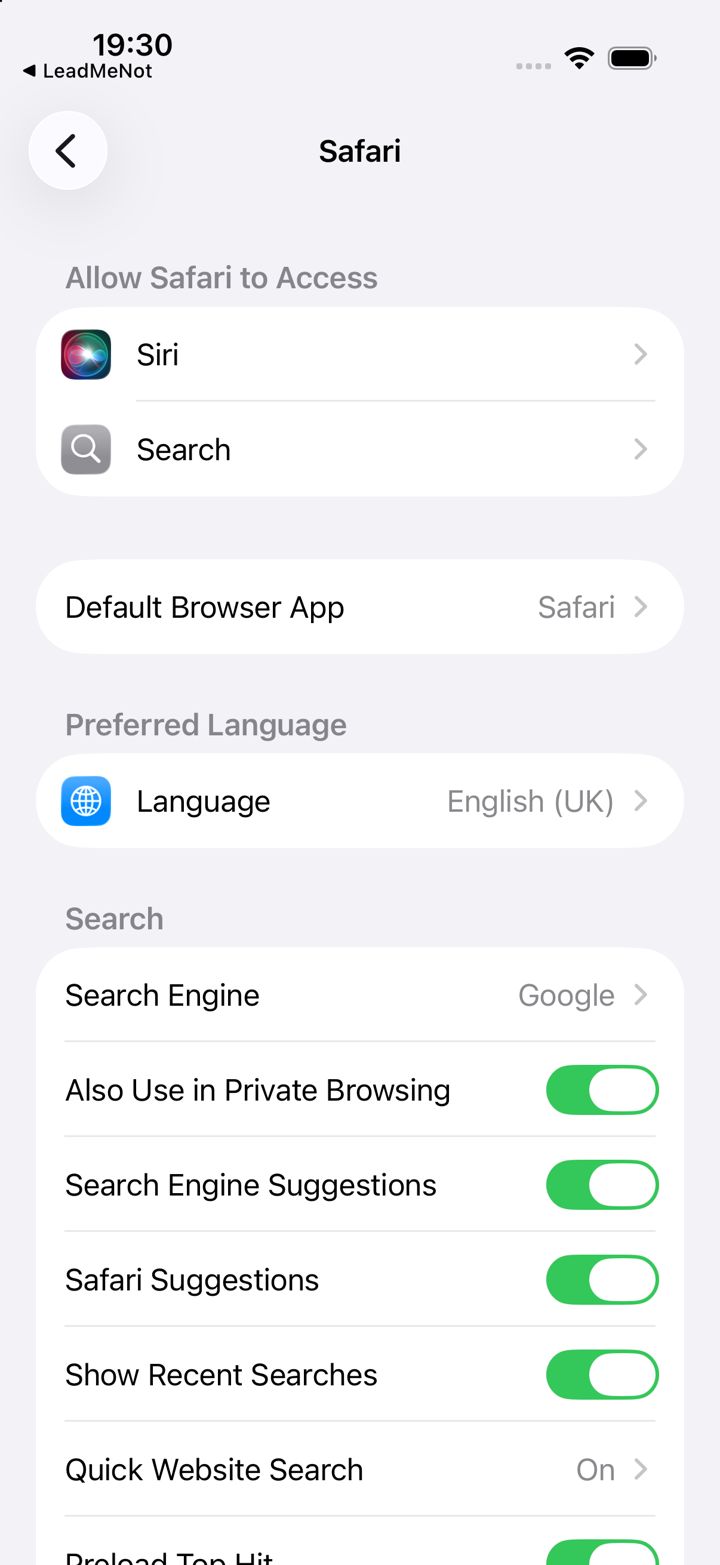
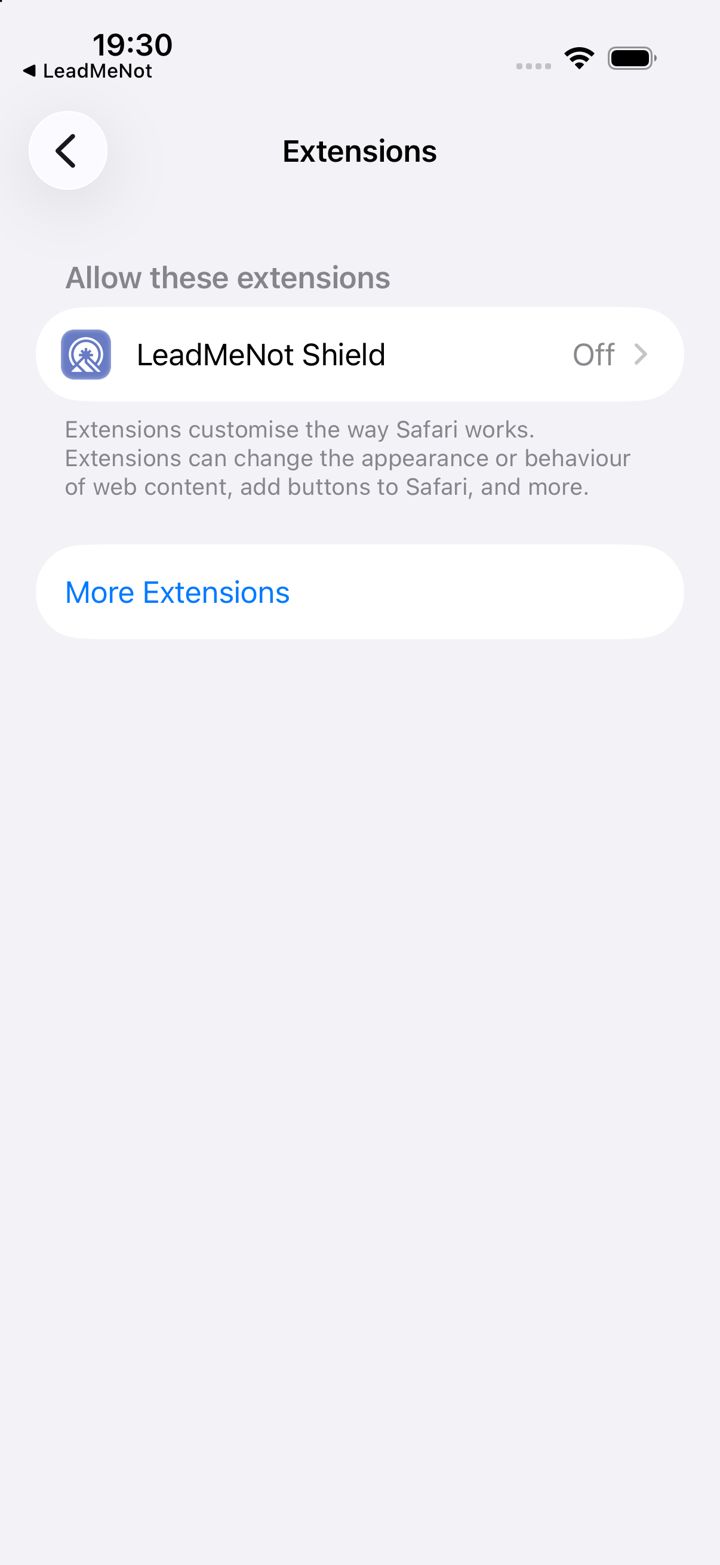
Scroll down to Extensions
You're now in iPhone Settings, on the Safari page. Scroll down and tap Extensions.
Lost? Open iPhone Settings › Apps › Safari › Extensions.
Step 6 of 12
Tap LeadMeNot Shield
Tap LeadMeNot Shield. If it says Off, that's what we're fixing.
Step 7 of 12
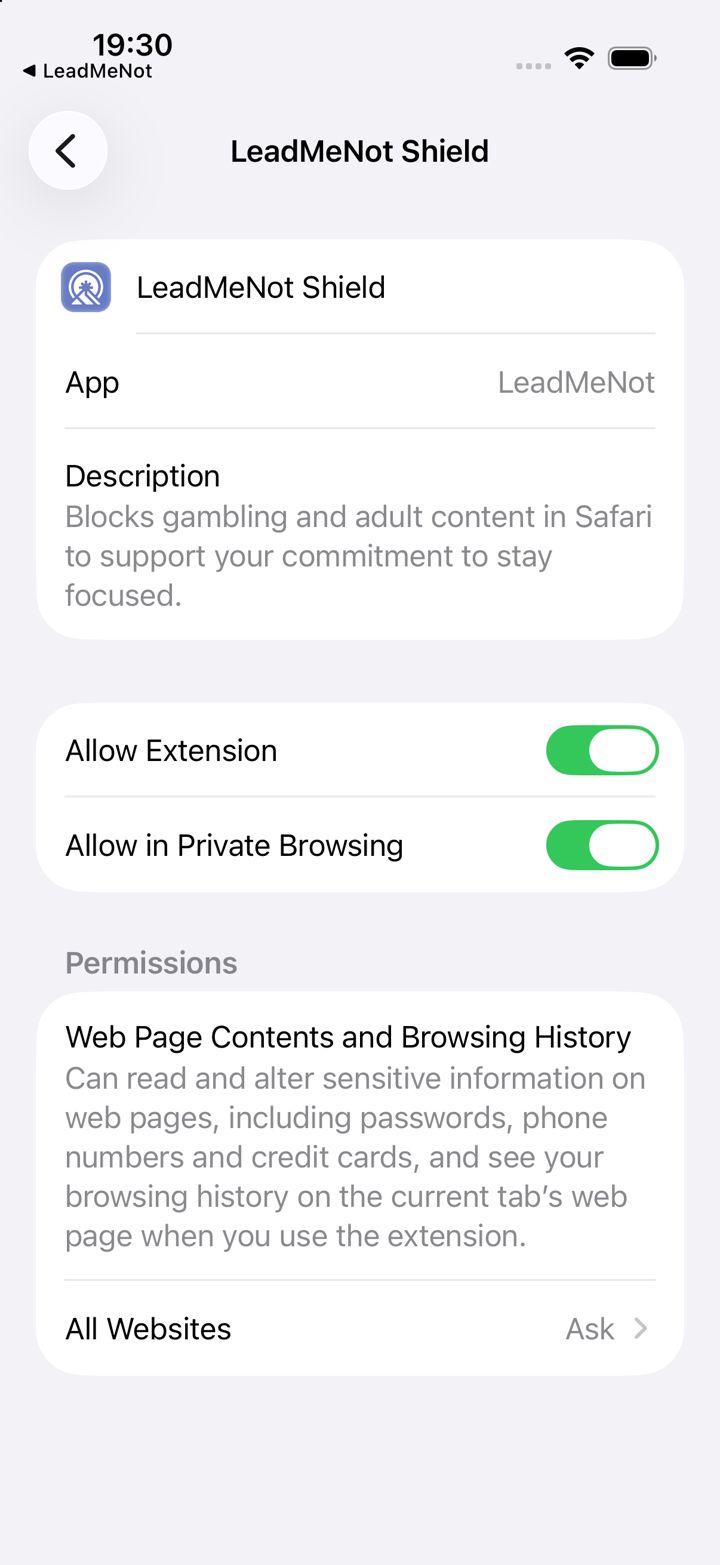
Switch it on, then tap All Websites
Switch on Allow Extension and Allow in Private Browsing. Then tap All Websites at the bottom.
Leave Allow in Private Browsing off and private tabs aren't protected.
Step 8 of 12
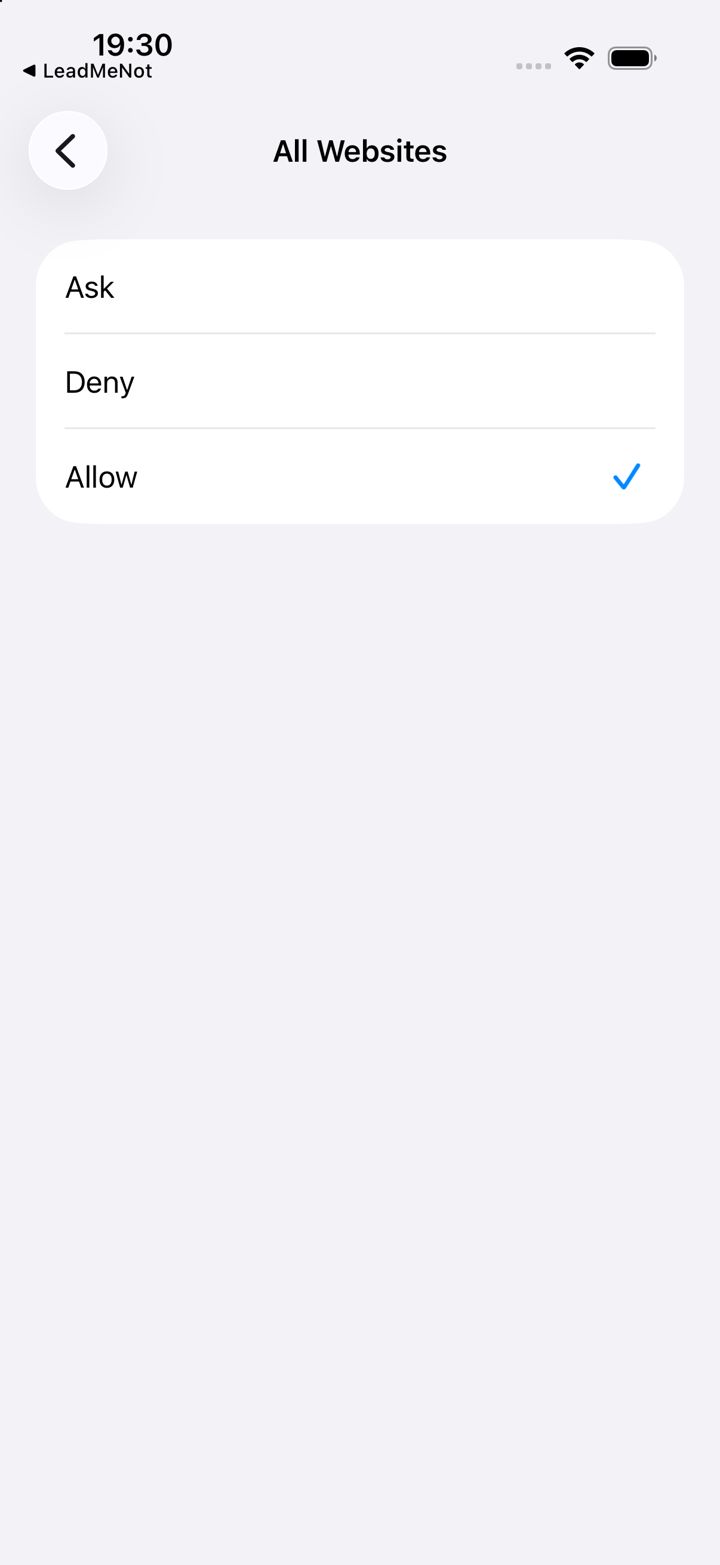
Choose Allow
Pick Allow, so the extension works on every website, not just one. Then go back to LeadMeNot.
Step 9 of 12
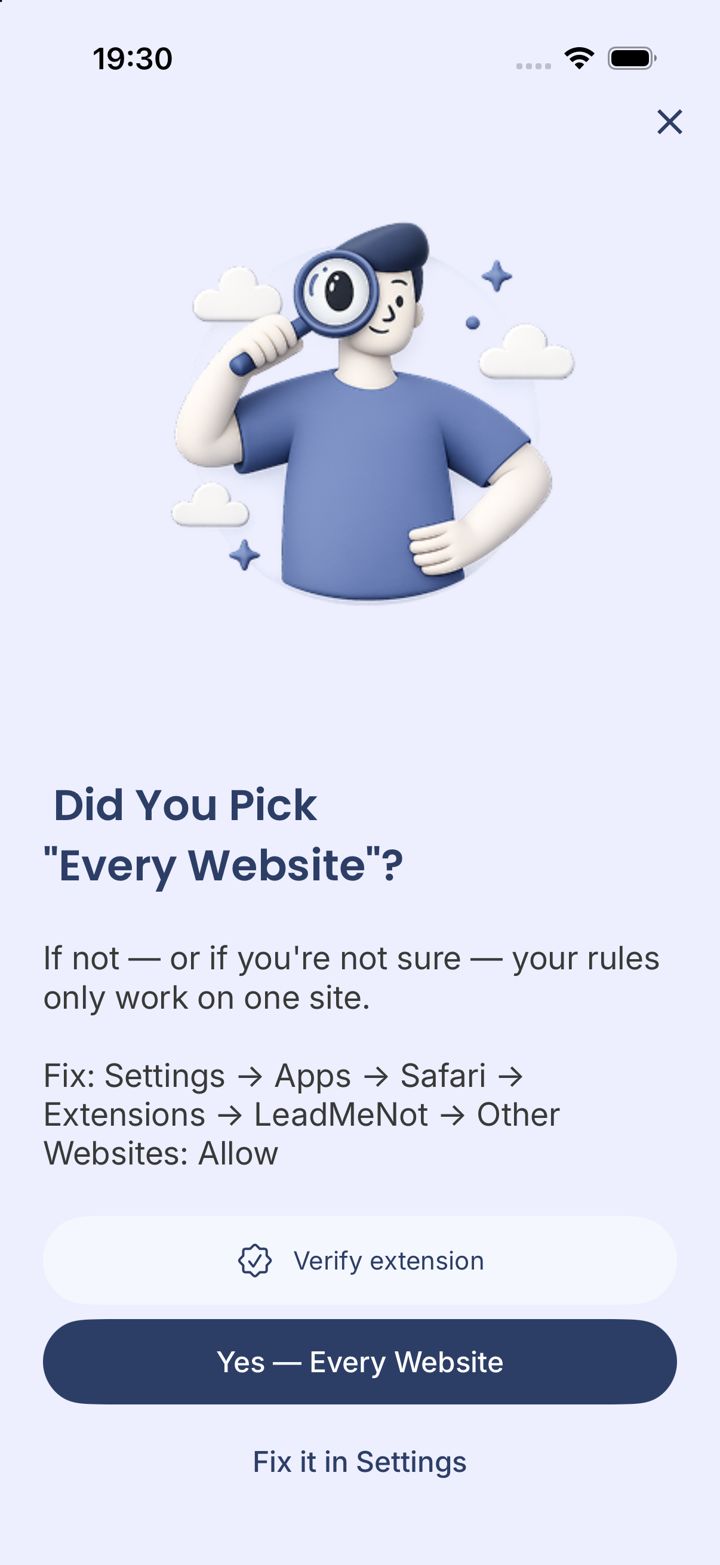
Confirm: Yes, Every Website
Back in LeadMeNot, tap Yes — Every Website. Not sure? Tap Verify extension and LeadMeNot checks for you.
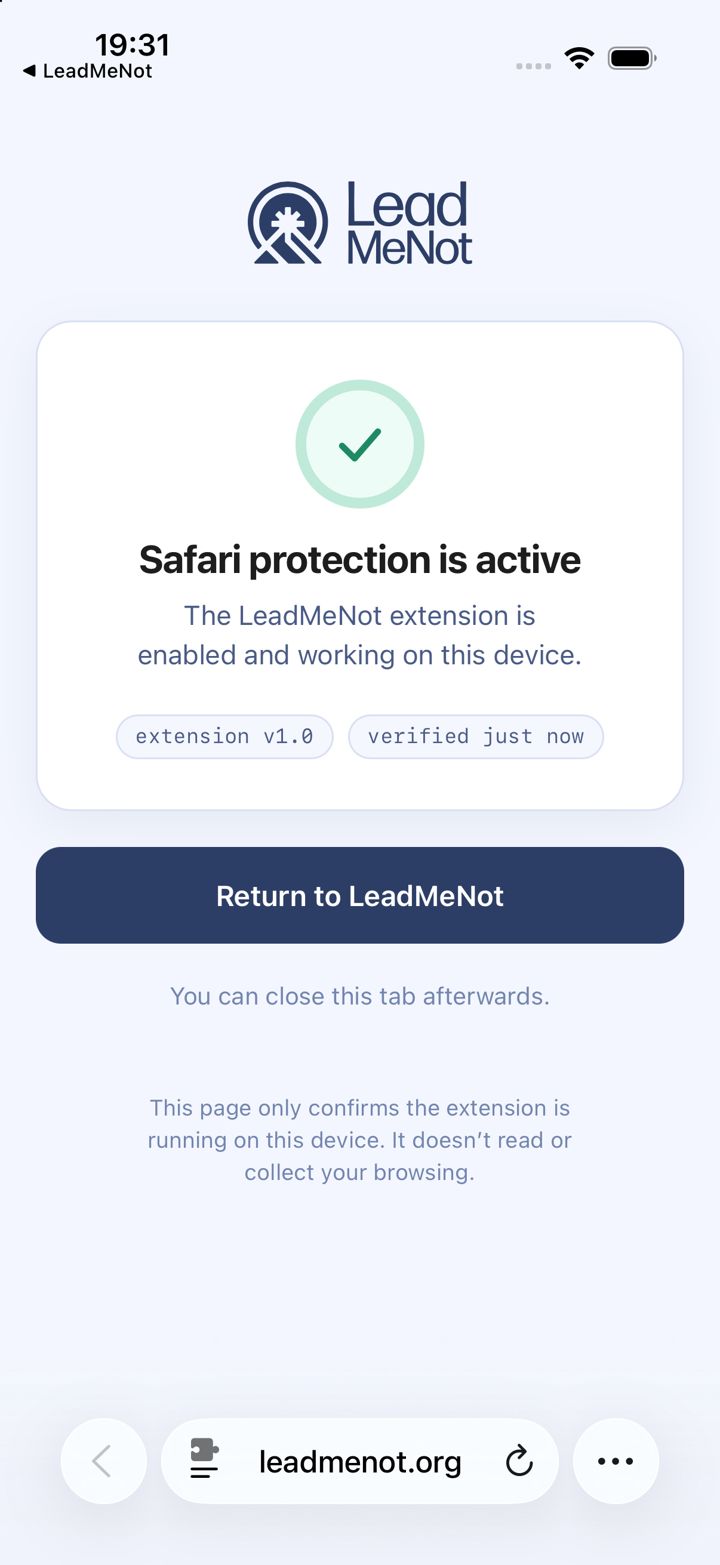
Step 10 of 12
Safari protection is active
If you tapped Verify, Safari opens a page that confirms the extension is running. Tap Return to LeadMeNot.
This page only checks the extension is running. It doesn't read your browsing.
LeadMeNot · Block & Monitor
Step 11 of 12
Now block every other browser
The extension only works in Safari, so use LeadMeNot to block Chrome, Firefox and any other browser. Follow Block browsers other than Safari.
This is why we recommend the Safari Extension over VPN protection: you get full coverage without a VPN's side effects.
Safari
Step 12 of 12
Test the extension: type leadmenottest
Open Safari, type leadmenottest into the address bar and go. If LeadMeNot blocks the page, everything is working.
Not blocked? Every permission has to be on. Check the Safari Extension is switched on, with no red message under You › Protection Settings (or VPN protection, if you use that instead), Screen Time access is allowed, and the Blocker says Active on Block & Monitor.
The test only works while blocking is on, for example with Adult Websites & Apps switched on.
Did this work?
Great. Here's what people usually do next:
Sorry about that. Email Jason and we'll include which guide and step you were on, or ask our assistant.