
Windows · Get started
Set up LeadMeNot on Windows
Create your account on the web, install, sign in, and check it works.
Browser
Open app.leadmenot.orgStep 1 of 7
First, create your account at app.leadmenot.org
On Windows, your account, plan, Safe Wall and standard rules are set up in the browser at app.leadmenot.org. The app is where you sign in afterwards. New to LeadMeNot? Follow Your first day with LeadMeNot, which walks through the web setup screen by screen.
Already have an account from your phone? Just install and sign in with it.
Windows
Download for WindowsStep 2 of 7
Download and install
Download the installer, right-click it and choose Run as administrator. Restart your computer when it finishes.
Installer stuck or antivirus complaining? Our installer is signed; allow it, restart, and try again. Still stuck? Email jason@leadmenot.org.
Step 3 of 7
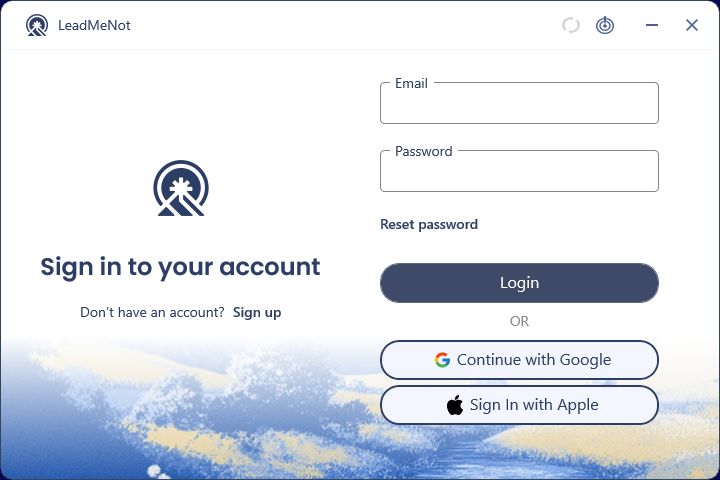
Sign in to your account
Use the same email, or the same Google or Apple sign-in, as on your phone. A different method creates a new, empty account.
One account covers all your devices, so sign in the same way everywhere.
Windows
Step 4 of 7
Allow the permissions
Windows asks to let LeadMeNot make changes. Click Yes. If you installed without administrator rights, uninstall and run the installer as administrator.
Step 5 of 7
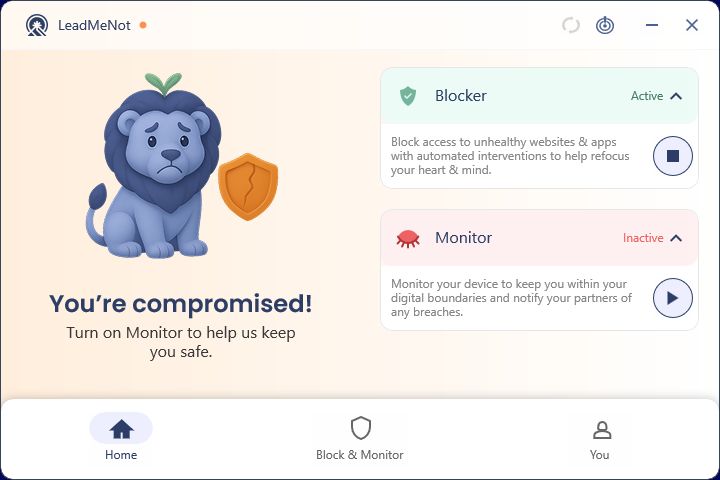
Make sure Blocker and Monitor are Active
On Home, both cards should say Active. If one says Inactive, click its play button. Blocker stops content; Monitor tells your partner.
The lion looks worried when something is off. A green shield means you're protected.
Step 6 of 7
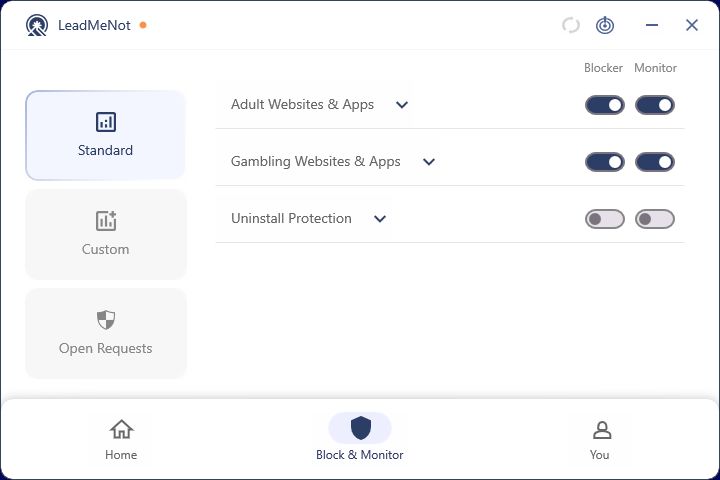
Switch on the standard rules
Open Block & Monitor. Under Standard, switch on Block for Adult Websites & Apps and Gambling Websites & Apps, plus Monitor if your partner should hear about them.
These switches start off.
Browser
Step 7 of 7
Test it: type leadmenottest
Open your browser, type leadmenottest into the address bar and go. If LeadMeNot blocks the page, everything is working.
Not blocked? Check you installed with Run as administrator, you're signed in and you restarted afterwards. Still not blocked? See Blocking isn't working on Windows.
The test only works while blocking is on, for example with Adult Websites & Apps switched on.
Did this work?
Great. Here's what people usually do next:
Sorry about that. Email Jason and we'll include which guide and step you were on, or ask our assistant.