
iPhone & iPad · Limit or block apps & sites
Block a keyword or phrase
Block searches and pages that contain words you choose, in Safari.
Step 1 of 17
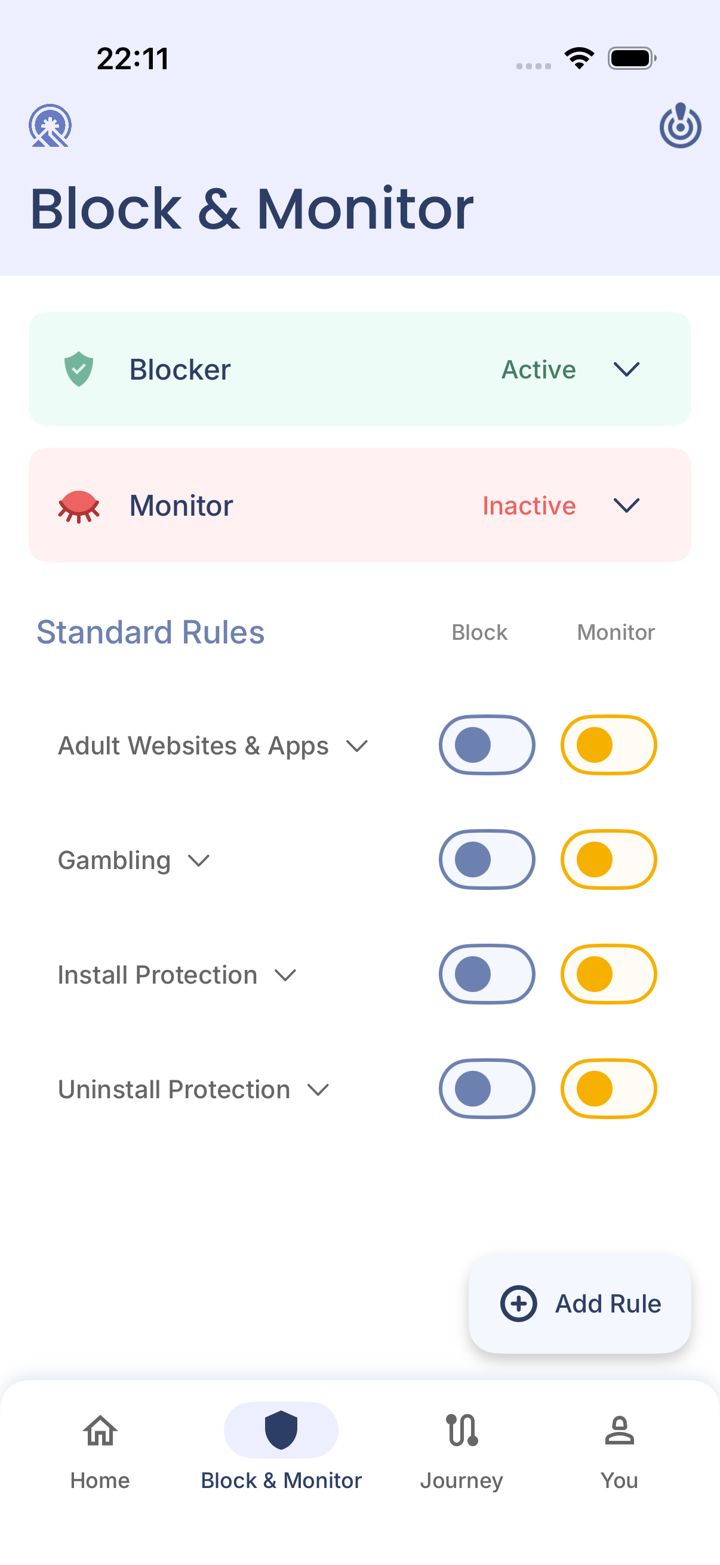
Open the Block & Monitor tab
Tap Block & Monitor in the bar at the bottom of the app.
Step 2 of 17
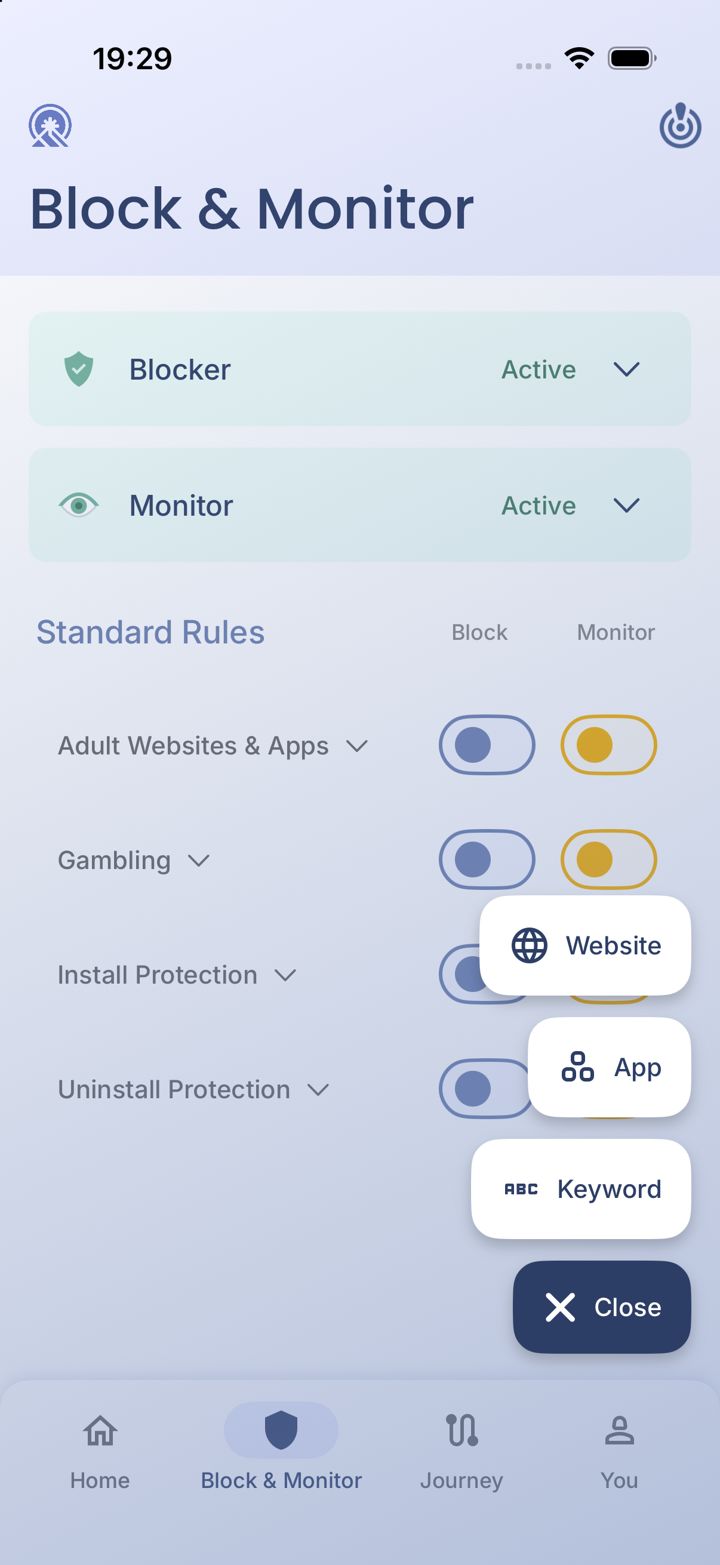
Tap Add Rule
Tap Add Rule in the bottom right corner. A small menu opens.
Step 3 of 17
Choose Keyword
Tap Keyword.
Step 4 of 17
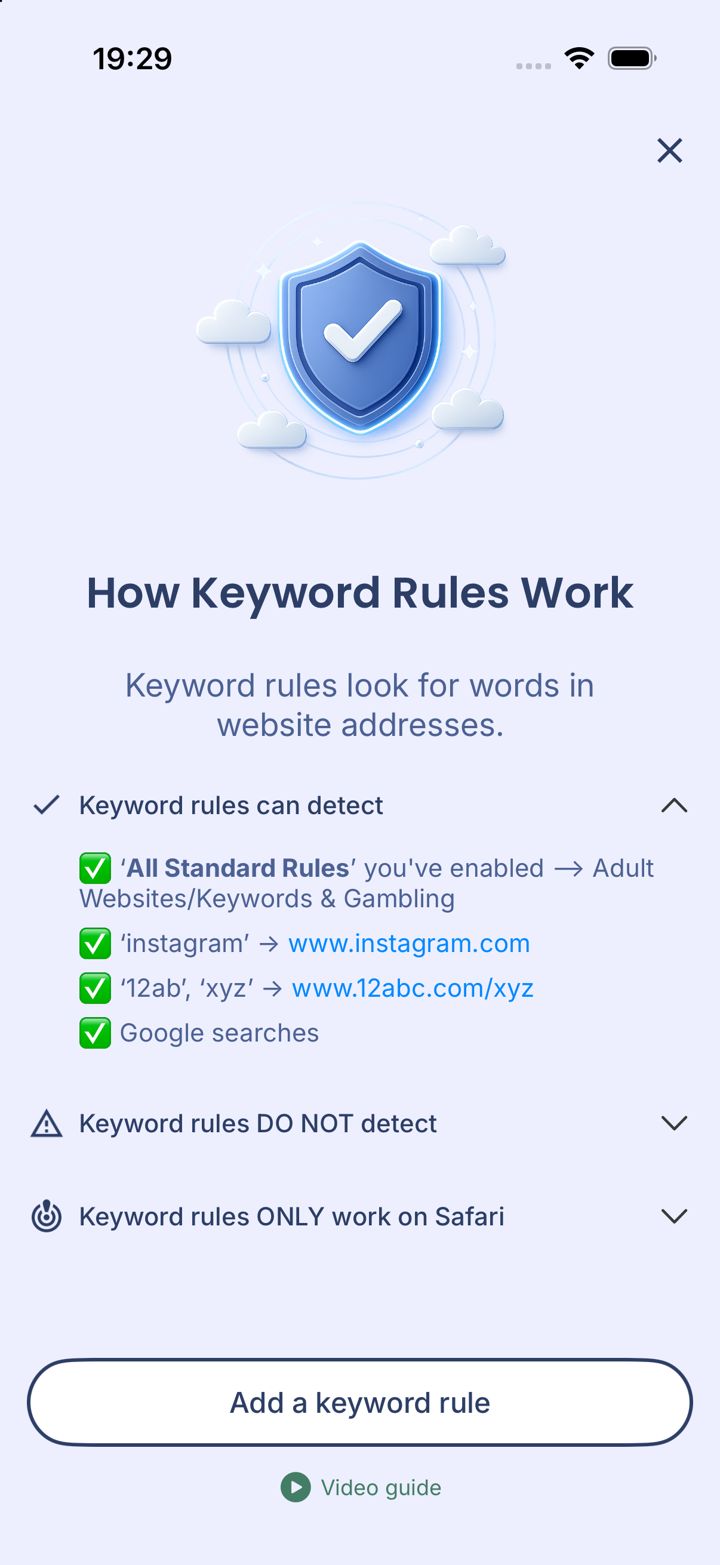
How keyword rules work
Keyword rules look for words in website addresses: typing *instagram* catches www.instagram.com, and Google searches are checked too. Open Keyword rules DO NOT detect to see the limits, then tap Add a keyword rule.
Keyword rules only work in Safari. Block other browsers so nothing slips past.
LeadMeNot is text-based today: it reads the words on your screen (website addresses, searches, keywords, app names) and blocks or alerts on those. It doesn't analyze images or video yet. Image detection, which works by analyzing screenshots, is in development.
Step 5 of 17
Is the Safari Extension already on?
LeadMeNot asks you to turn it on the first time. If you've done it before, you'll go straight to Add Keywords.
Step 6 of 17
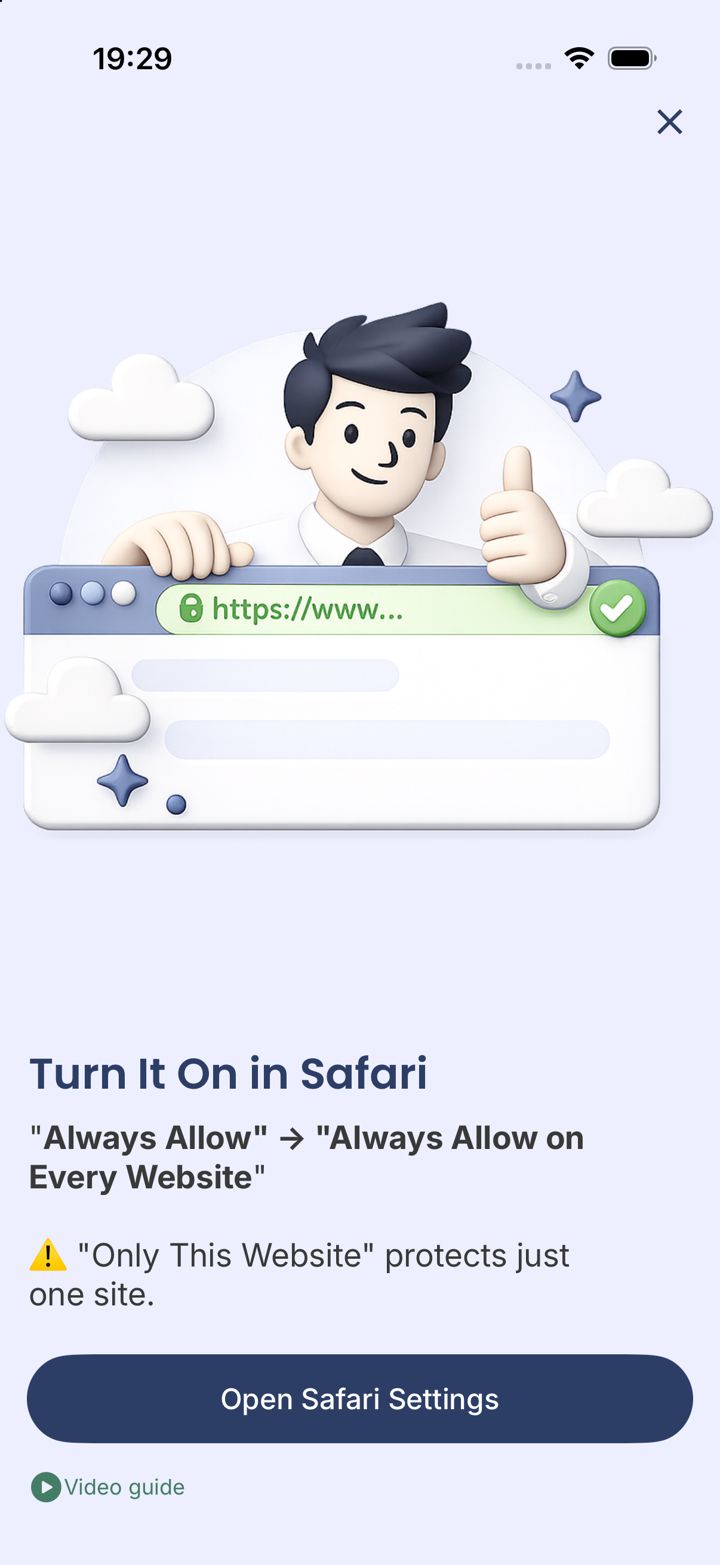
Tap Open Safari Settings
LeadMeNot explains what to pick: Always Allow, then Always Allow on Every Website. Tap Open Safari Settings.
Only This Website protects just one site. Pick Every Website.
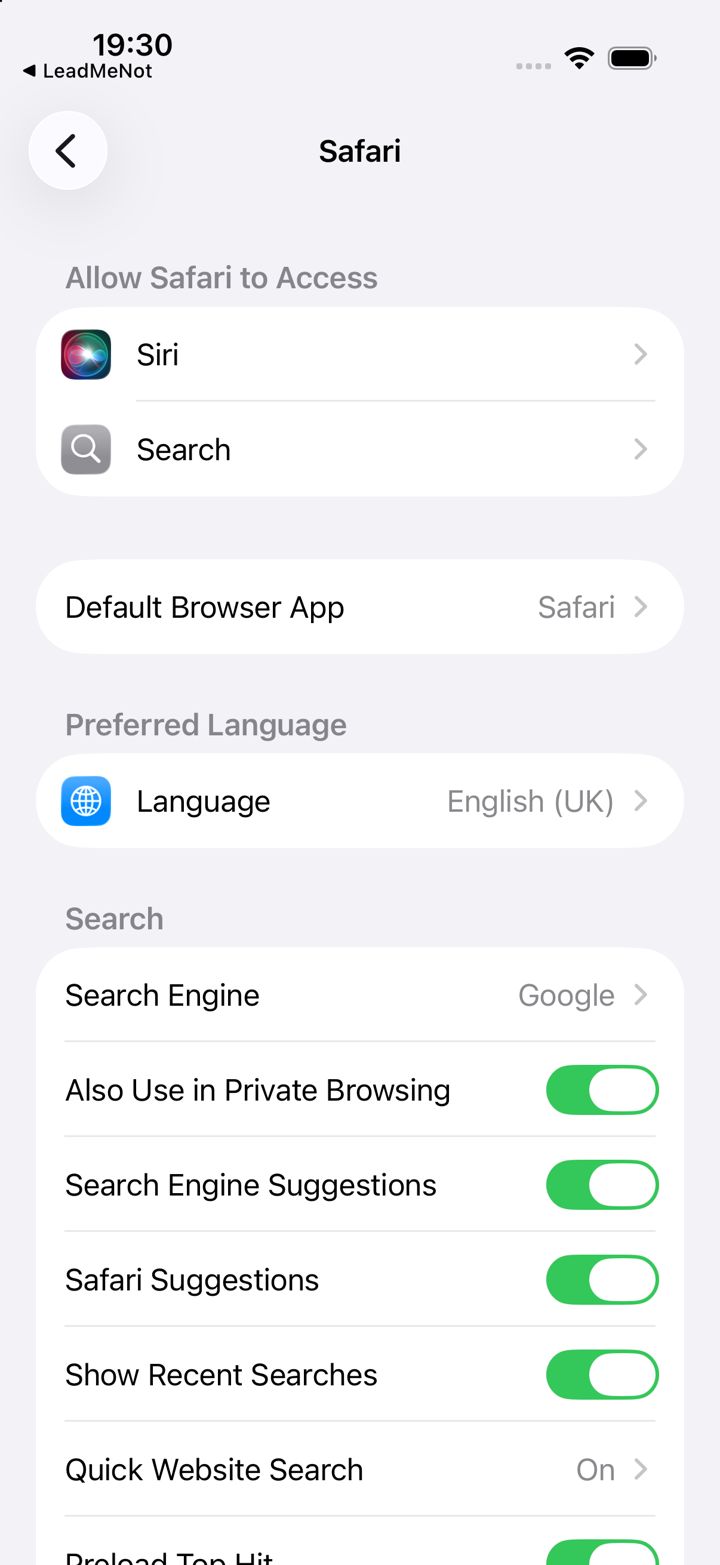
Step 7 of 17
Scroll down to Extensions
You're now in iPhone Settings, on the Safari page. Scroll down and tap Extensions.
Lost? Open iPhone Settings › Apps › Safari › Extensions.
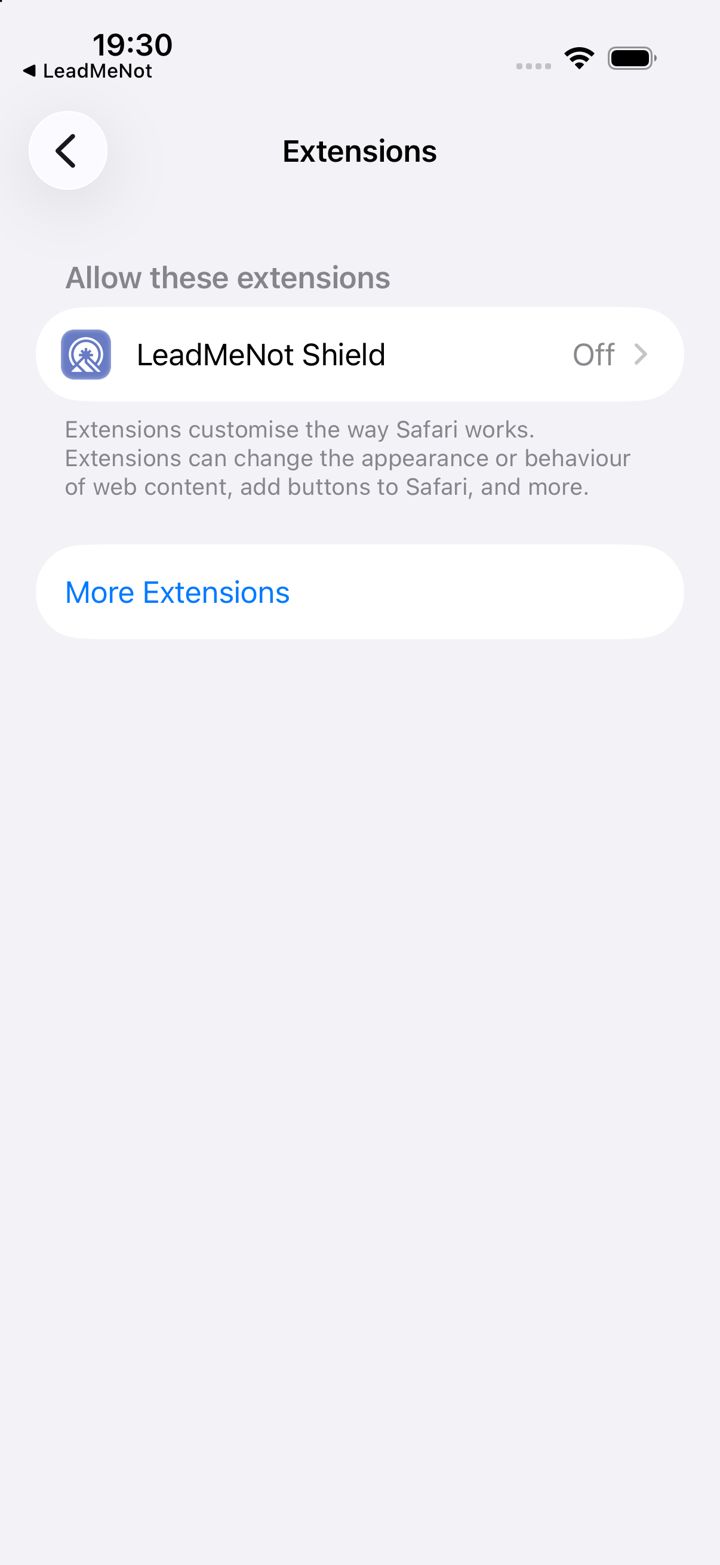
Step 8 of 17
Tap LeadMeNot Shield
Tap LeadMeNot Shield. If it says Off, that's what we're fixing.
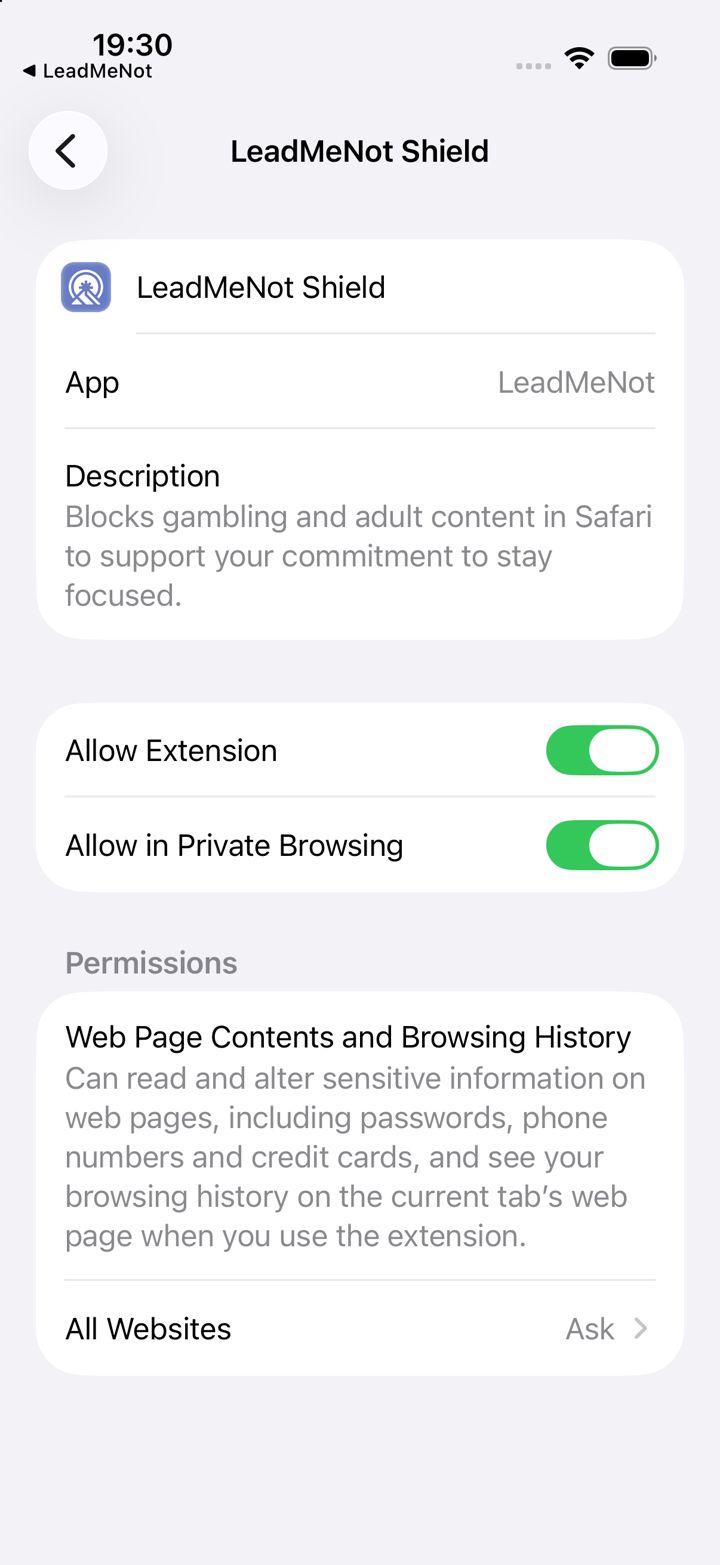
Step 9 of 17
Switch it on, then tap All Websites
Switch on Allow Extension and Allow in Private Browsing. Then tap All Websites at the bottom.
Leave Allow in Private Browsing off and private tabs aren't protected.
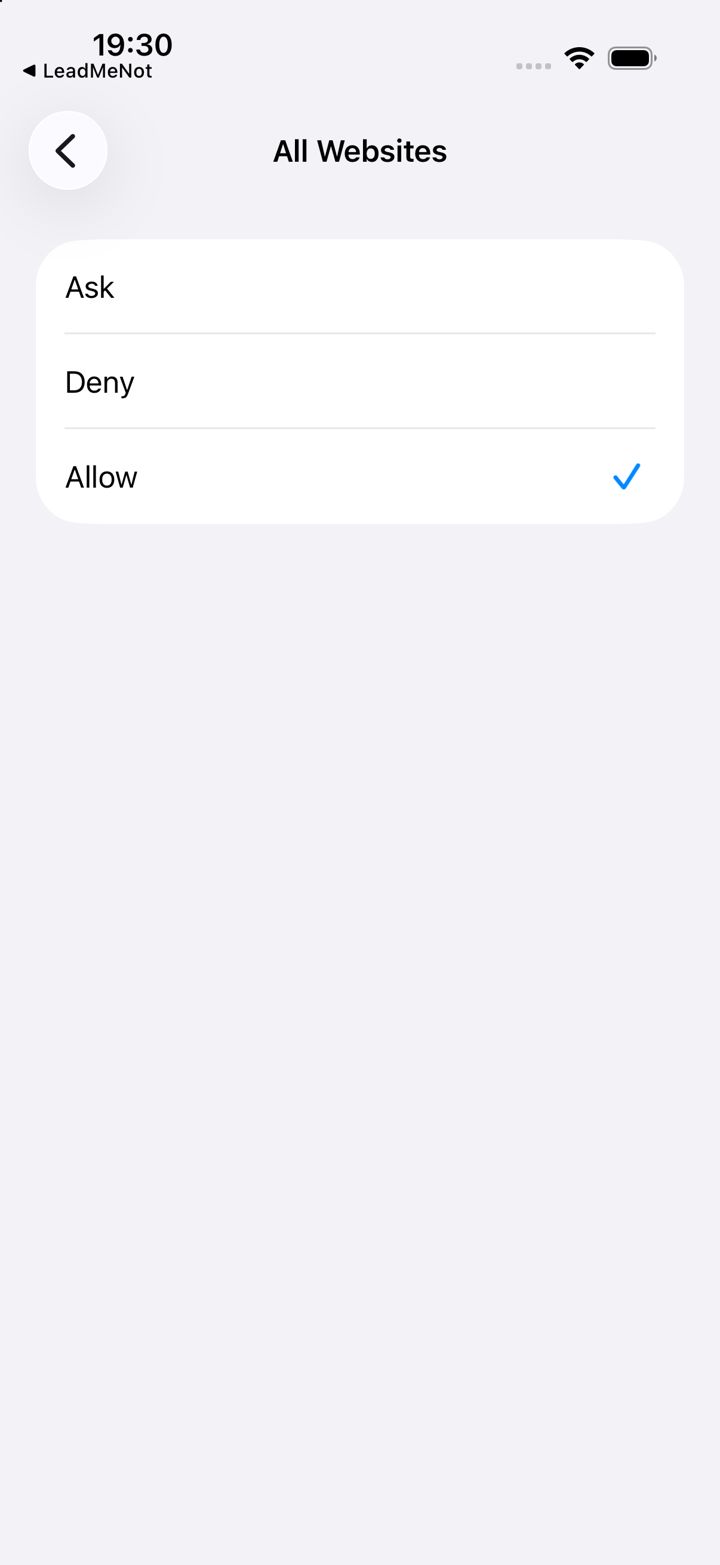
Step 10 of 17
Choose Allow
Pick Allow, so the extension works on every website, not just one. Then go back to LeadMeNot.
Step 11 of 17
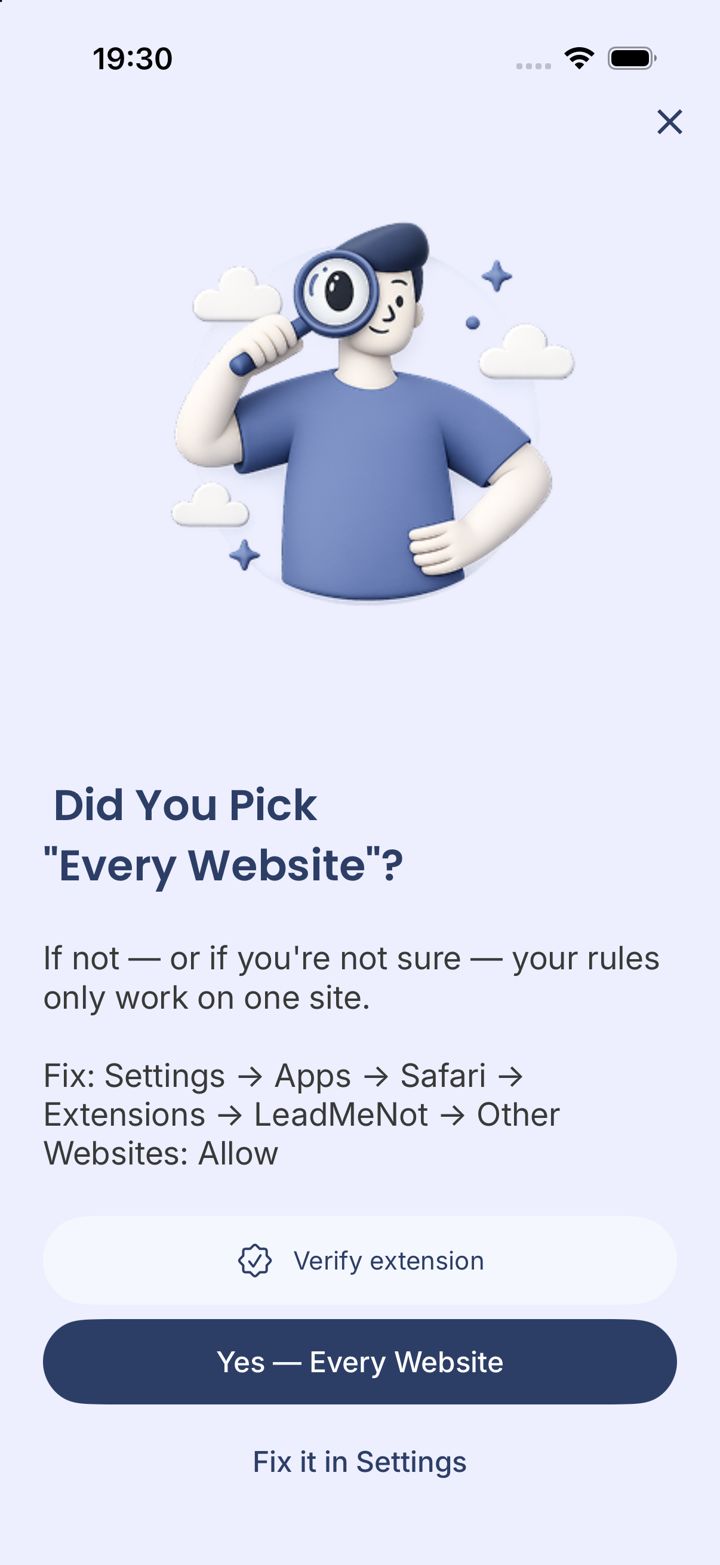
Confirm: Yes, Every Website
Back in LeadMeNot, tap Yes — Every Website. Not sure? Tap Verify extension and LeadMeNot checks for you.
Step 12 of 17
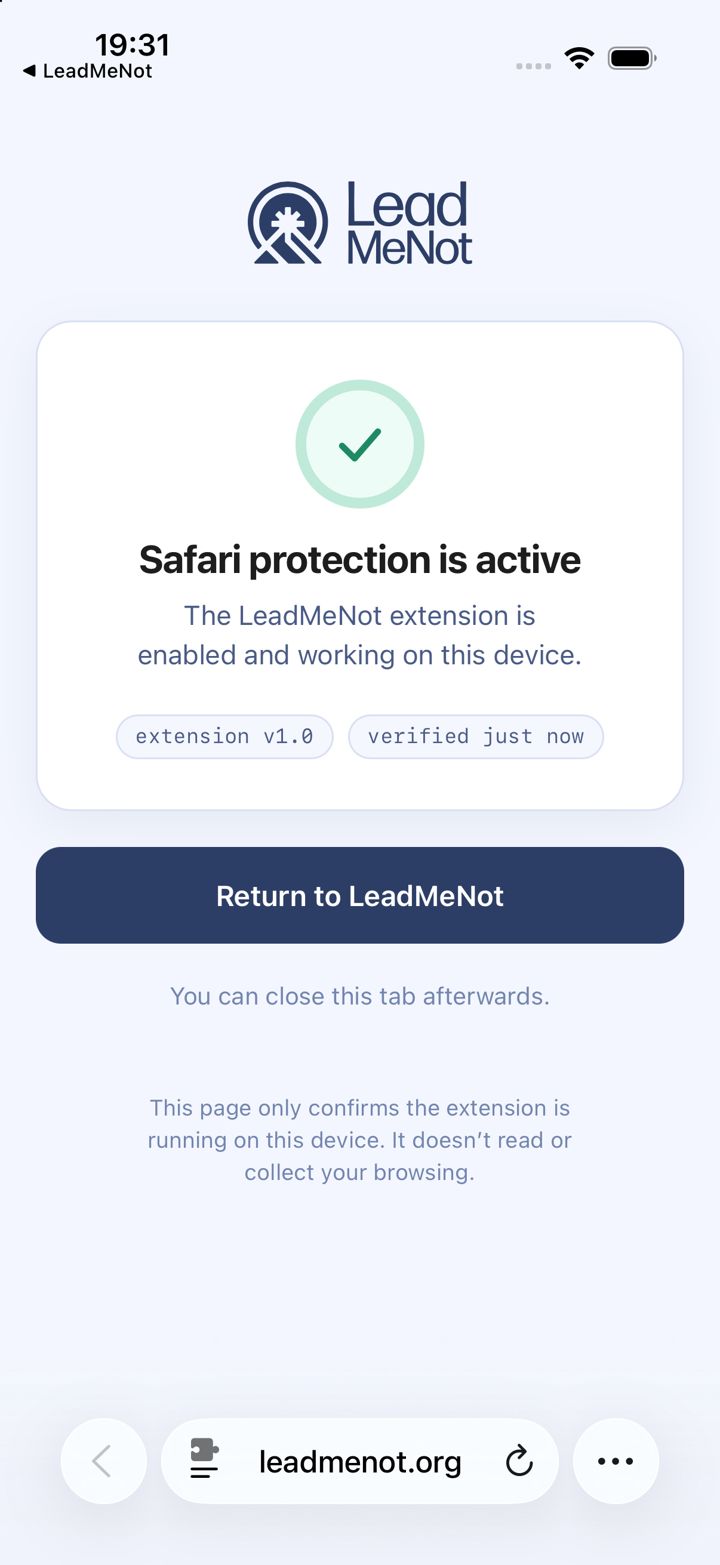
Safari protection is active
If you tapped Verify, Safari opens a page that confirms the extension is running. Tap Return to LeadMeNot.
This page only checks the extension is running. It doesn't read your browsing.
Step 13 of 17
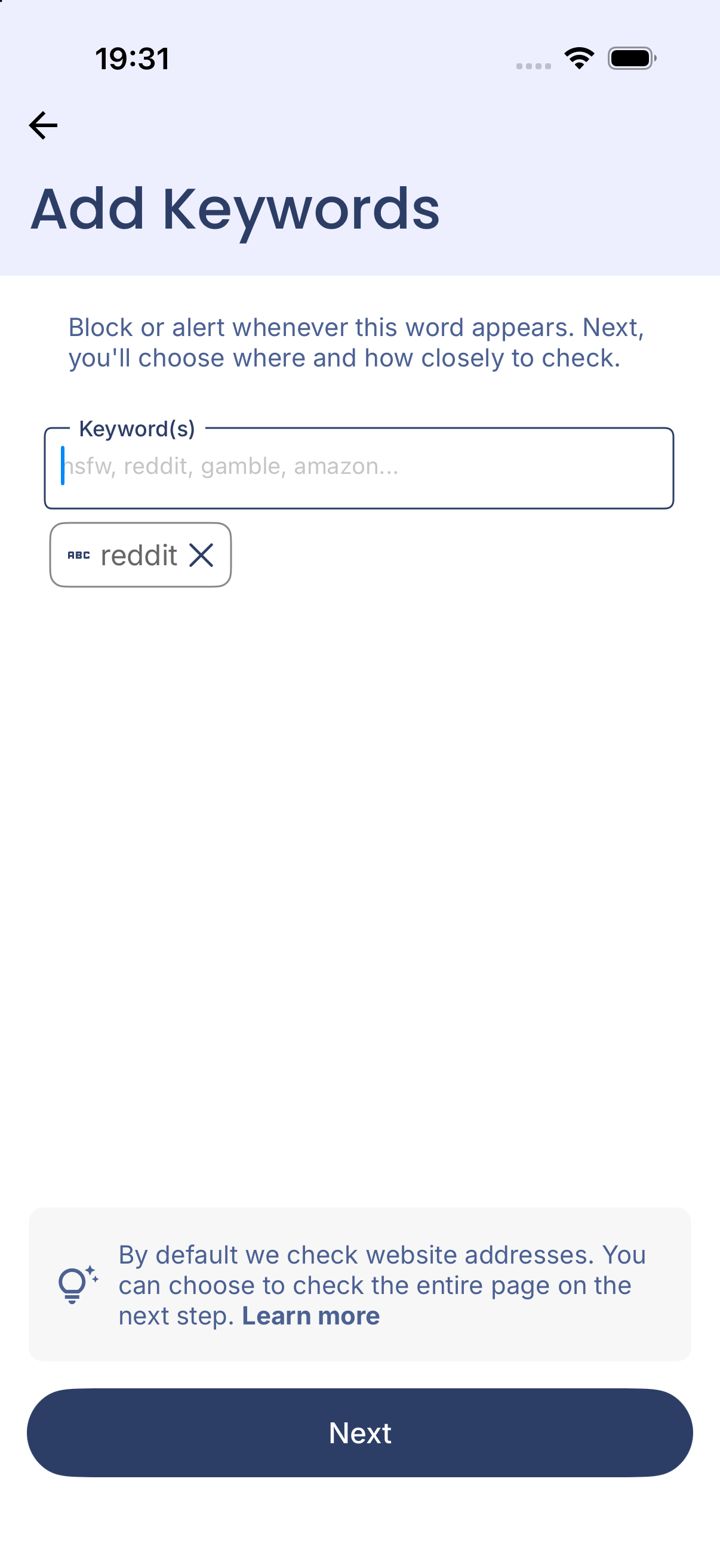
Type your keywords, then Next
Type a word or phrase and it becomes a chip, like reddit here. Add as many as you like, then tap Next.
Keep words specific. A short word like *sex* also matches *Sussex* and *Essex*.
Step 14 of 17
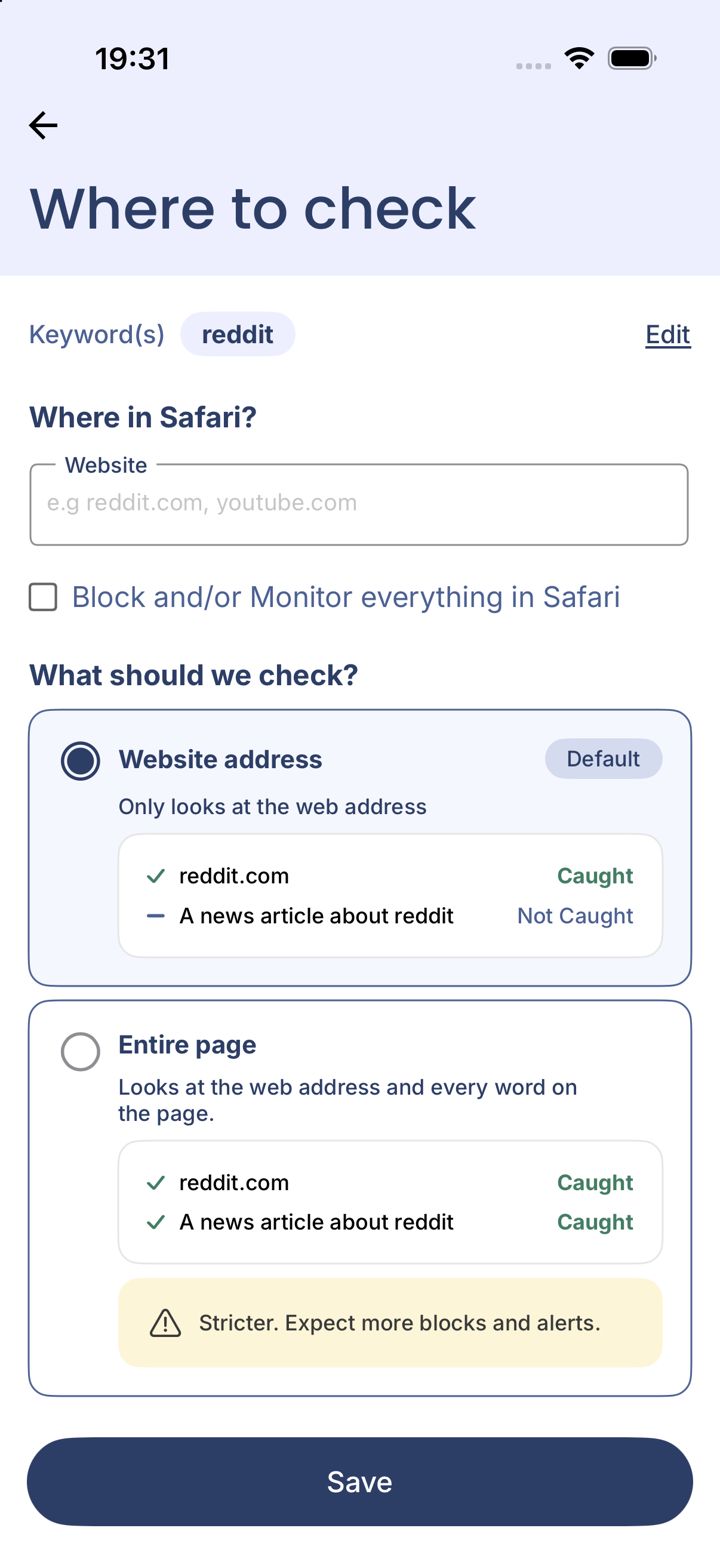
Decide where and how closely to check
Where in Safari? Type one website to limit the rule to that site, or tick Block and/or Monitor everything in Safari. What should we check? Keep Website address unless you want every word on every page checked.
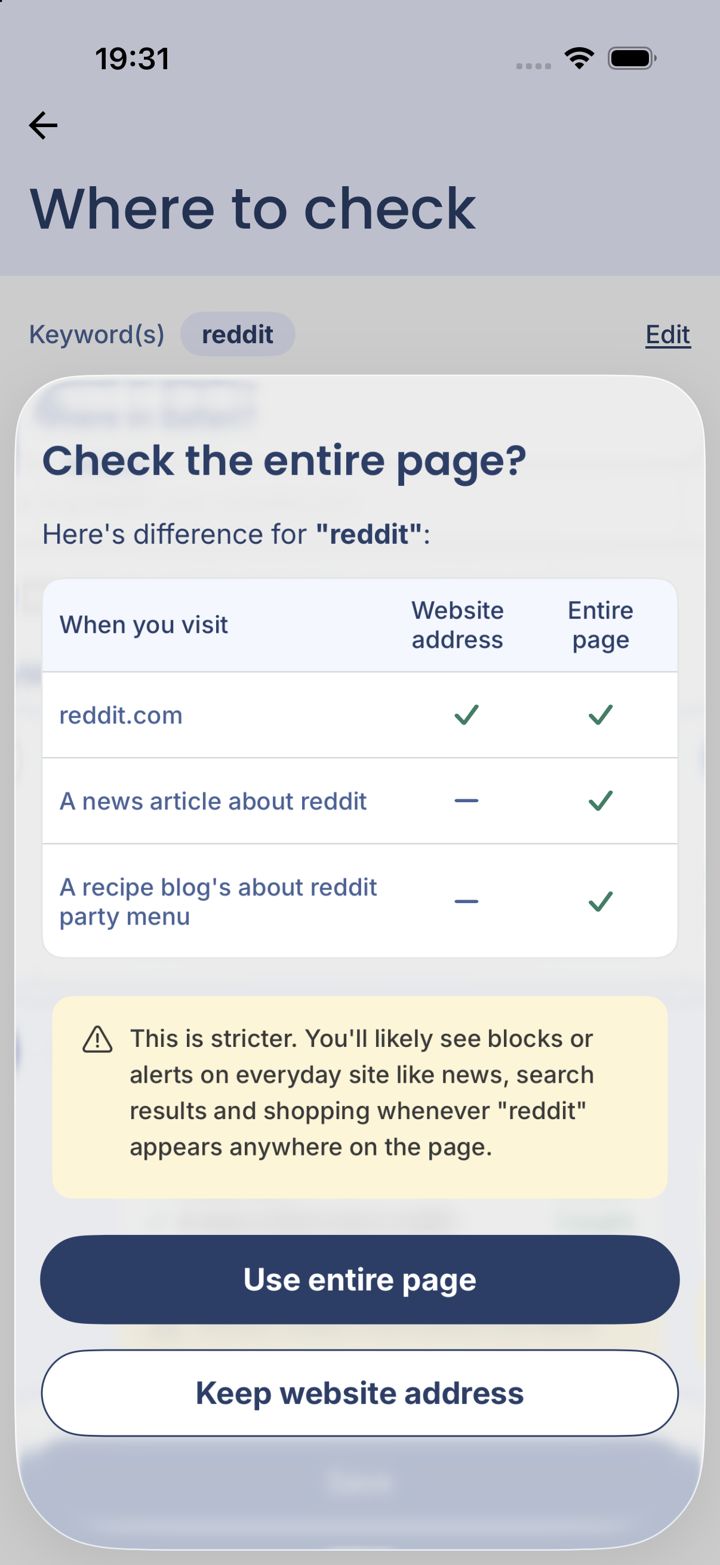
Website address catches reddit.com but not a news article about reddit. Entire page catches both, and a lot more besides.
Step 15 of 17
Choosing Entire page? Confirm it
If you picked Entire page, LeadMeNot shows what changes. It's stricter: expect blocks and alerts on news, search results and shopping sites whenever the word appears. Tap Use entire page or Keep website address.
Entire page with a common word will block a lot. Start with Website address and tighten later.
Step 16 of 17
Your keyword rule is on
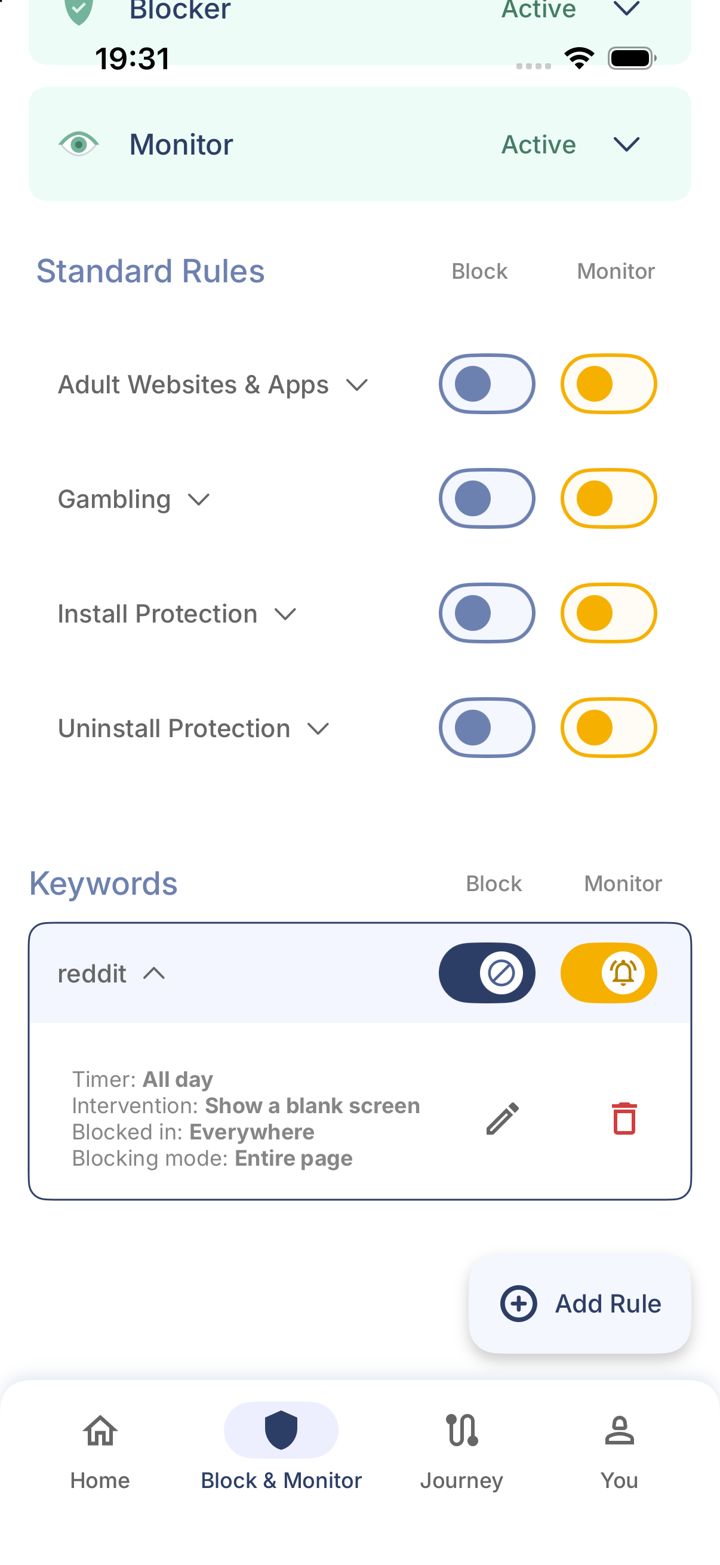
It's listed under Keywords on Block & Monitor with its own Block and Monitor switches. Tap the arrow to see its timer, intervention and blocking mode, or the pencil to edit it.
Switch on Monitor too if your partner should hear about it.
Safari
Step 17 of 17
Test it: type leadmenottest in Safari
Open Safari, type leadmenottest into the address bar and go. If LeadMeNot blocks the page, everything is working.
Not blocked? The extension is probably off or set to one site only. Go back to the iPhone Settings steps in this guide and check Allow Extension is on and All Websites says Allow.
The test only works while blocking is on, for example with Adult Websites & Apps switched on.
Did this work?
Great. Here's what people usually do next:
Sorry about that. Email Jason and we'll include which guide and step you were on, or ask our assistant.