
iPhone & iPad · Get started
Your first day with LeadMeNot
Everything from download to your first rule, including what each choice leads to and what happens later.
App Store
Open App StoreChapter 1 of 8 · Install and sign up
Download LeadMeNot
Get LeadMeNot from the App Store on your iPhone or iPad and open it.
Chapter 1 of 8 · Install and sign up
Did a church, ministry, school or group give you a code?
If someone is sponsoring you through an organization, you'll have a promo code from them. It sets up the right plan, so enter it before anything else.
Chapter 1 of 8 · Install and sign up
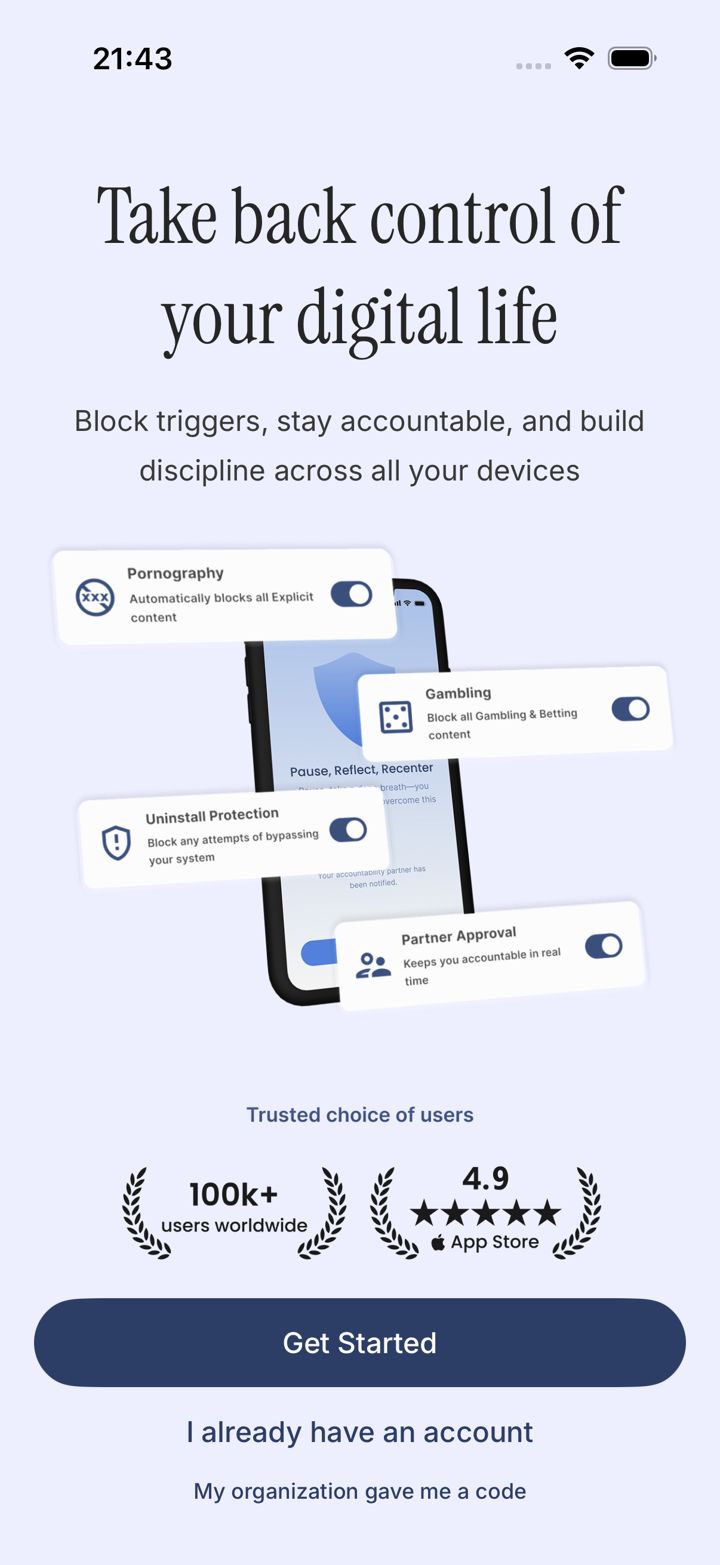
Tap My organization gave me a code
On the very first screen, tap My organization gave me a code, under the Get Started button.
Don't tap Get Started first. The code screen only appears from here.
Chapter 1 of 8 · Install and sign up
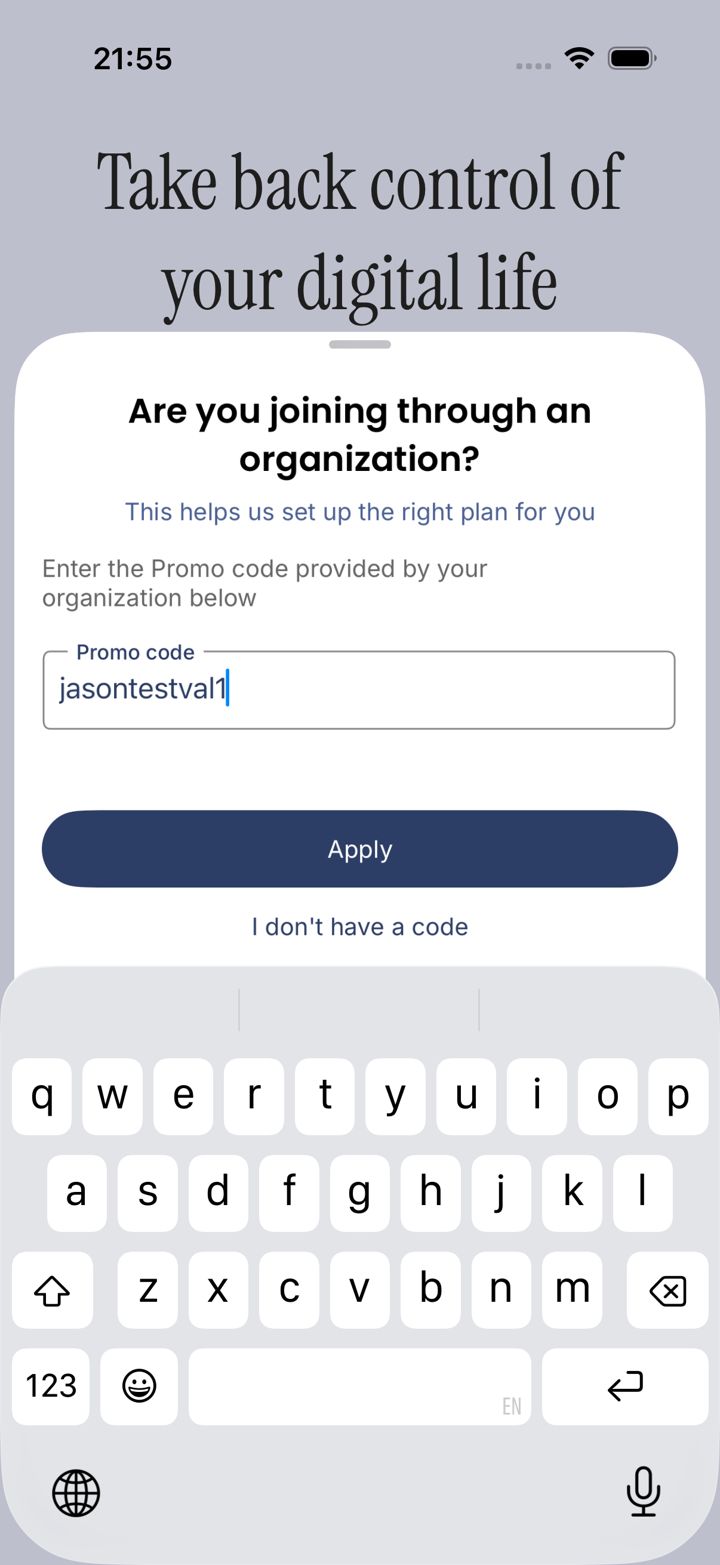
Enter your code and tap Apply
Type the code exactly as it was given to you, then tap Apply.
Code not working? Check for typos and spaces, then email jason@leadmenot.org with the code and your organization's name.
Chapter 1 of 8 · Install and sign up
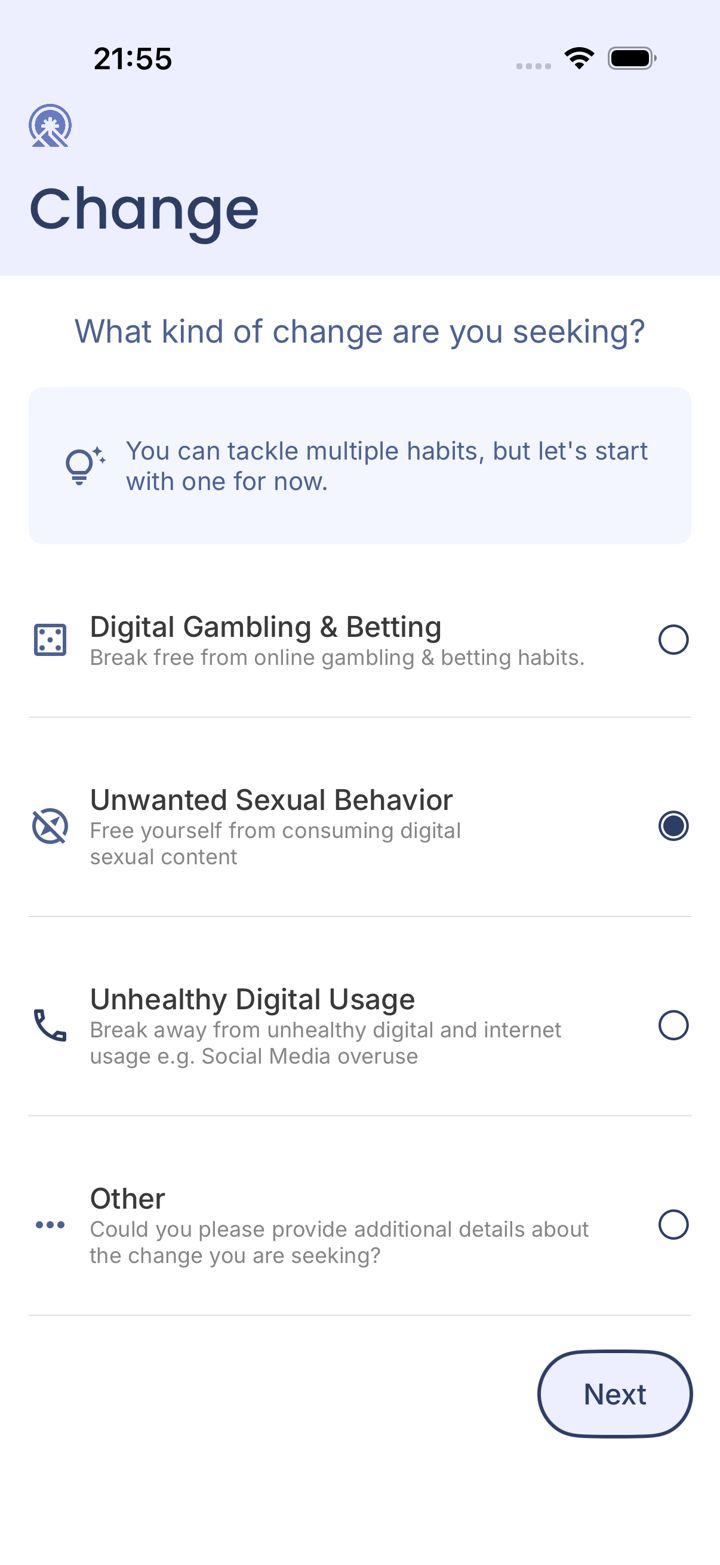
Your code is applied
Setup continues from here. Choose the area you want to work on first, then tap Next. You can add more areas later.
Chapter 1 of 8 · Install and sign up
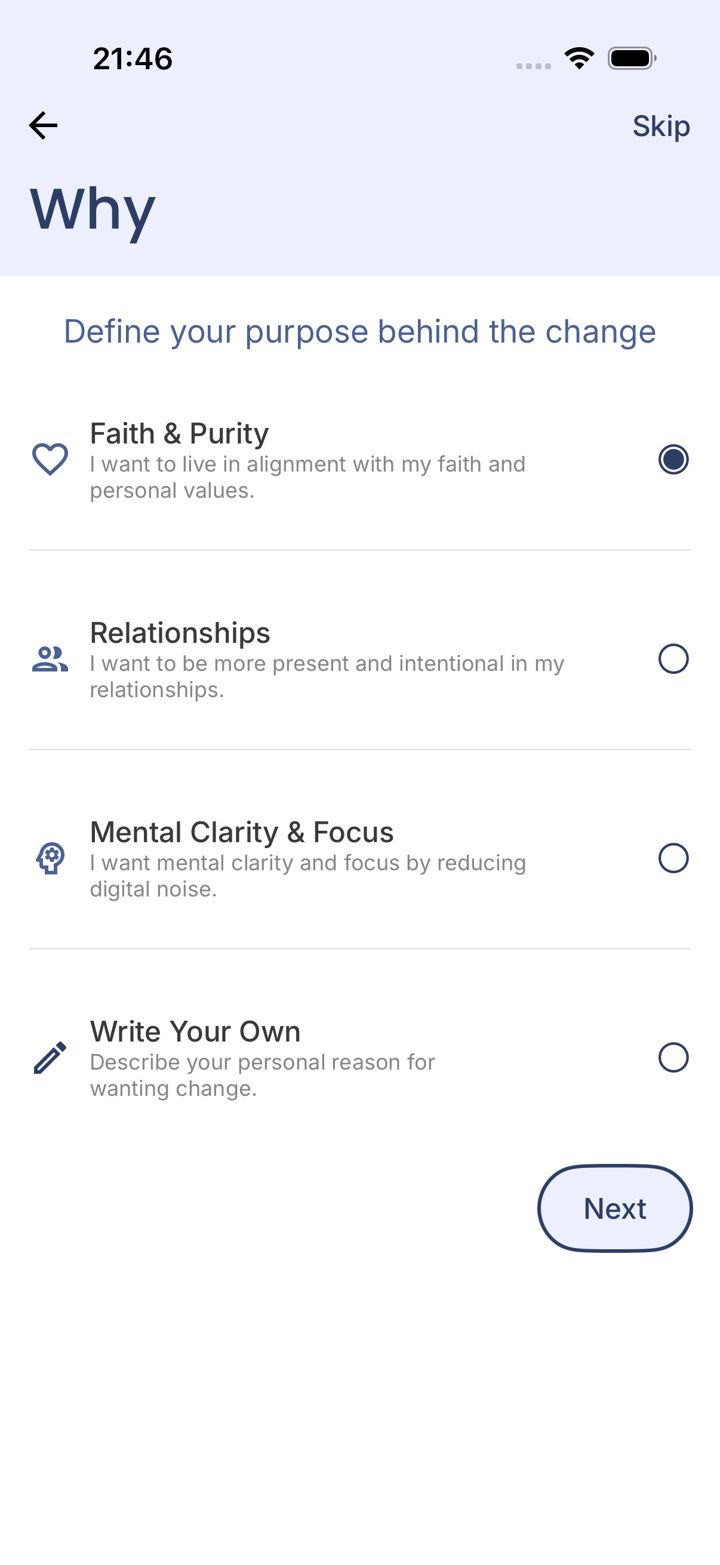
Tell us why
Pick the reason behind the change, or write your own. We show it back to you on Home as My Why.
Chapter 1 of 8 · Install and sign up
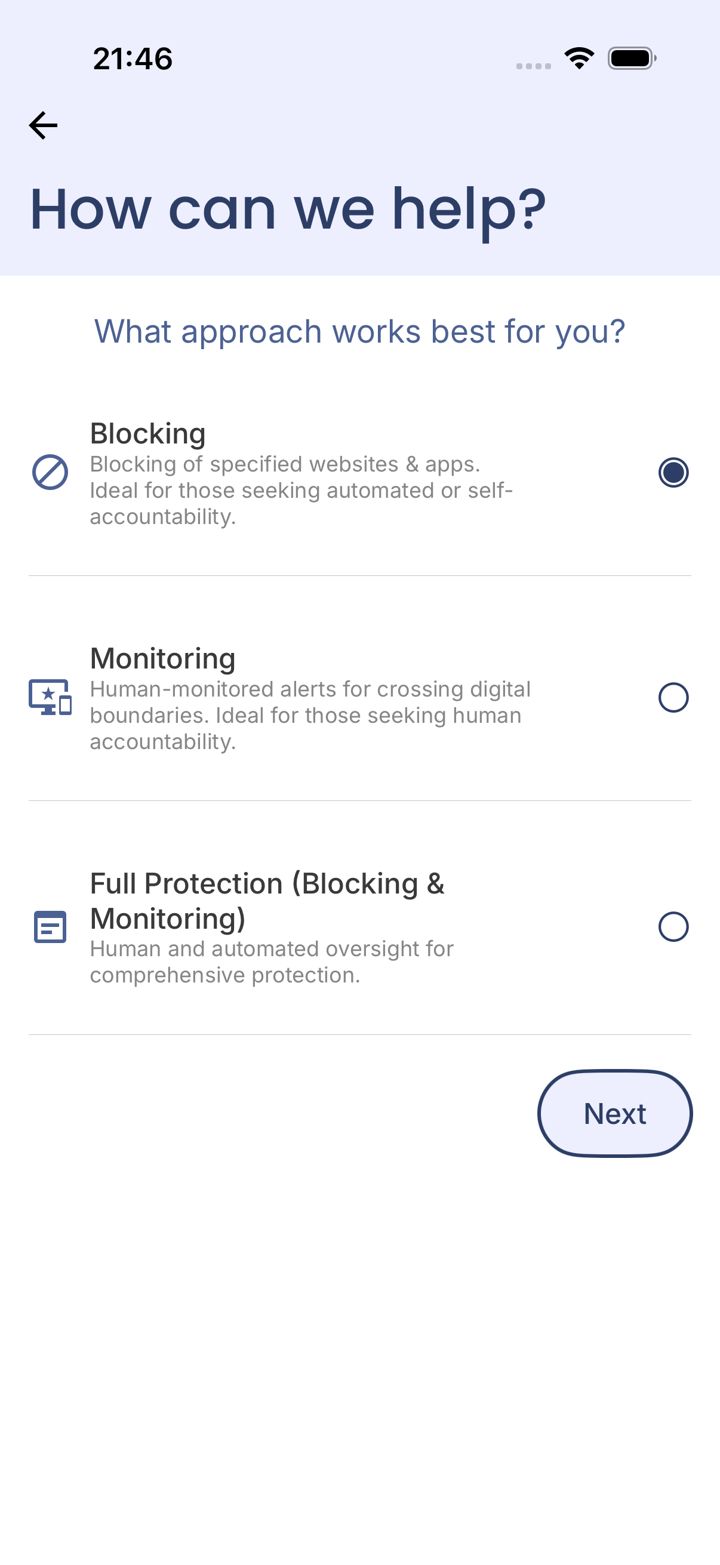
Choose how you want to be protected
This is the most important choice in setup. Full Protection blocks content and tells your partner. It's what most people want.
Blocking only: things are blocked, but setup won't ask for a partner and nobody is told. Monitoring only: your partner is told, but nothing is blocked.
Your organization's code covers your plan, so there's no payment screen. Next you'll create your account.
Chapter 1 of 8 · Install and sign up
Tap Get Started
Tap Get Started.
Chapter 1 of 8 · Install and sign up
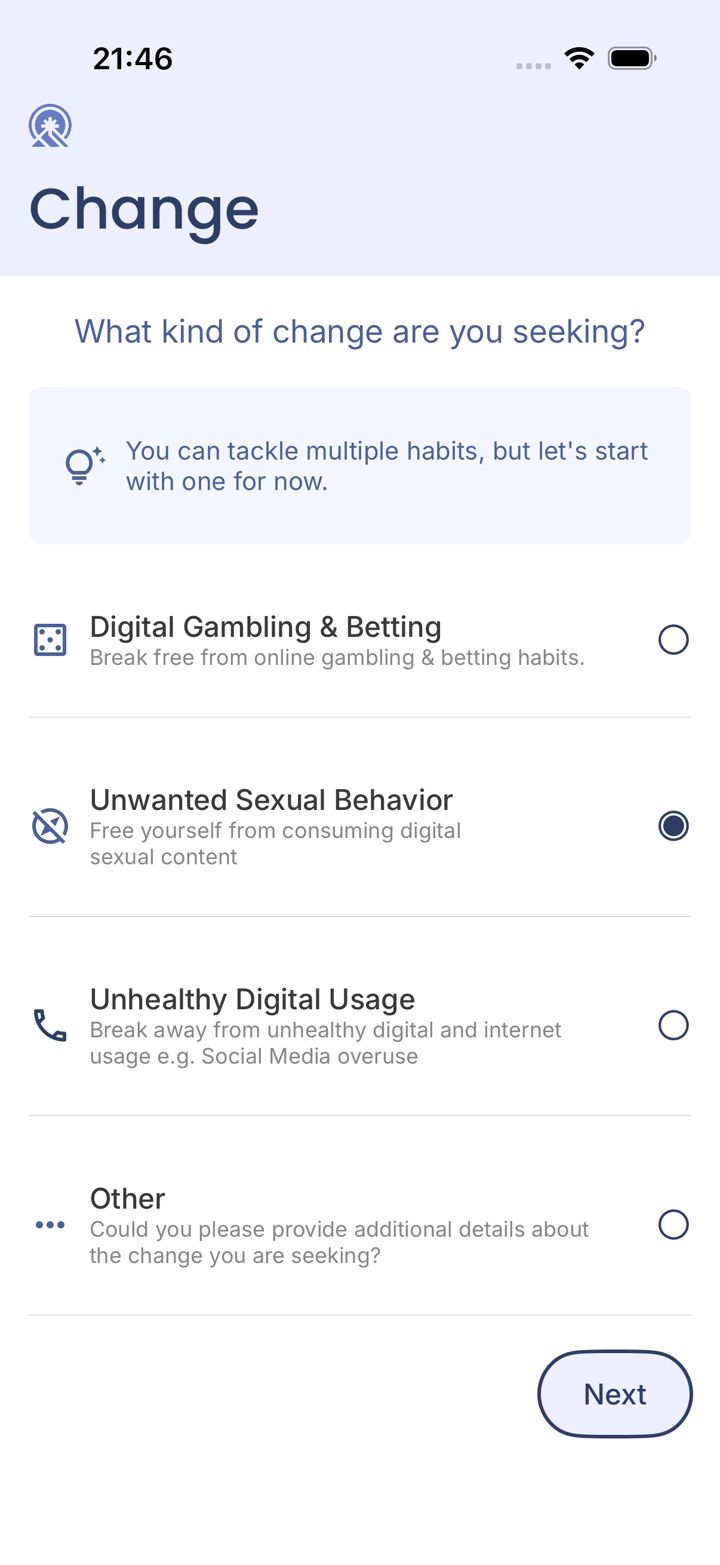
Pick the change you want to make
Choose the area you want to work on first, then tap Next. You can add more areas later.
Chapter 1 of 8 · Install and sign up
Tell us why
Pick the reason behind the change, or write your own. We show it back to you on Home as My Why.
Chapter 2 of 8 · The choices that matter
Choose how you want to be protected
This is the most important choice in setup. Full Protection blocks content and tells your partner. It's what most people want.
Blocking only: things are blocked, but setup won't ask for a partner and nobody is told. Monitoring only: your partner is told, but nothing is blocked.
Chapter 2 of 8 · The choices that matter
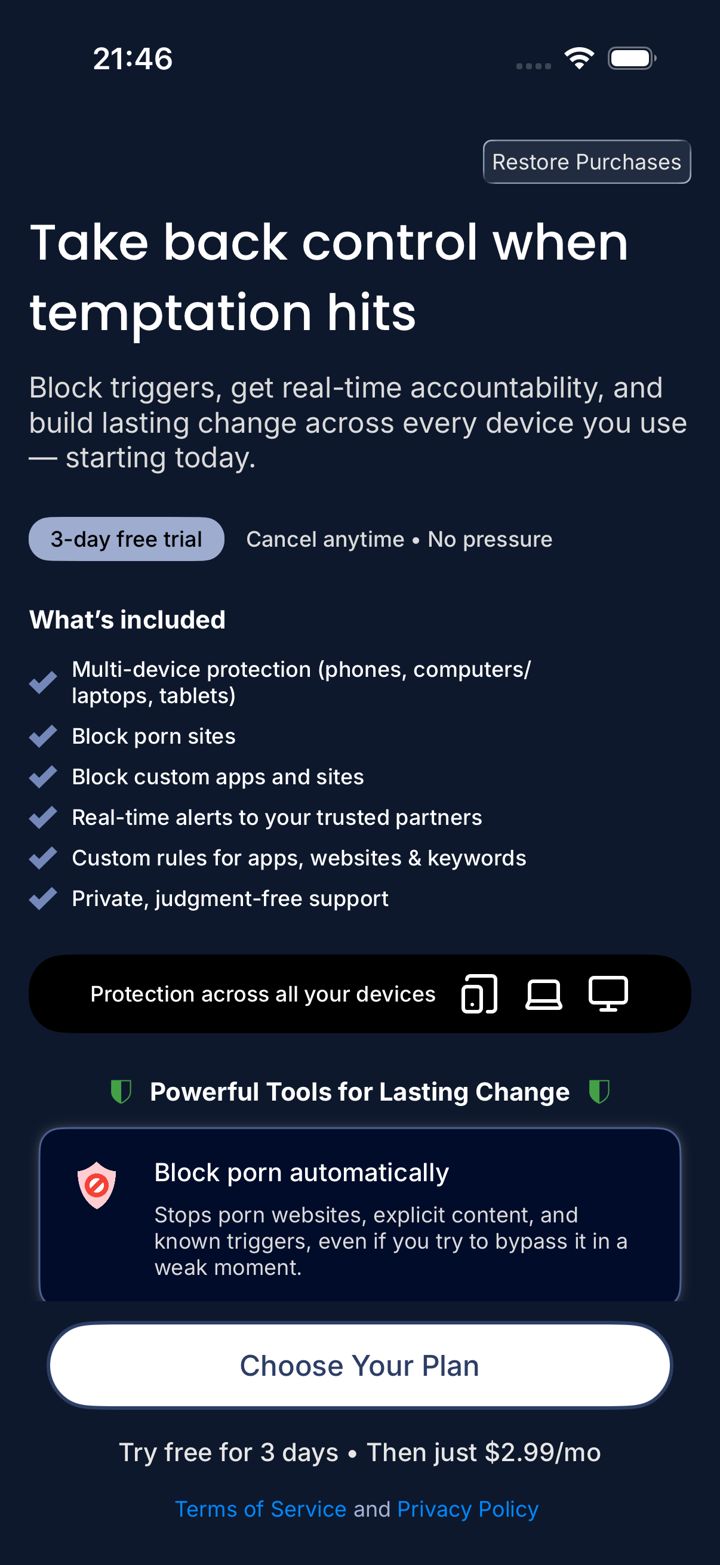
Tap Choose Your Plan
Review what's included, then tap Choose Your Plan.
Joined with an organization code? Your organization's plan is applied by the code. If you're asked to pay anyway, stop and email jason@leadmenot.org with your code.
Chapter 2 of 8 · The choices that matter
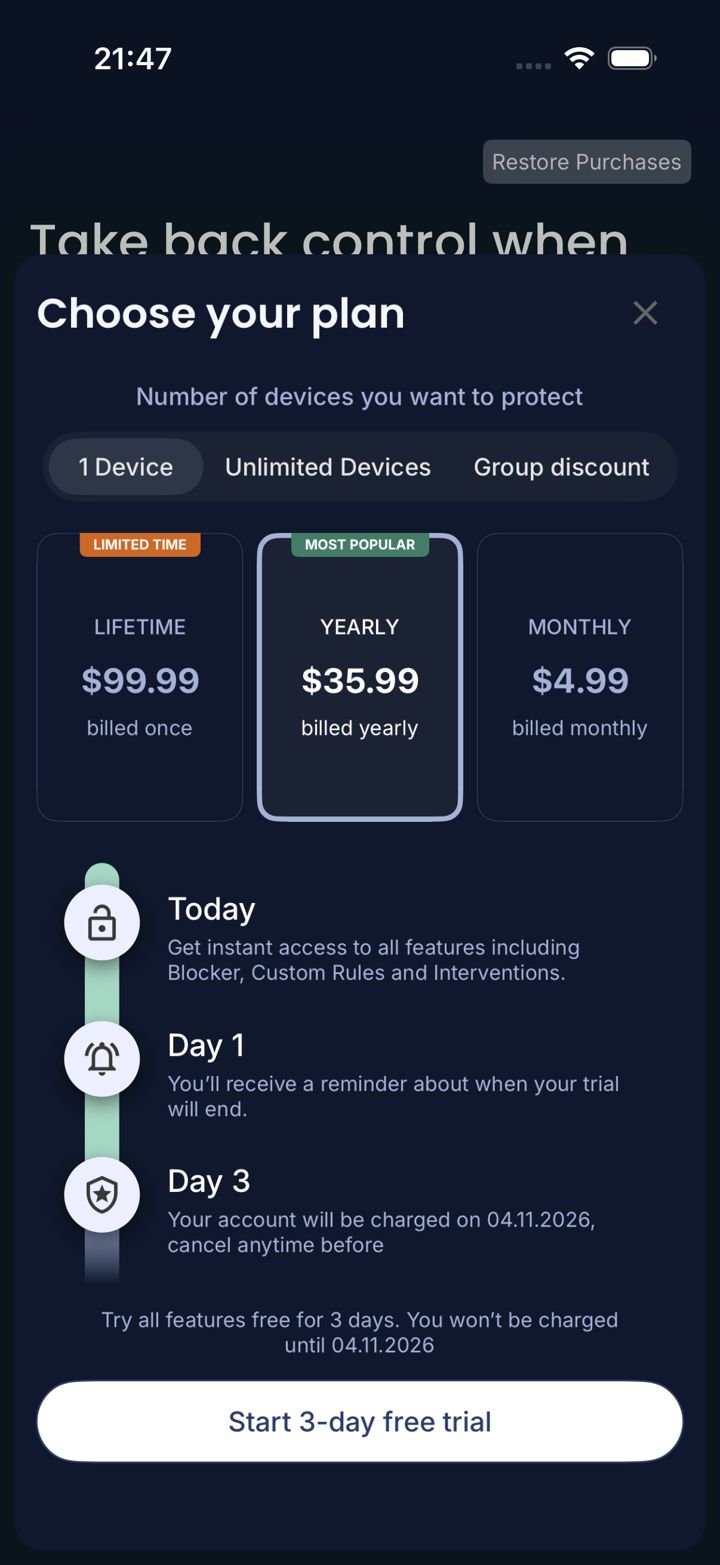
Pick a plan and start your trial
Choose 1 Device or Unlimited Devices at the top. Pick Yearly, Lifetime or Monthly, then tap Start 3-day free trial.
Want LeadMeNot on your computer too? Pick Unlimited Devices. If cost is a barrier, email jason@leadmenot.org.
Chapter 2 of 8 · The choices that matter
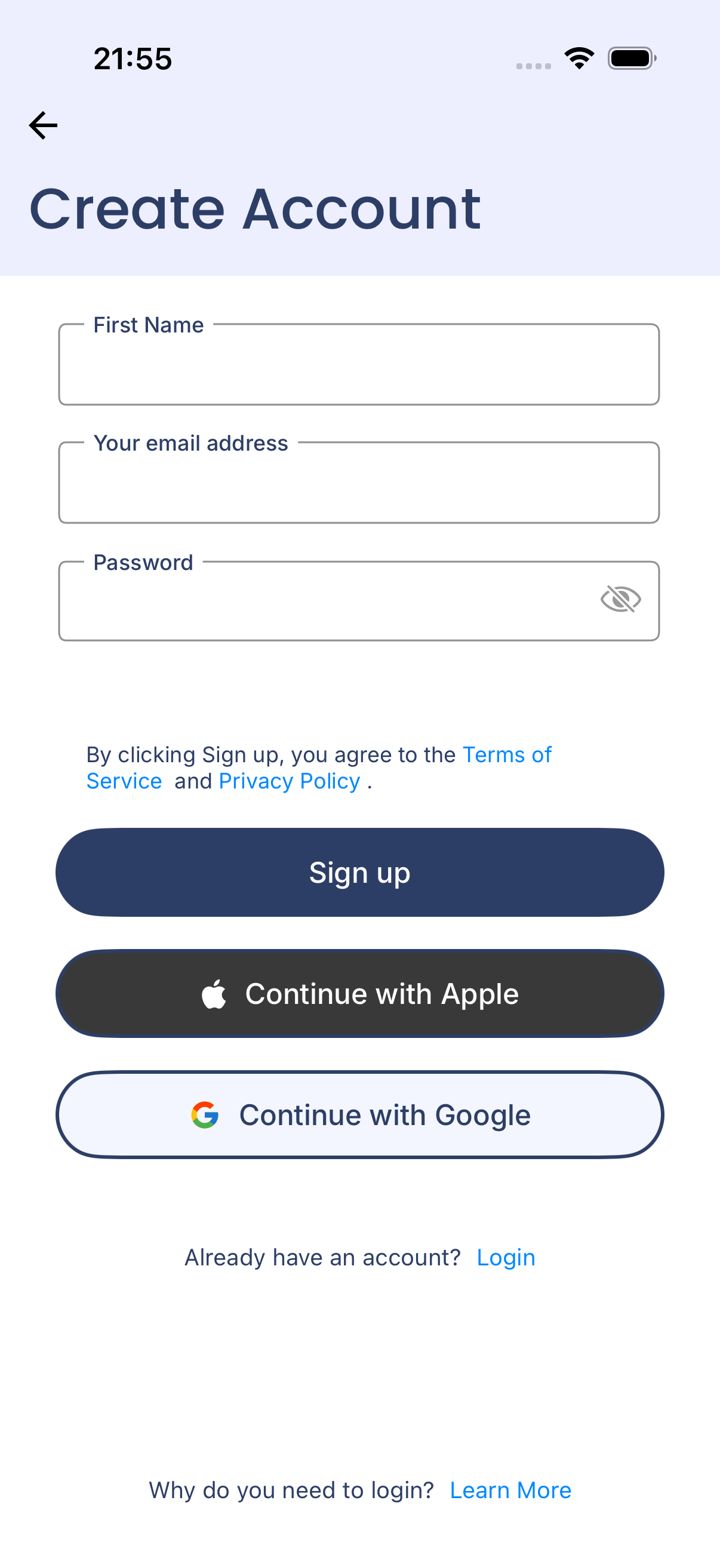
Create your account
Sign up with email, or Continue with Apple or Google.
Remember which one you used. Signing in a different way later creates a new, empty account.
Chapter 3 of 8 · Safe Wall: what it takes to undo things
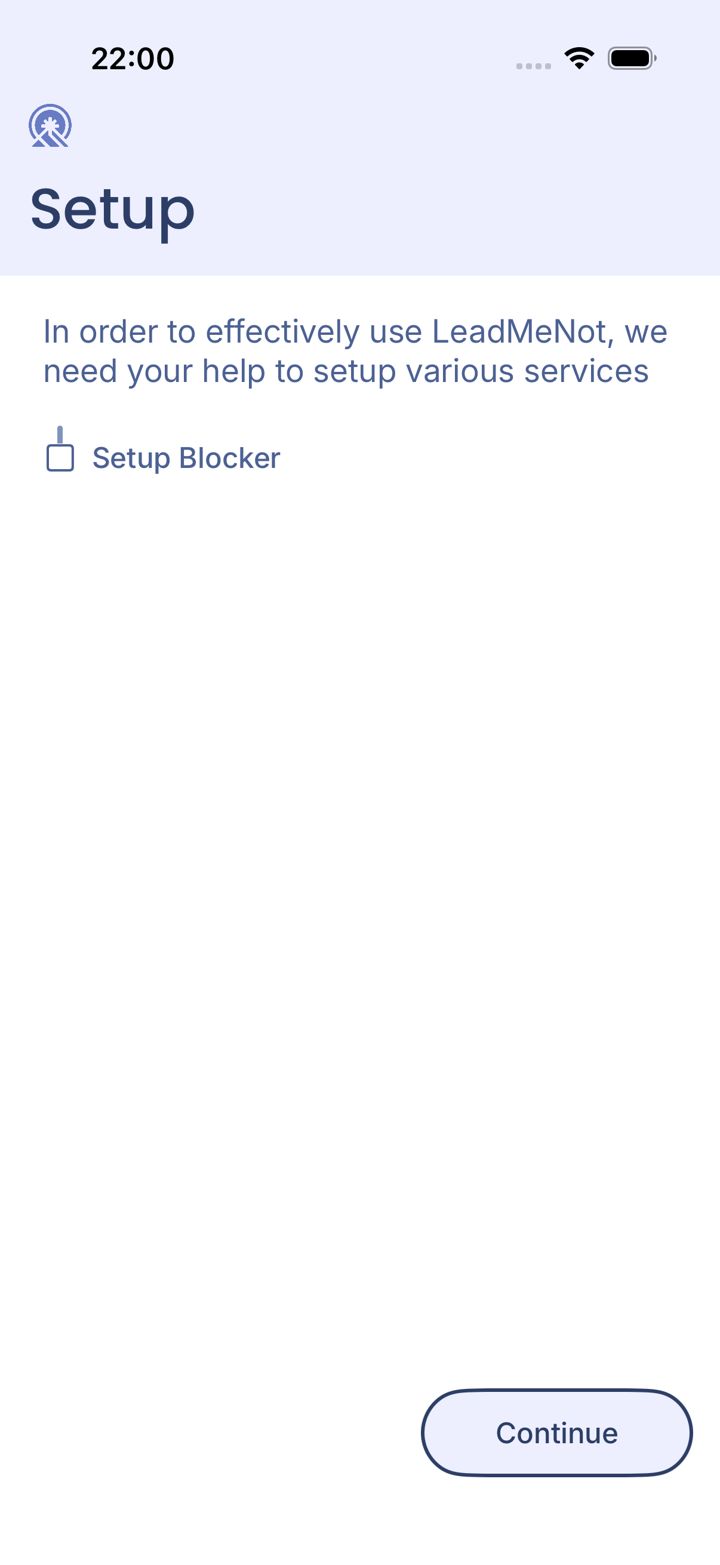
Start setup
Tap Continue.
Chapter 3 of 8 · Safe Wall: what it takes to undo things
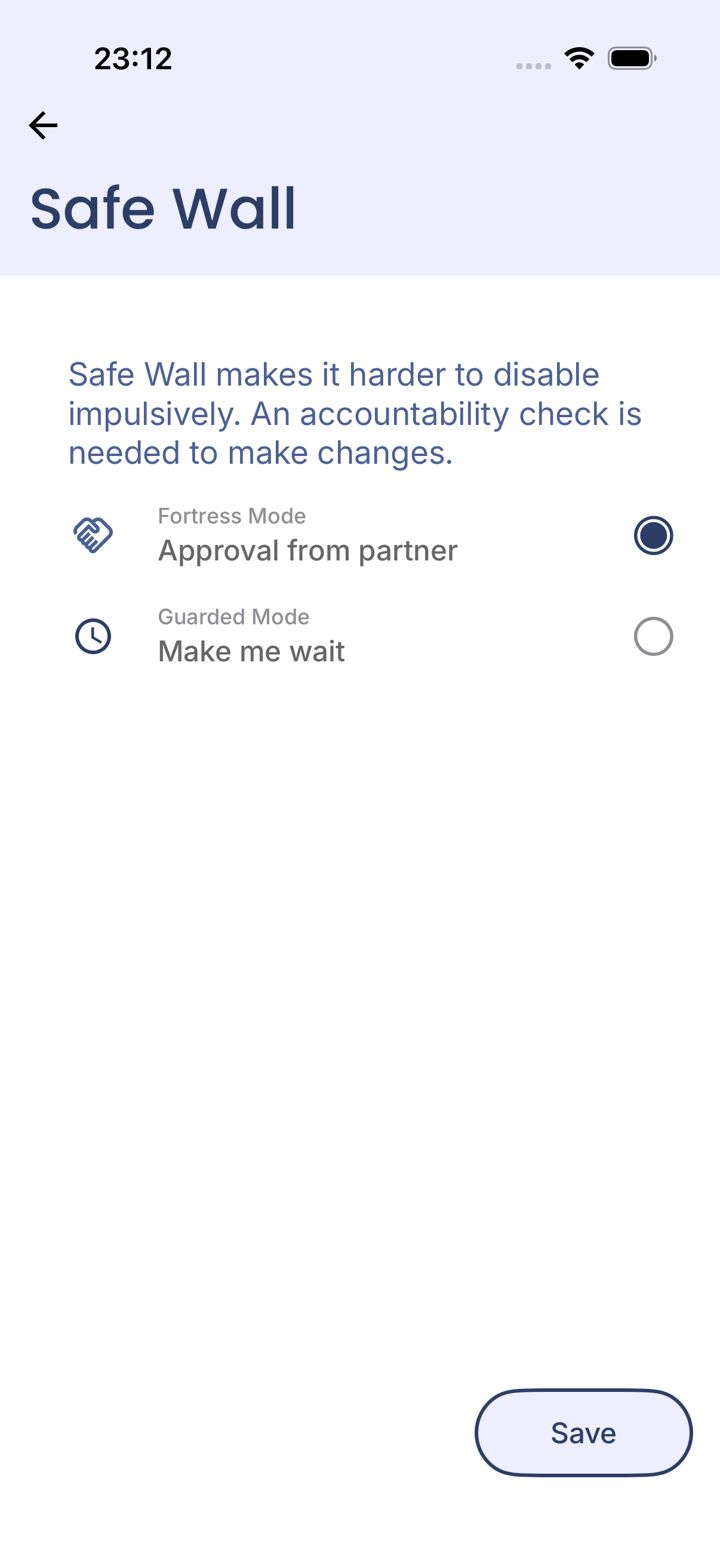
How should changes be protected?
Safe Wall decides what happens whenever you try to switch protection off or loosen a rule, from today onward. That includes fixing a rule you set up wrong, so choose with that in mind.
Chapter 3 of 8 · Safe Wall: what it takes to undo things
Choose Approval from partner
Select Approval from partner, then tap Save.
Chapter 3 of 8 · Safe Wall: what it takes to undo things
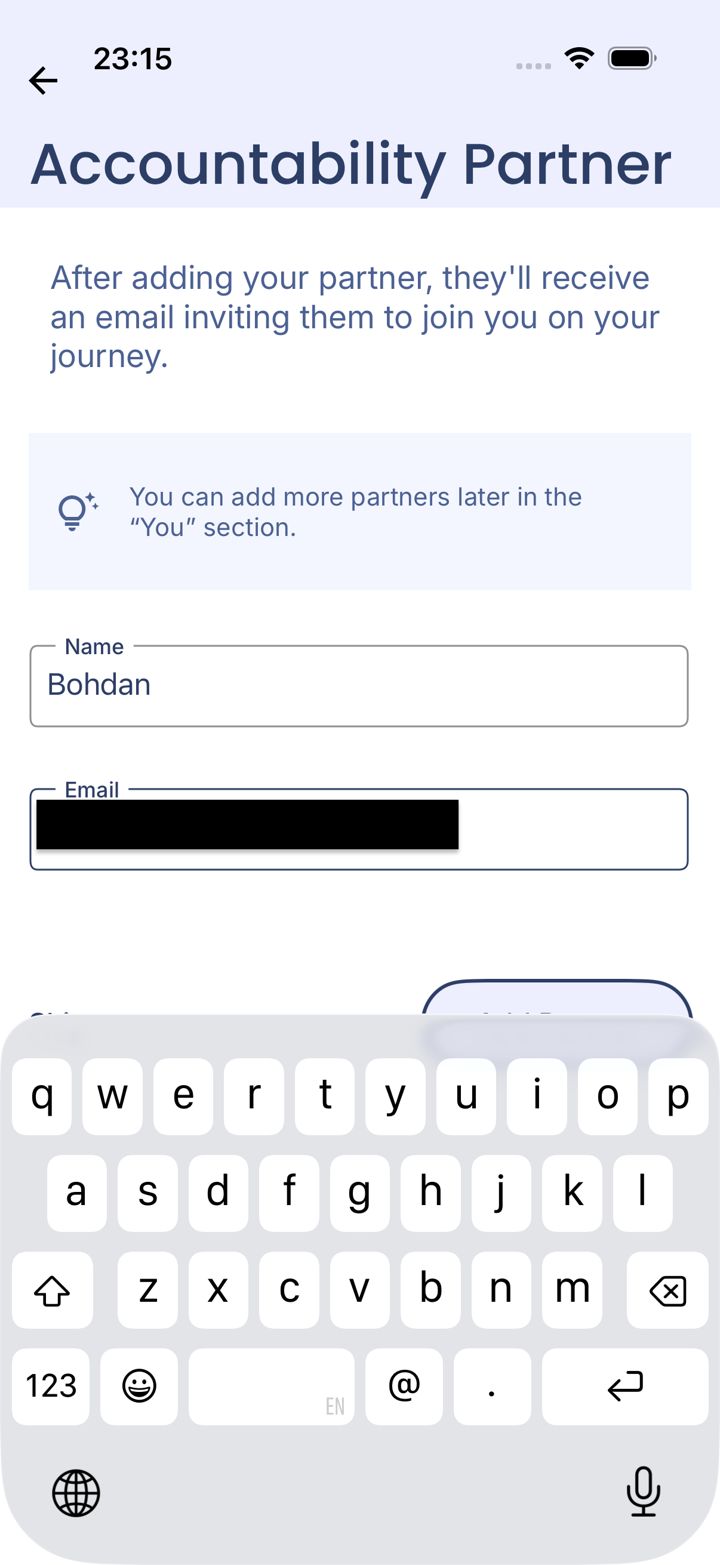
Add your partner
Enter your partner's name and email, then tap Add Partner.
Pick someone you trust who will actually answer. They don't need the app.
Chapter 3 of 8 · Safe Wall: what it takes to undo things
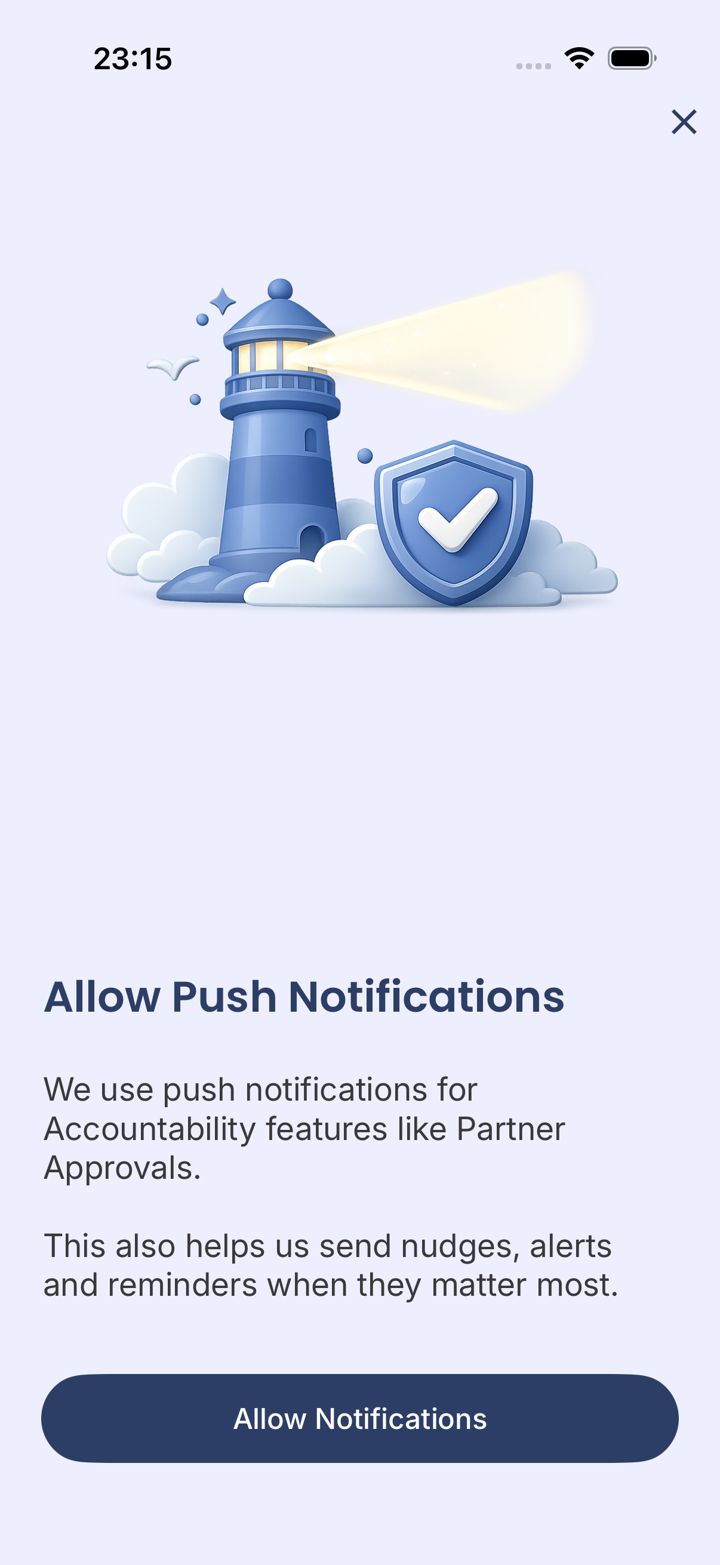
Allow notifications
Tap Allow Notifications so you hear back when your partner answers.
Chapter 3 of 8 · Safe Wall: what it takes to undo things
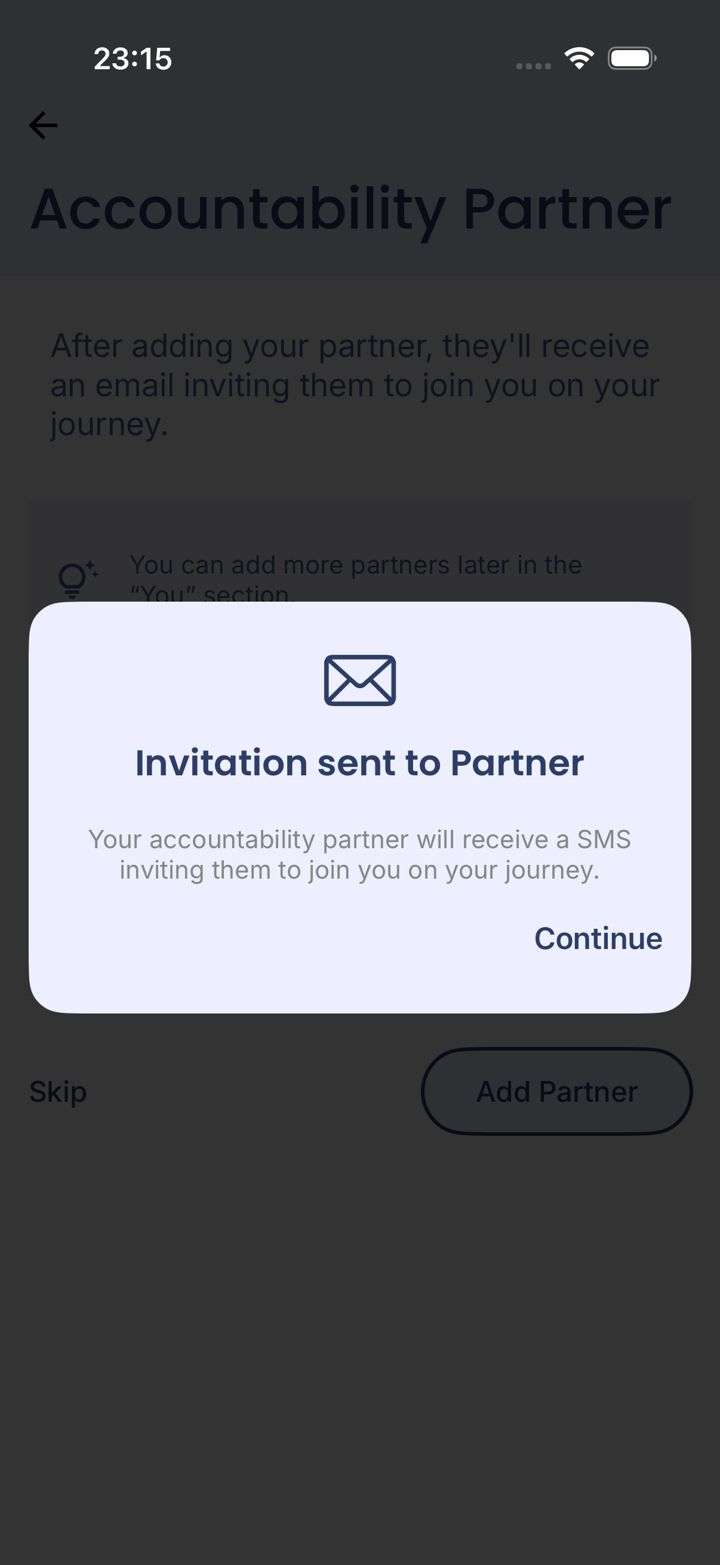
Invitation sent
Your partner gets an invitation. Tap Continue.
Chapter 3 of 8 · Safe Wall: what it takes to undo things
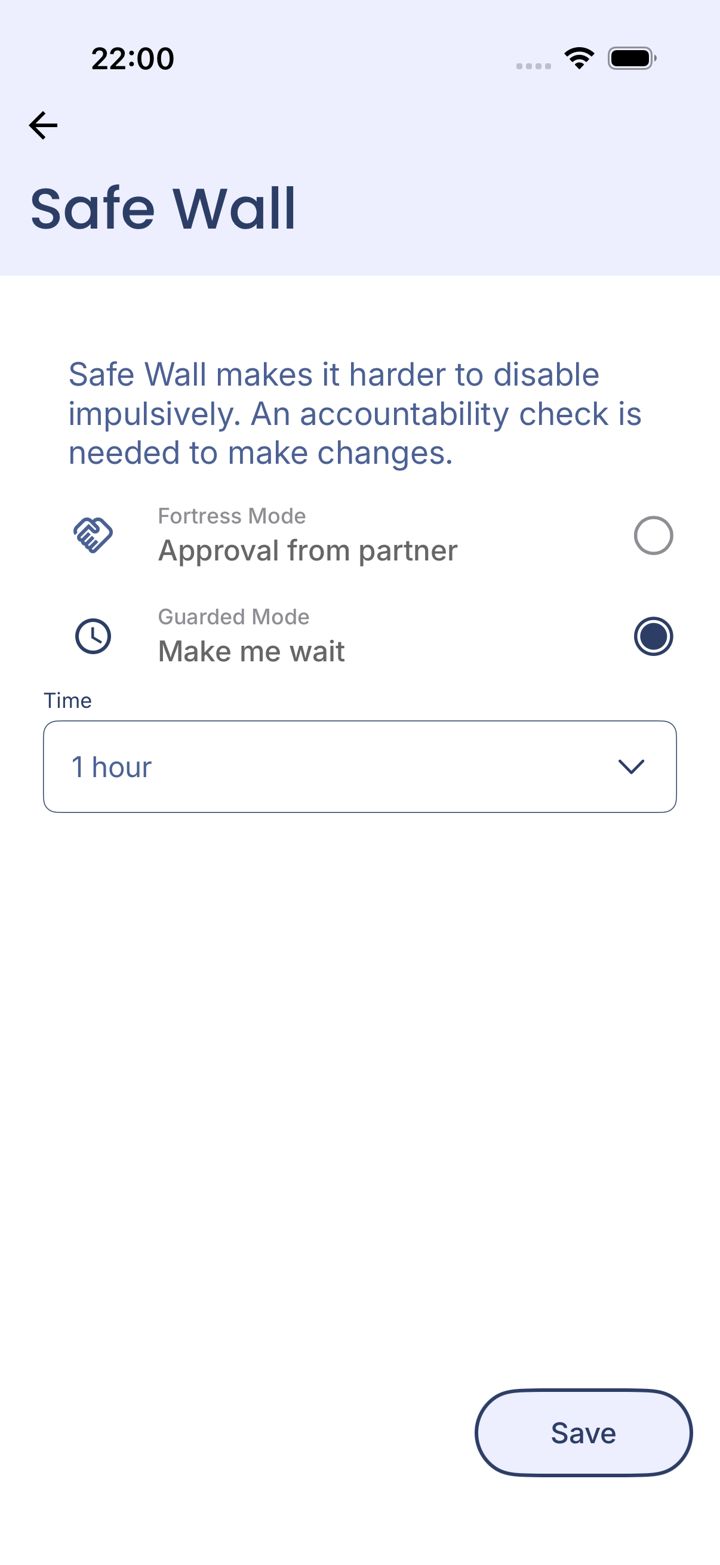
Choose Make me wait and a time
Select Make me wait, choose a wait under Time, then tap Save.
The wait applies to everything, even fixing a rule you made five minutes ago. Still setting up and need a change now? Email jason@leadmenot.org and we'll approve it.
Chapter 4 of 8 · Turn protection on
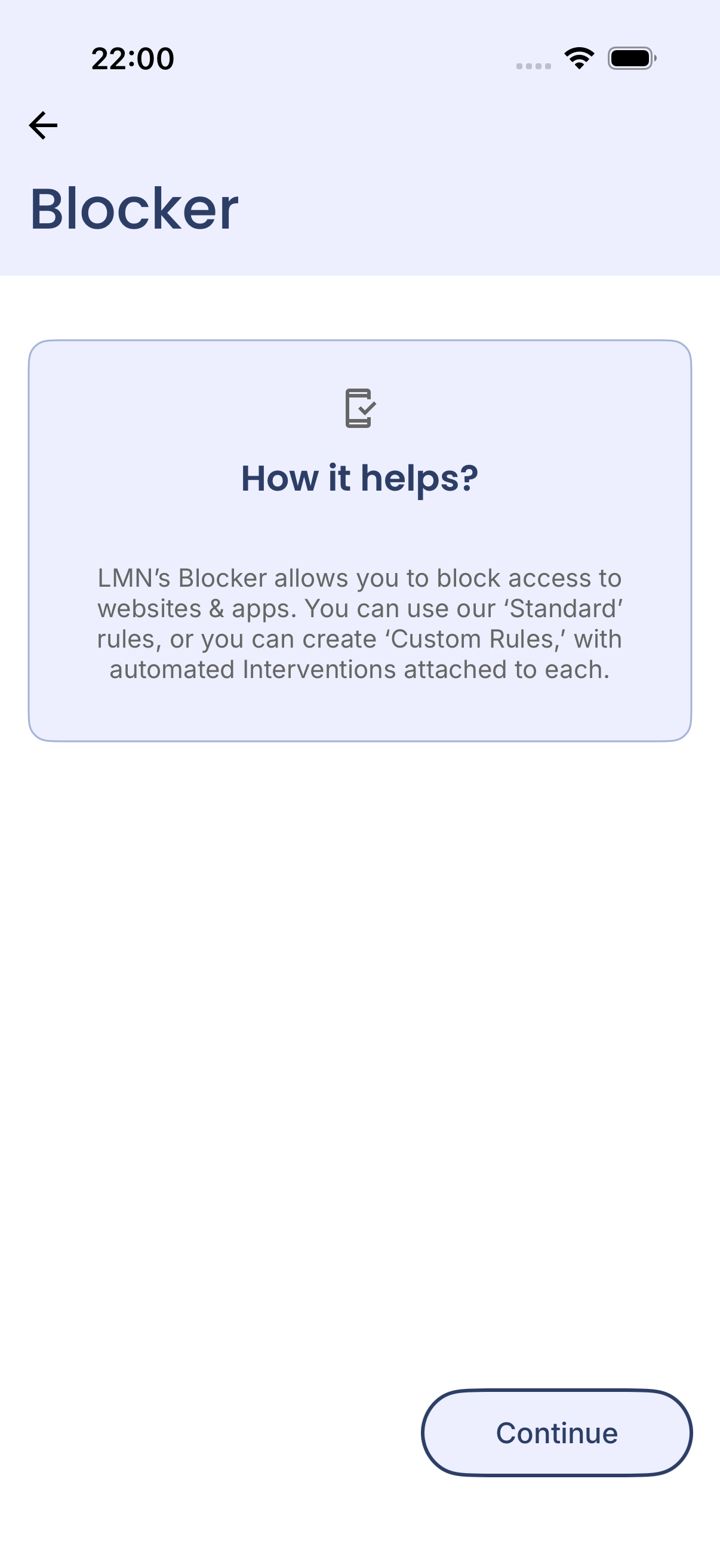
Continue to the Blocker
Tap Continue.
Chapter 4 of 8 · Turn protection on
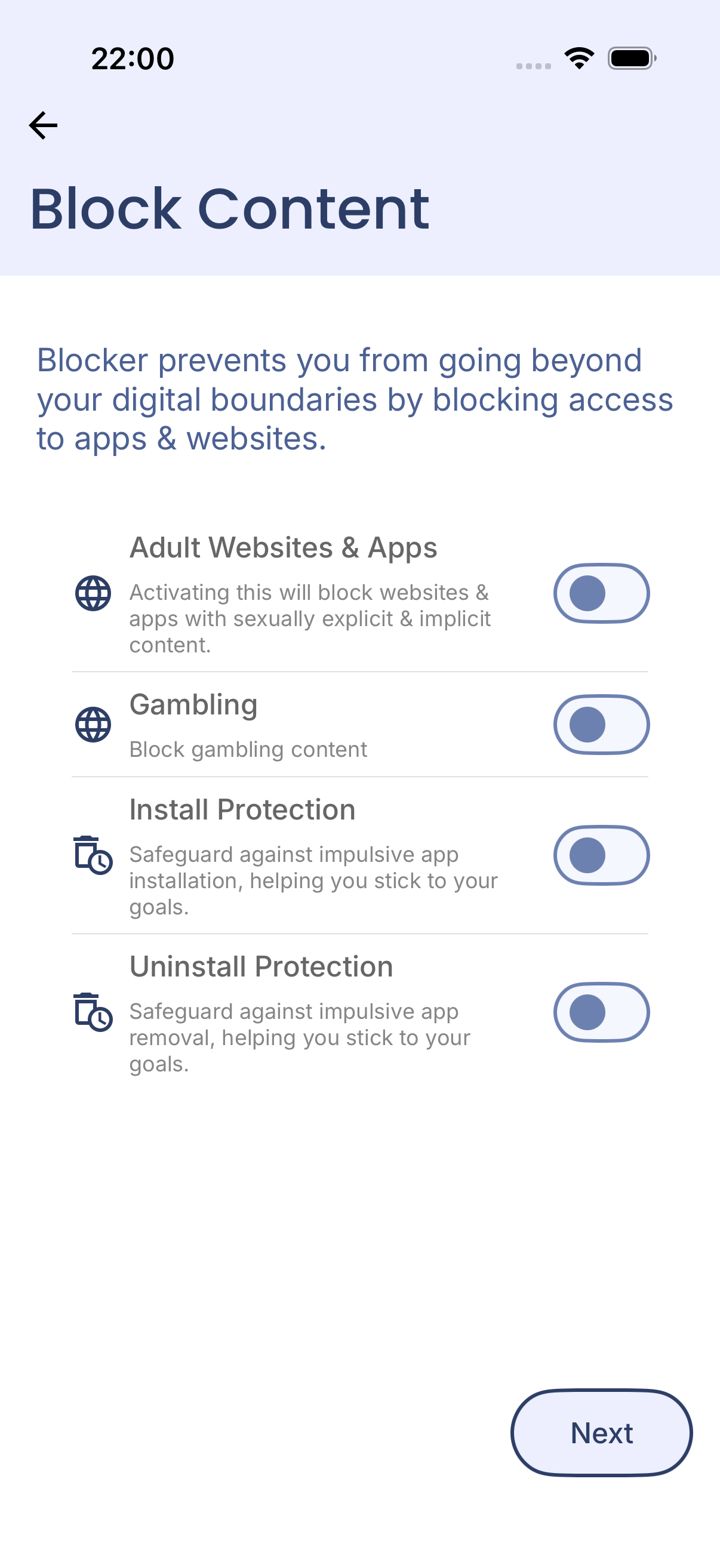
Switch on what you want blocked
Turn on Adult Websites & Apps, Gambling, Install Protection and Uninstall Protection as you need them, then tap Next.
Every switch here starts off. Tap Next without turning any on and nothing is blocked.
Chapter 4 of 8 · Turn protection on
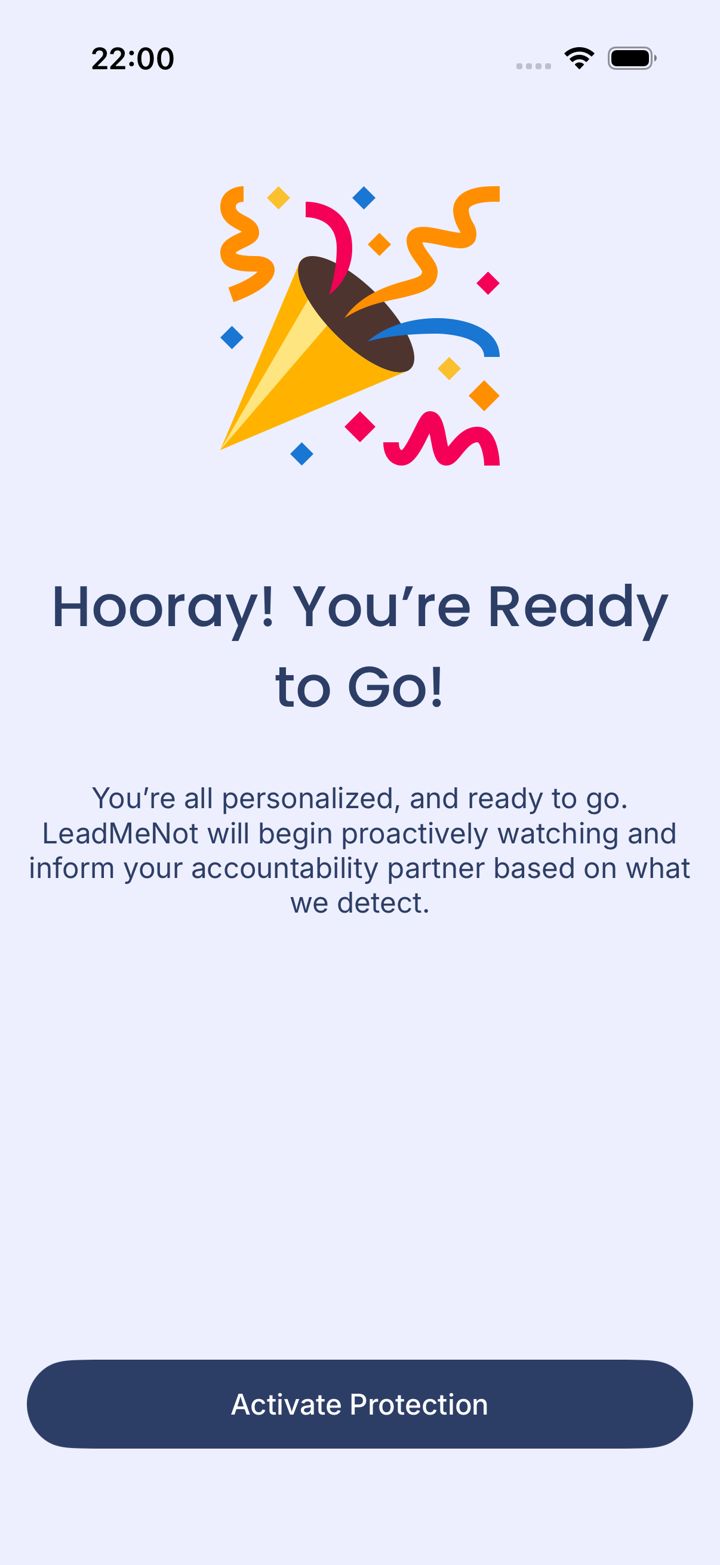
Activate protection
Tap Activate Protection.
Chapter 4 of 8 · Turn protection on
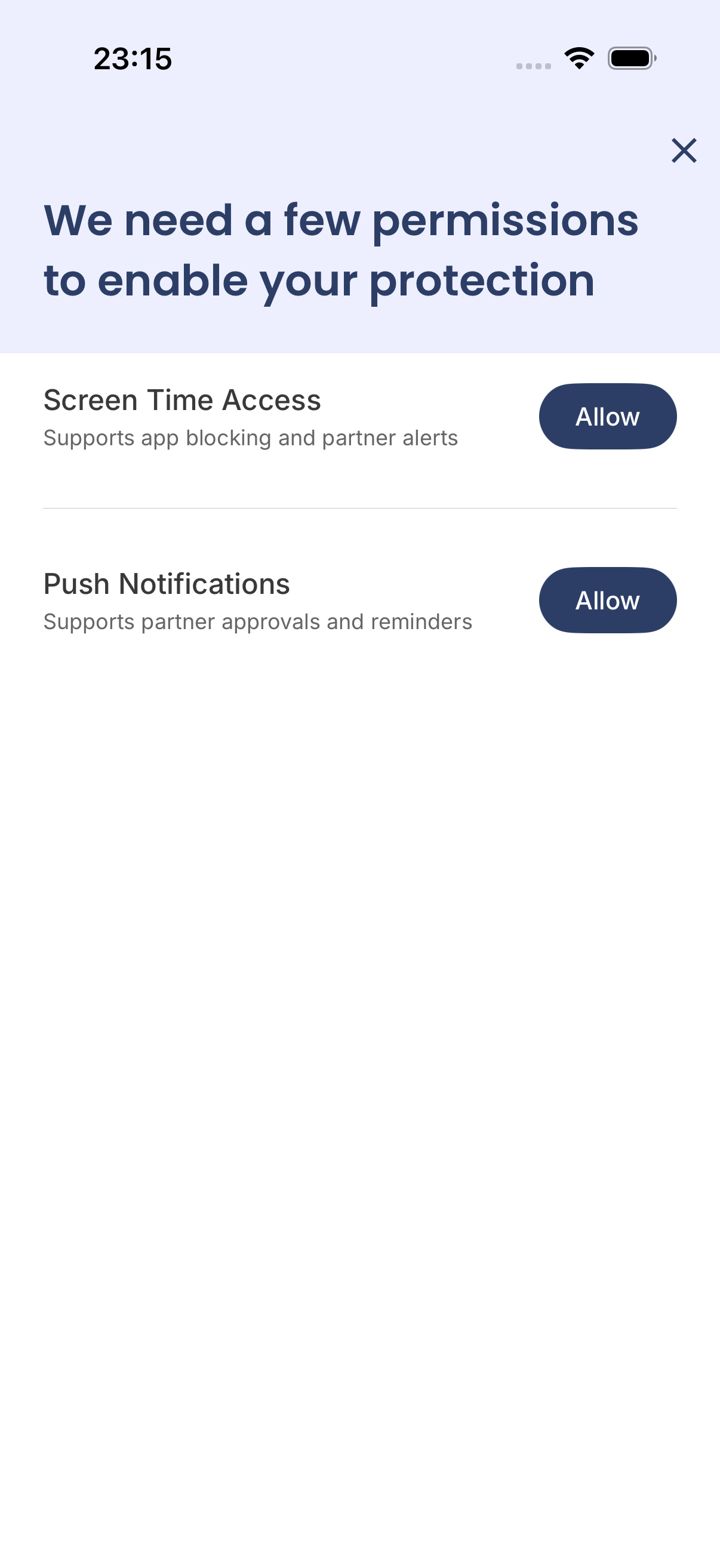
Allow both permissions
Tap Allow for Screen Time Access and Push Notifications.
Without Screen Time Access, nothing can be blocked on iPhone.
Chapter 4 of 8 · Turn protection on
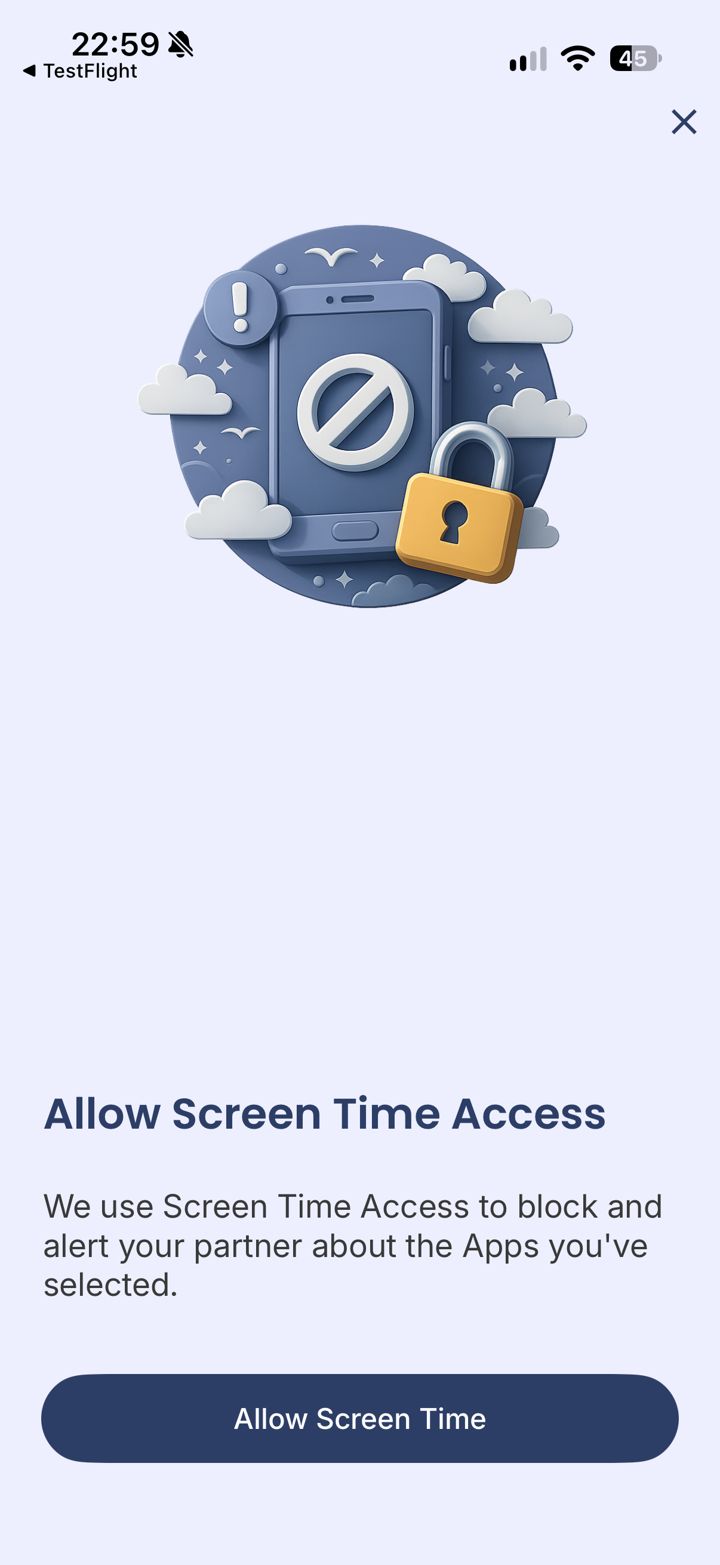
Confirm Screen Time
Tap Allow Screen Time and confirm with Face ID or your passcode.
Chapter 5 of 8 · Your accountability partner
Did you add a partner during setup?
If you chose Approval from partner, you already did.
Chapter 5 of 8 · Your accountability partner
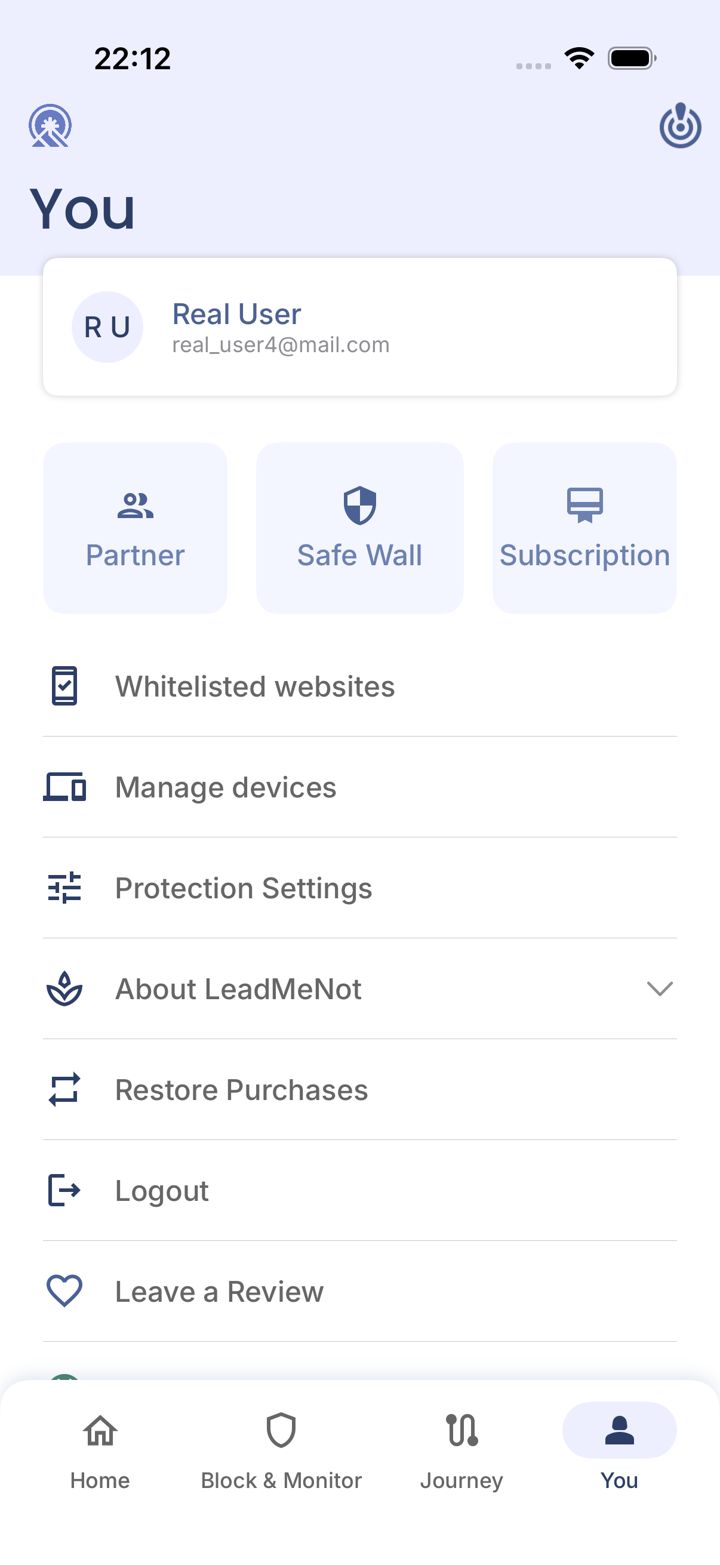
Open You, then Partner
Tap You at the bottom right, then Partner.
Chapter 5 of 8 · Your accountability partner
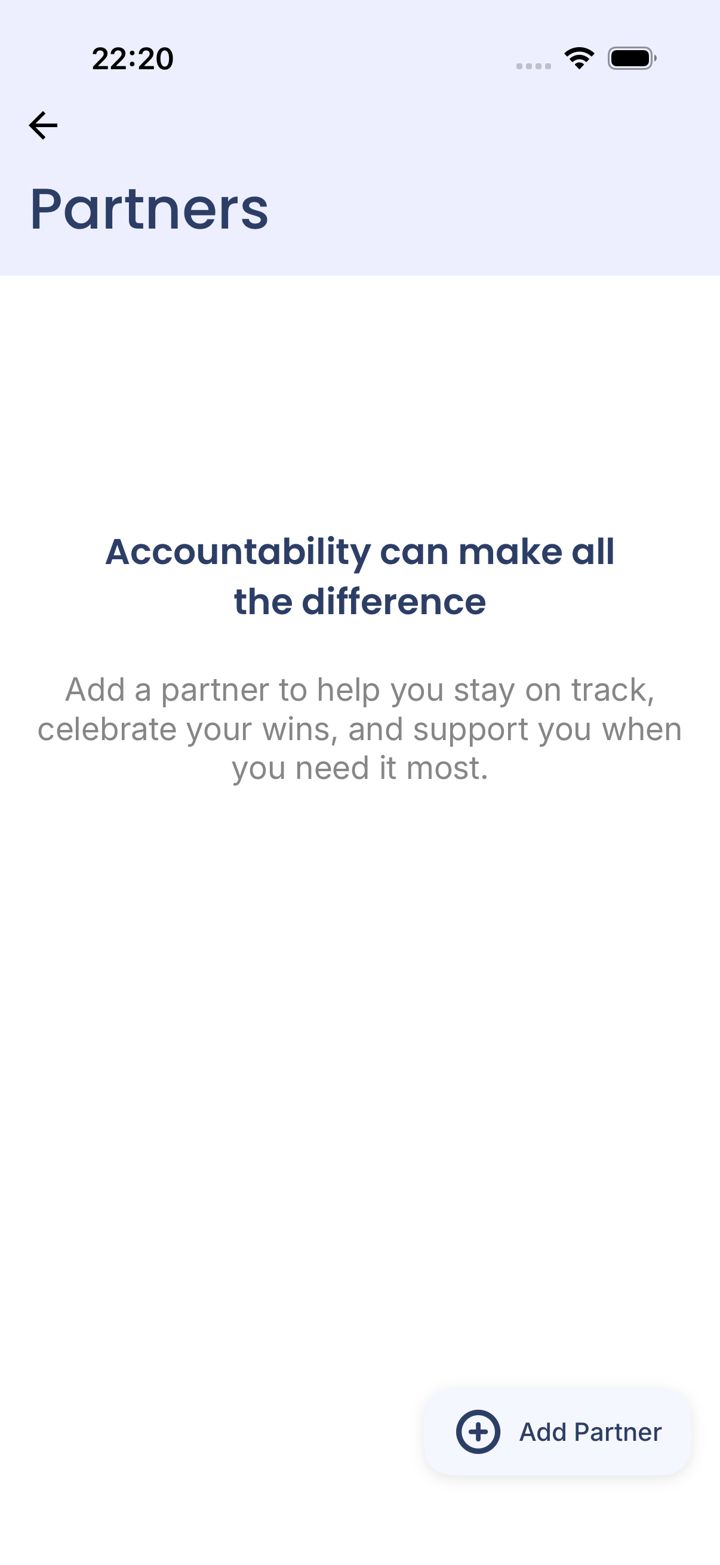
Tap Add Partner
Tap Add Partner.
Chapter 5 of 8 · Your accountability partner
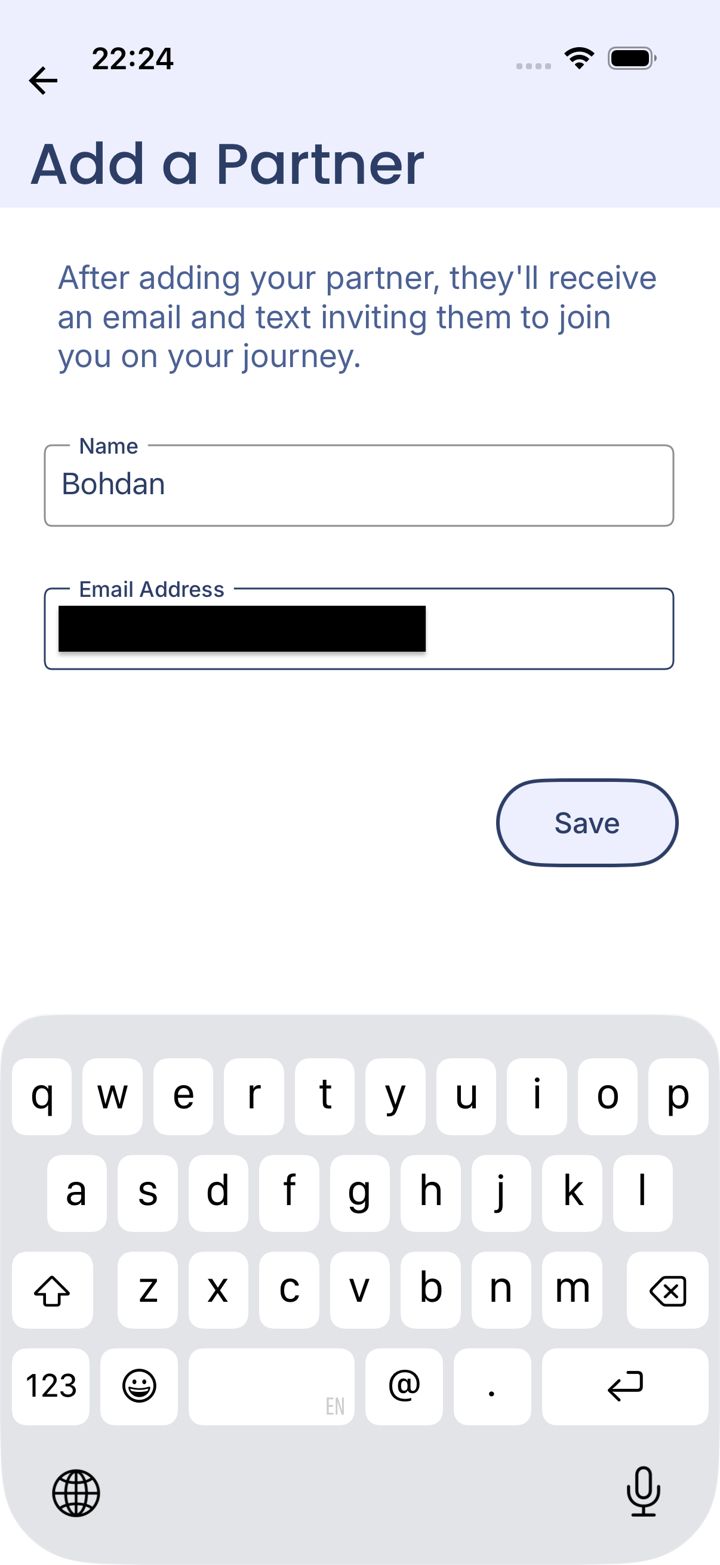
Enter their details
Type their name and email, then tap Save.
Your partner
Chapter 5 of 8 · Your accountability partner
What your partner gets
An invitation by email. After that, an alert whenever you hit a rule that has Monitor on, and an approval request by email if your Safe Wall needs their OK. They can also use the free LMN Partner app for more detail.
Talk to them first. Partners who know what to expect respond faster and with more grace.
Chapter 6 of 8 · Your first rule
Decide what you want before you start
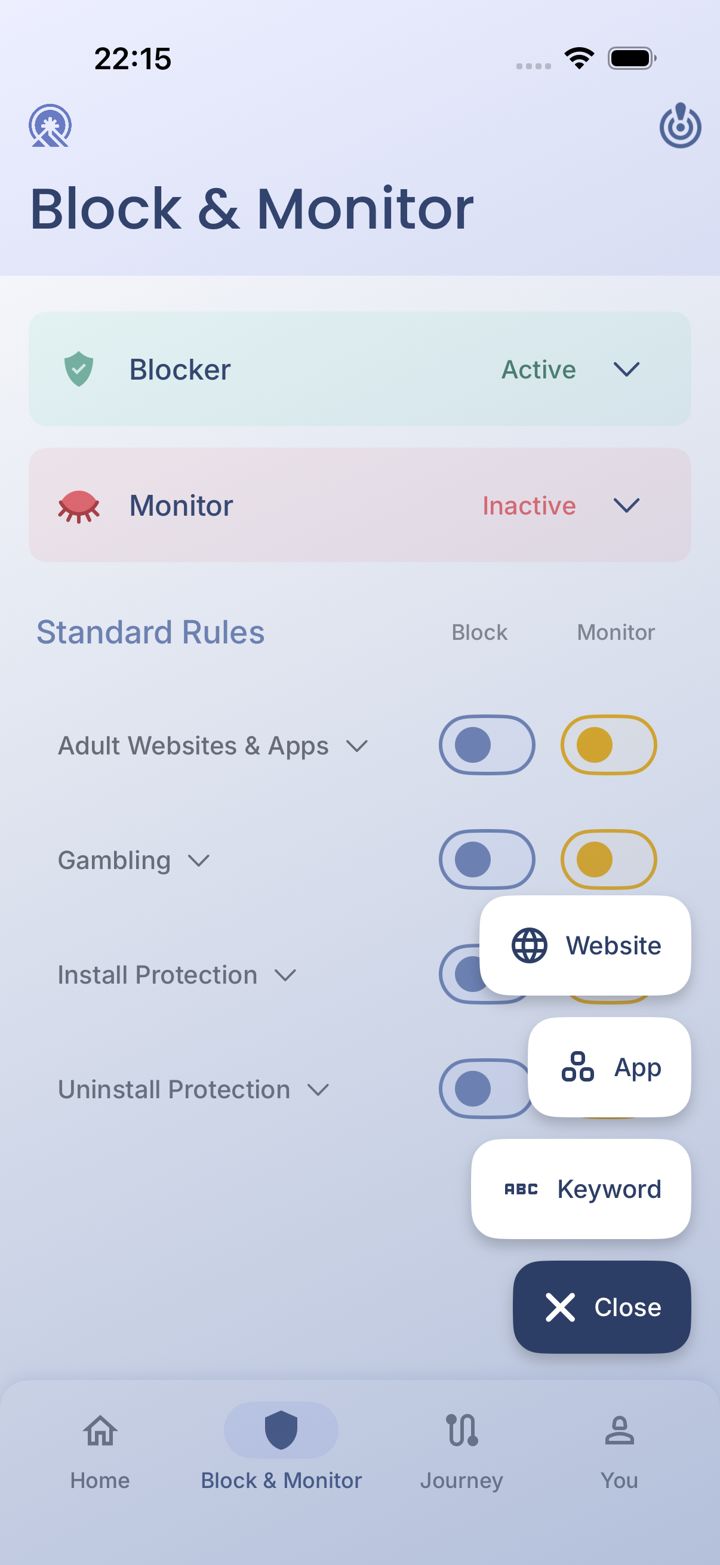
Every rule starts from the Add Rule menu on Block & Monitor: a Website, an App or a Keyword. An app rule can block it completely, block it at certain hours, or limit how long you use it each day. Most setup mistakes come from picking the wrong one, so have your answer ready. We'll ask you at the right moment.
Chapter 6 of 8 · Your first rule
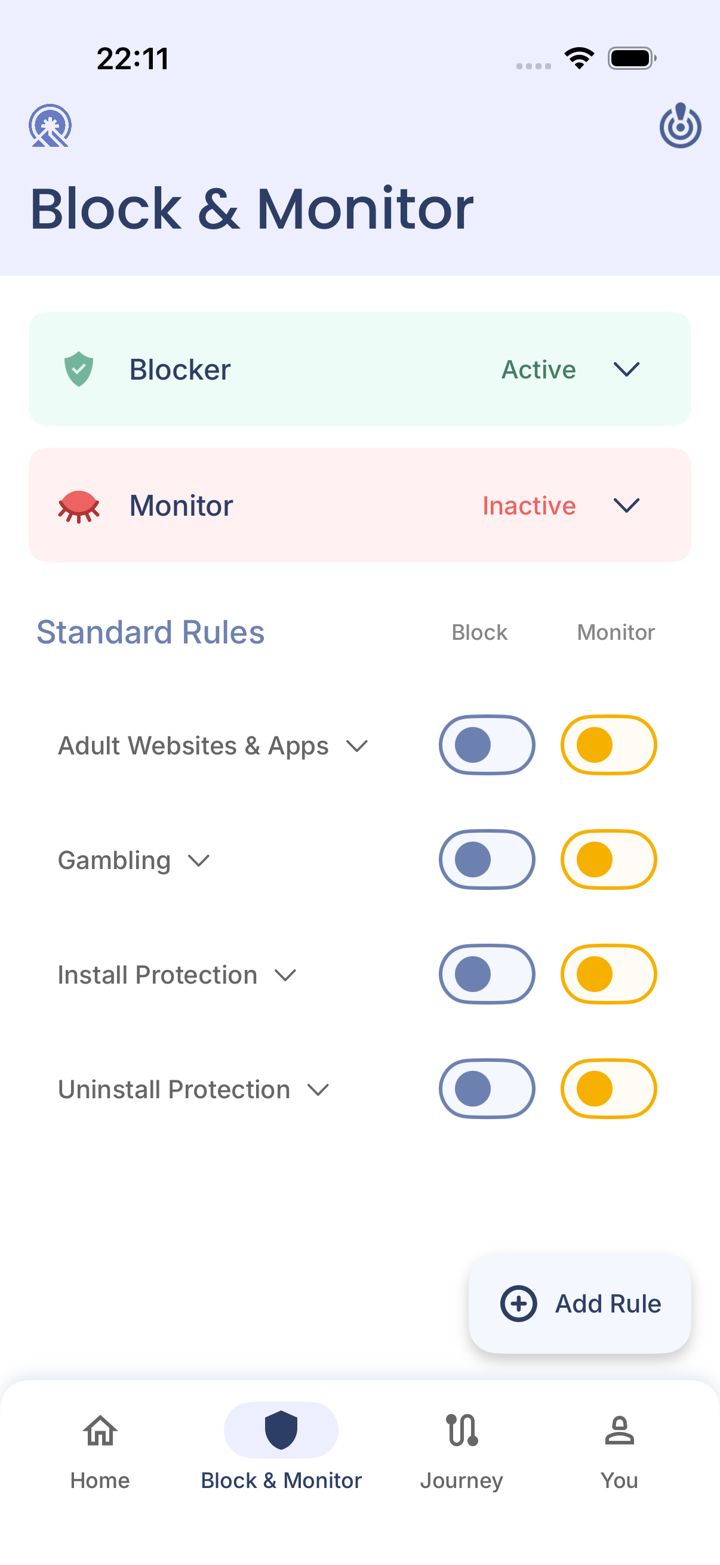
Open the Block & Monitor tab
Tap Block & Monitor in the bar at the bottom of the app.
Chapter 6 of 8 · Your first rule
Tap Add Rule
Tap Add Rule in the bottom right corner. A small menu opens.
Chapter 6 of 8 · Your first rule
Choose App
Tap App.
Chapter 6 of 8 · Your first rule
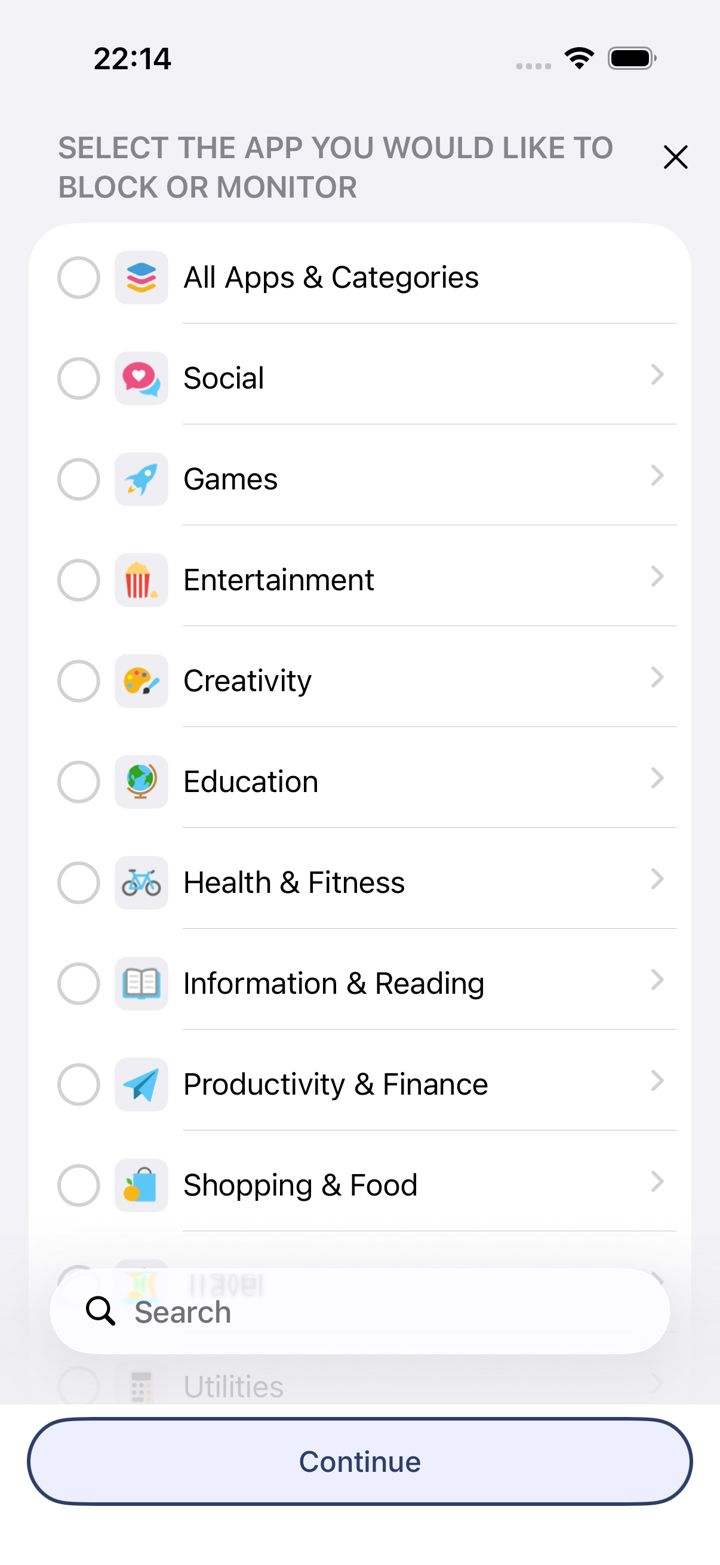
Open the category your app is in
Find the category that holds your app, for example Instagram (Instagram and TikTok are under Social). Tap the arrow on the right of that row to open it.
Don't tap the circle next to the category name, and don't choose All Apps & Categories. Either one selects every app in it, which blocks far more than you meant to.
LeadMeNot · app picker
Chapter 6 of 8 · Your first rule
Select just your app, then tap Continue
Inside the category, tick your app, for example Instagram only, then tap Continue at the bottom. Use Search if you can't find it.
Chapter 6 of 8 · Your first rule
Now: what should this rule do?
This screen decides everything. Pick the one you want.
Chapter 6 of 8 · Your first rule
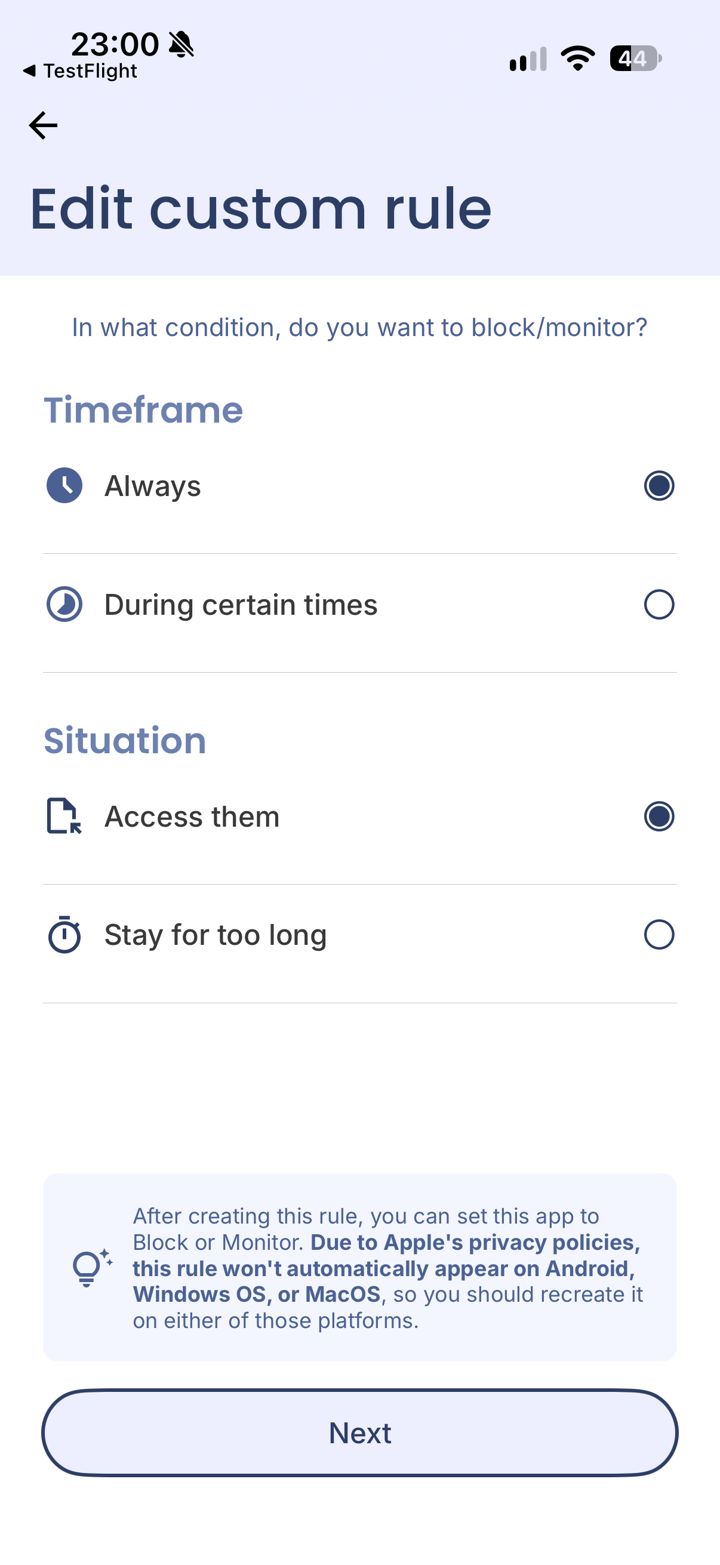
Choose Stay for too long
Under Situation, tap Stay for too long.
Don't choose During certain times. That's a schedule, not a daily limit.
LeadMeNot · Edit custom rule
Chapter 6 of 8 · Your first rule
Set your time limit, then tap Next
Choose how long you can use the app each day before it's blocked, then tap Next.
Chapter 6 of 8 · Your first rule
Keep Always and Access them
Leave Always and Access them selected, then tap Next.
Chapter 6 of 8 · Your first rule
Choose During certain times
Under Timeframe, tap During certain times.
Chapter 6 of 8 · Your first rule
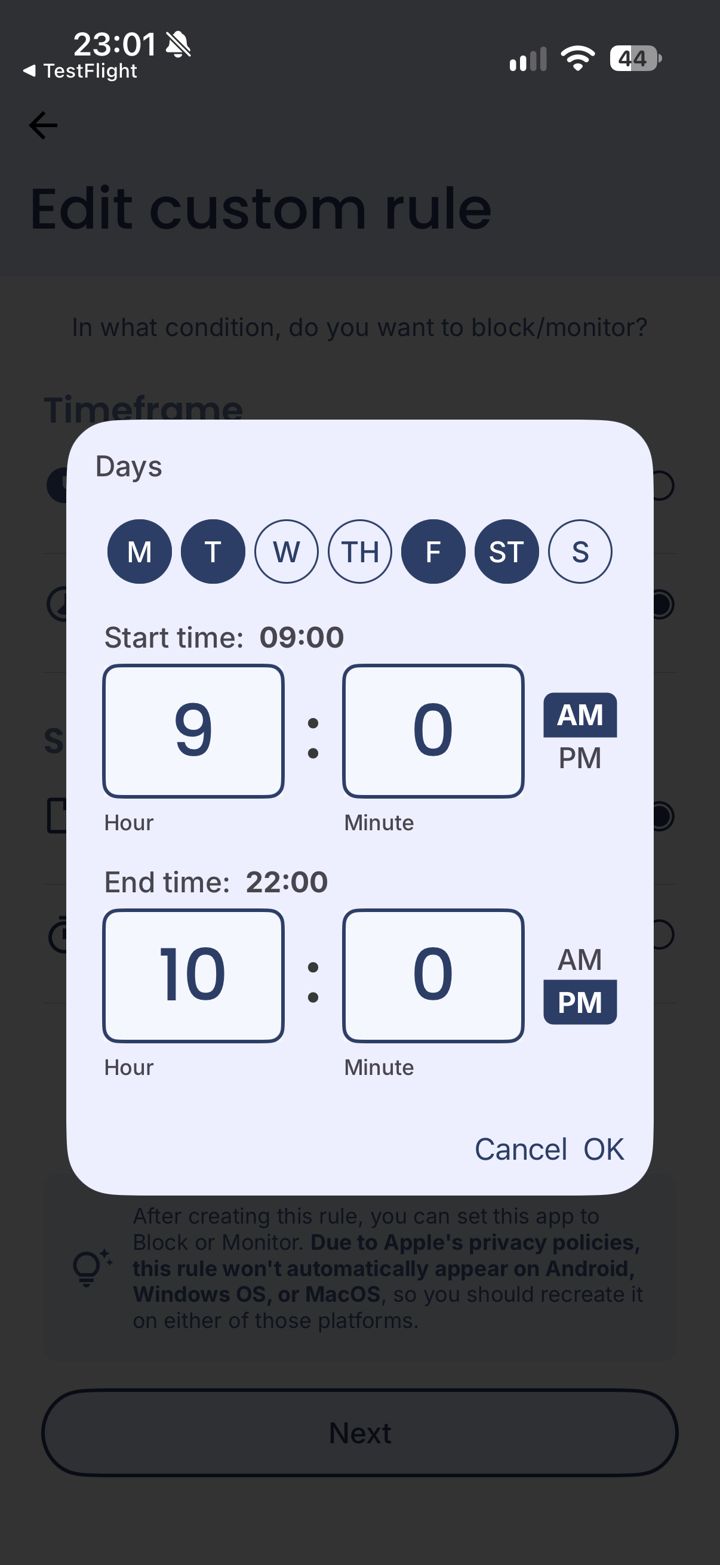
Pick the days and hours
Tap the days, set Start time and End time, then tap OK.
These are the hours the app is blocked, not the hours it's allowed.
Chapter 6 of 8 · Your first rule
Keep Access them and tap Next
Leave Access them selected, then tap Next.
Chapter 6 of 8 · Your first rule
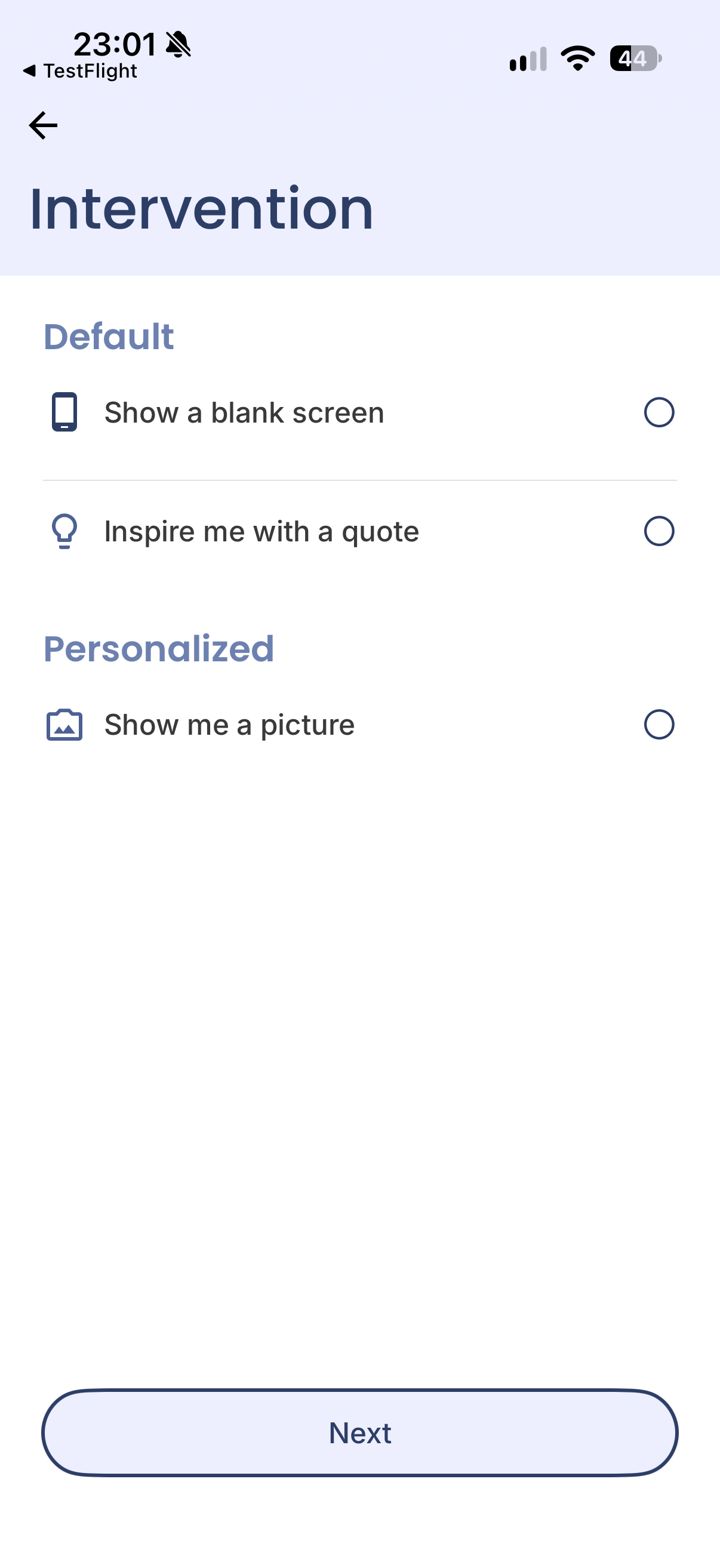
Choose what you see when it's blocked
Pick a blank screen, an inspiring quote, or a picture you choose. Then tap Next.
A personal picture (your family, a goal) is often the most effective reminder in a weak moment.
LeadMeNot · Block & Monitor
Chapter 6 of 8 · Your first rule
Your rule is on
It's listed on the Block & Monitor tab. One app can only be in one rule for now, so if you want a different setup later, change this rule rather than adding a second one.
iPhone rules don't copy to your other devices. Recreate them there.
Chapter 7 of 8 · Make sure it works
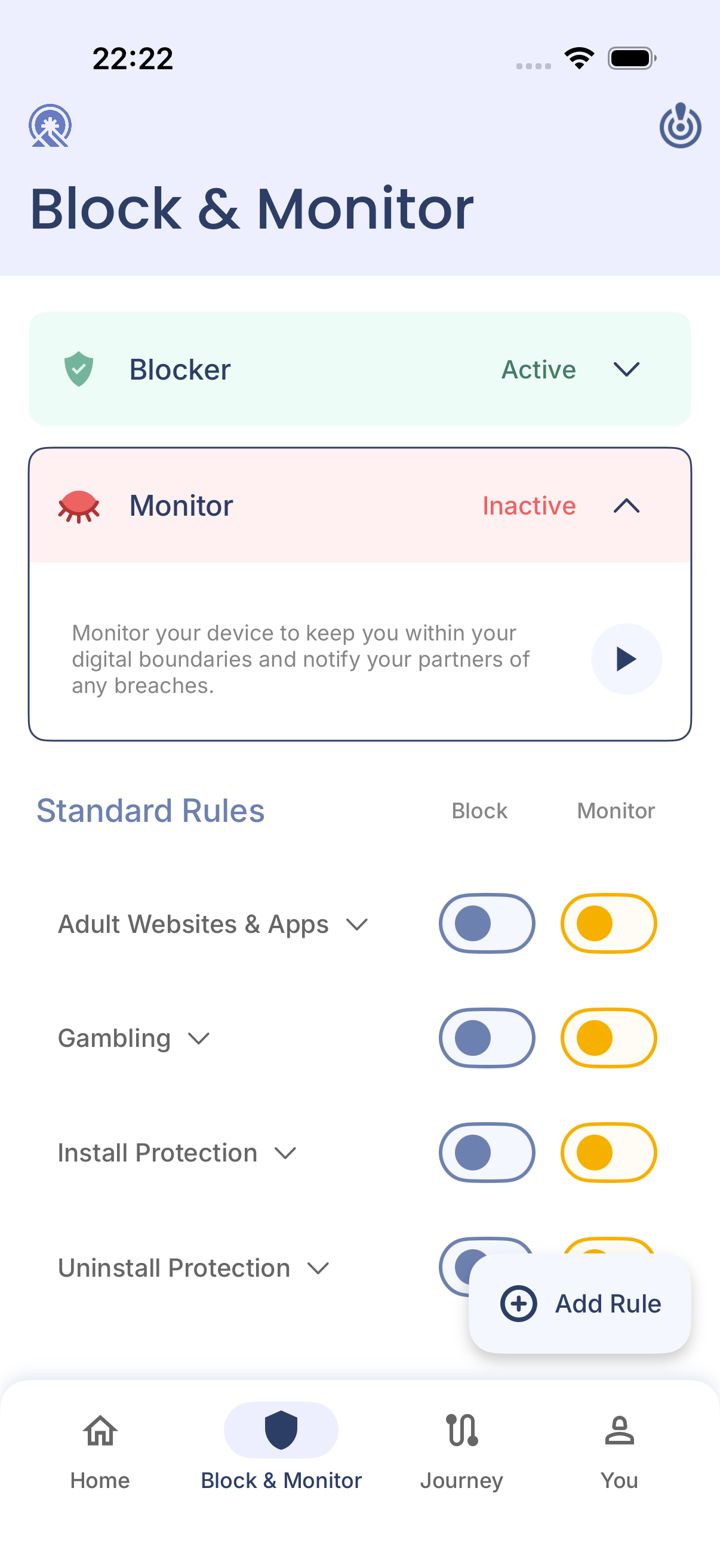
Start Monitor
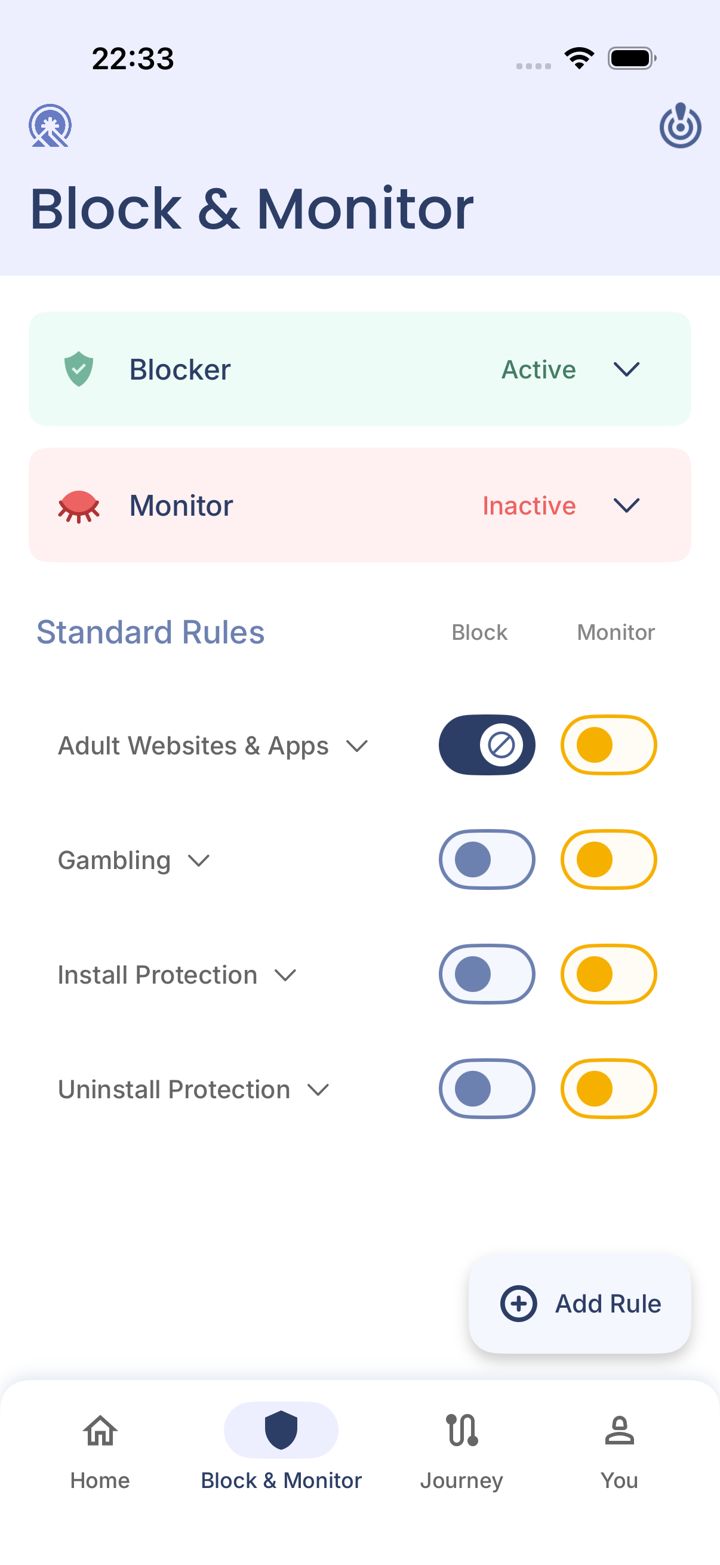
On Block & Monitor, tap Monitor. If it says Inactive, tap the play button.
While Monitor is Inactive, your partner isn't told about anything.
Chapter 7 of 8 · Make sure it works
Turn on Monitor for your rules
In the Monitor column, switch on each rule your partner should hear about.
Chapter 7 of 8 · Make sure it works
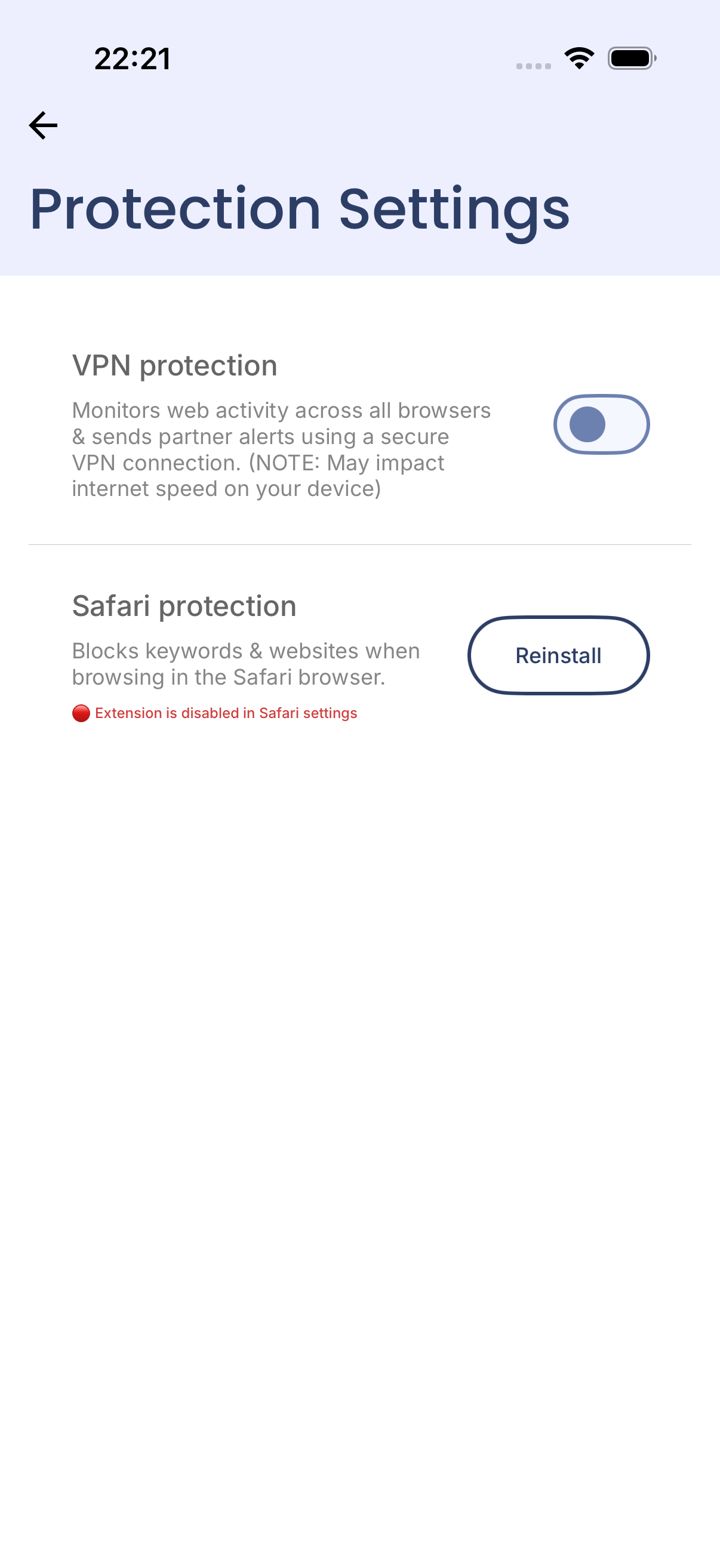
Check Safari protection
Go to You › Protection Settings. If Safari protection shows a red message, the extension is off. Tap Reinstall to get the setup screen.
We recommend the Safari Extension, then using LeadMeNot to block every browser that isn't Safari. Choose VPN protection only if you want every browser monitored.
Chapter 7 of 8 · Make sure it works
Does Safari protection show a red message?
Red means the extension is off in iPhone Settings.
Chapter 7 of 8 · Make sure it works
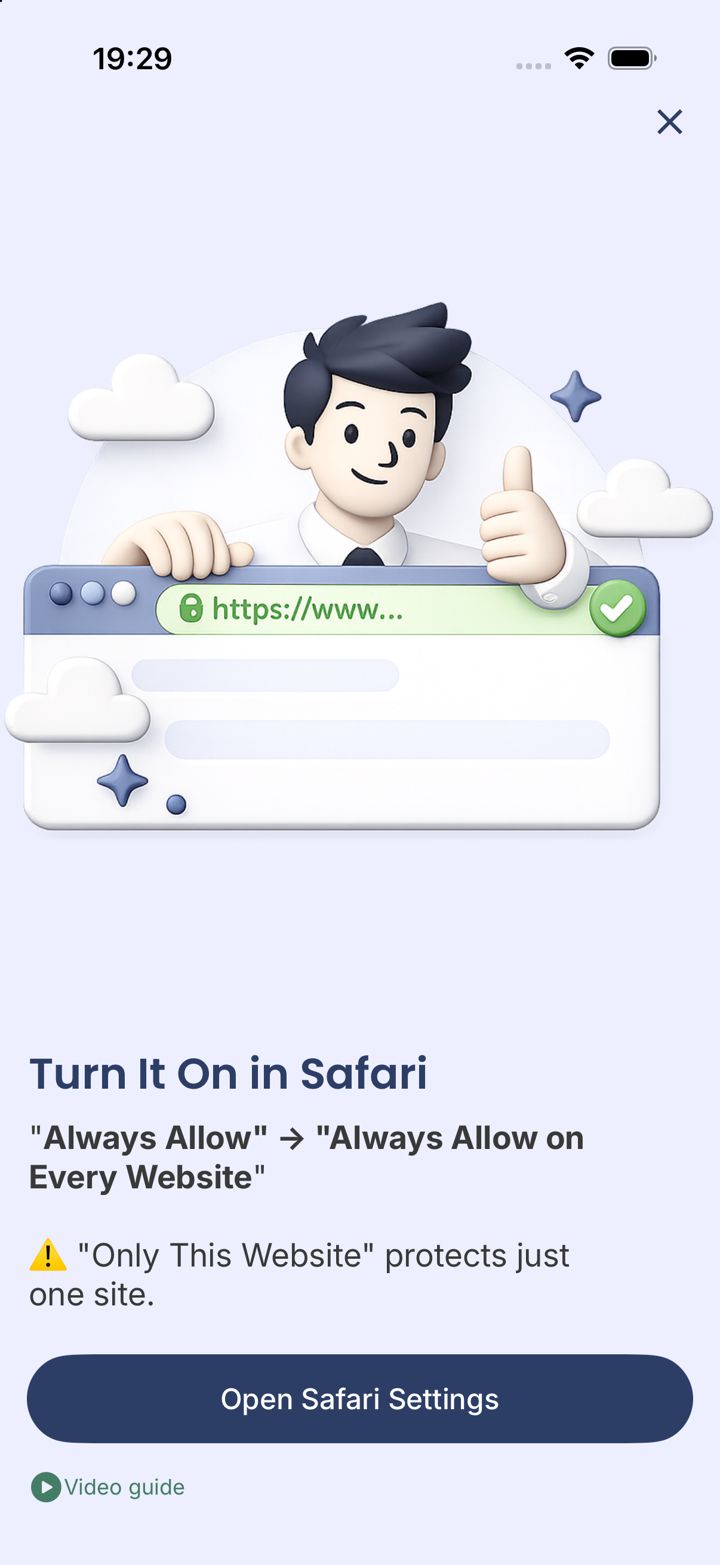
Tap Open Safari Settings
LeadMeNot explains what to pick: Always Allow, then Always Allow on Every Website. Tap Open Safari Settings.
Only This Website protects just one site. Pick Every Website.
Chapter 7 of 8 · Make sure it works
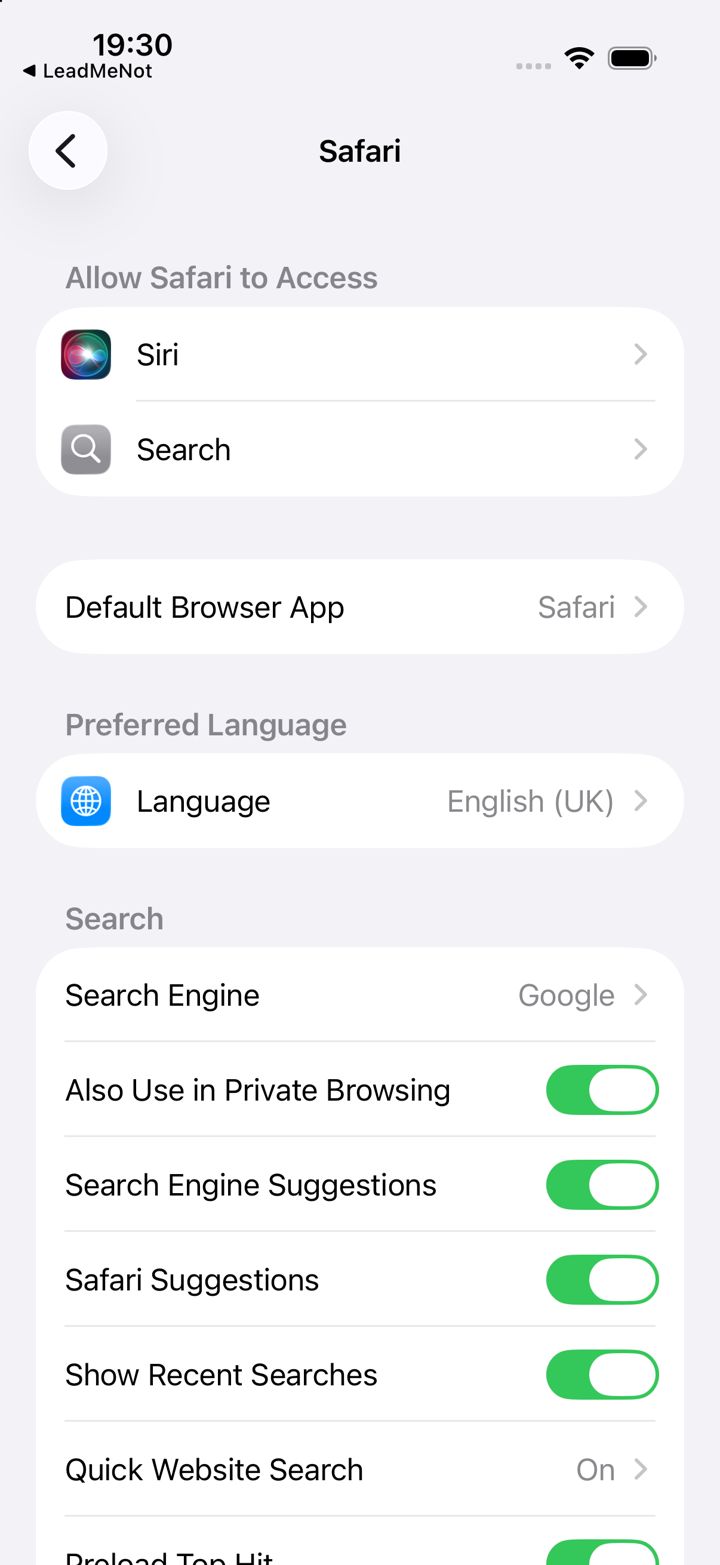
Scroll down to Extensions
You're now in iPhone Settings, on the Safari page. Scroll down and tap Extensions.
Lost? Open iPhone Settings › Apps › Safari › Extensions.
Chapter 7 of 8 · Make sure it works
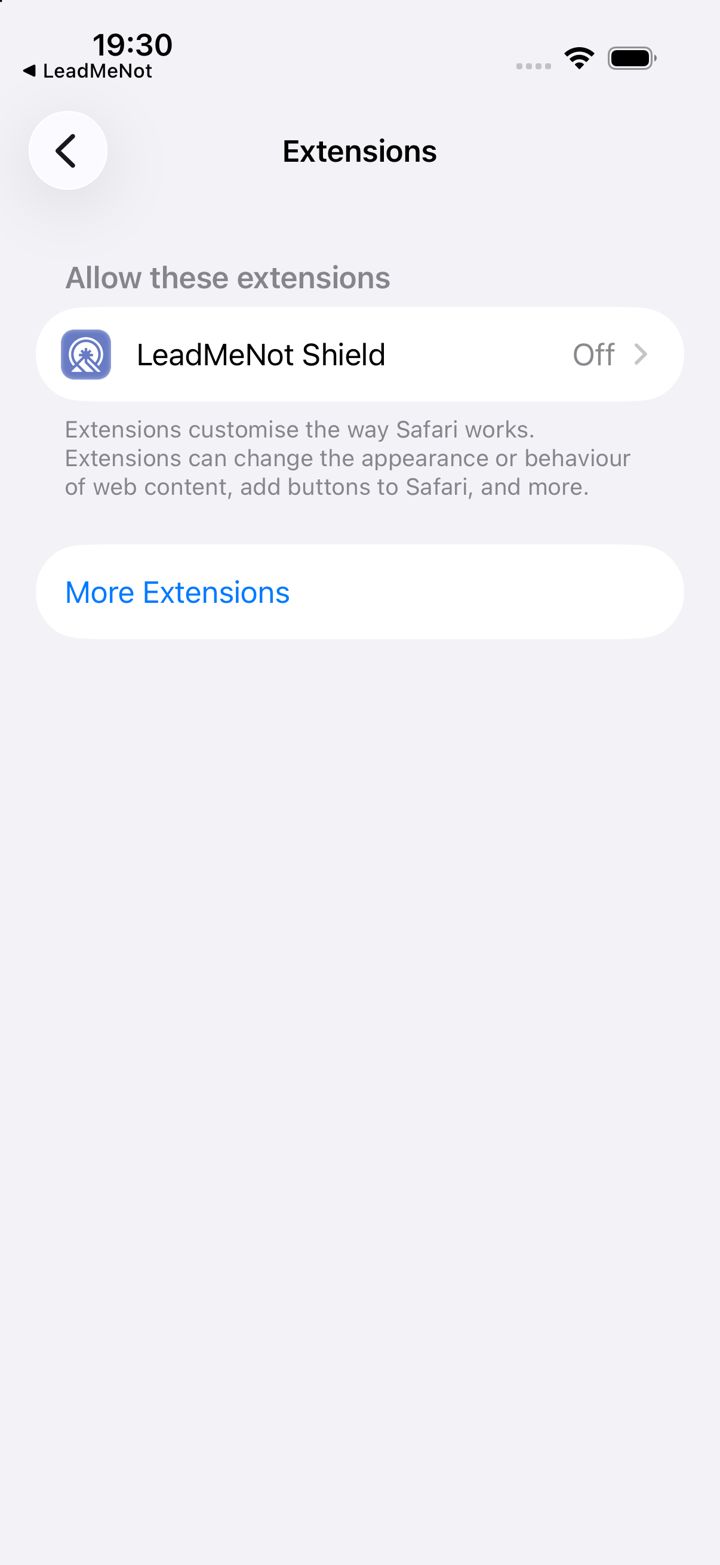
Tap LeadMeNot Shield
Tap LeadMeNot Shield. If it says Off, that's what we're fixing.
Chapter 7 of 8 · Make sure it works
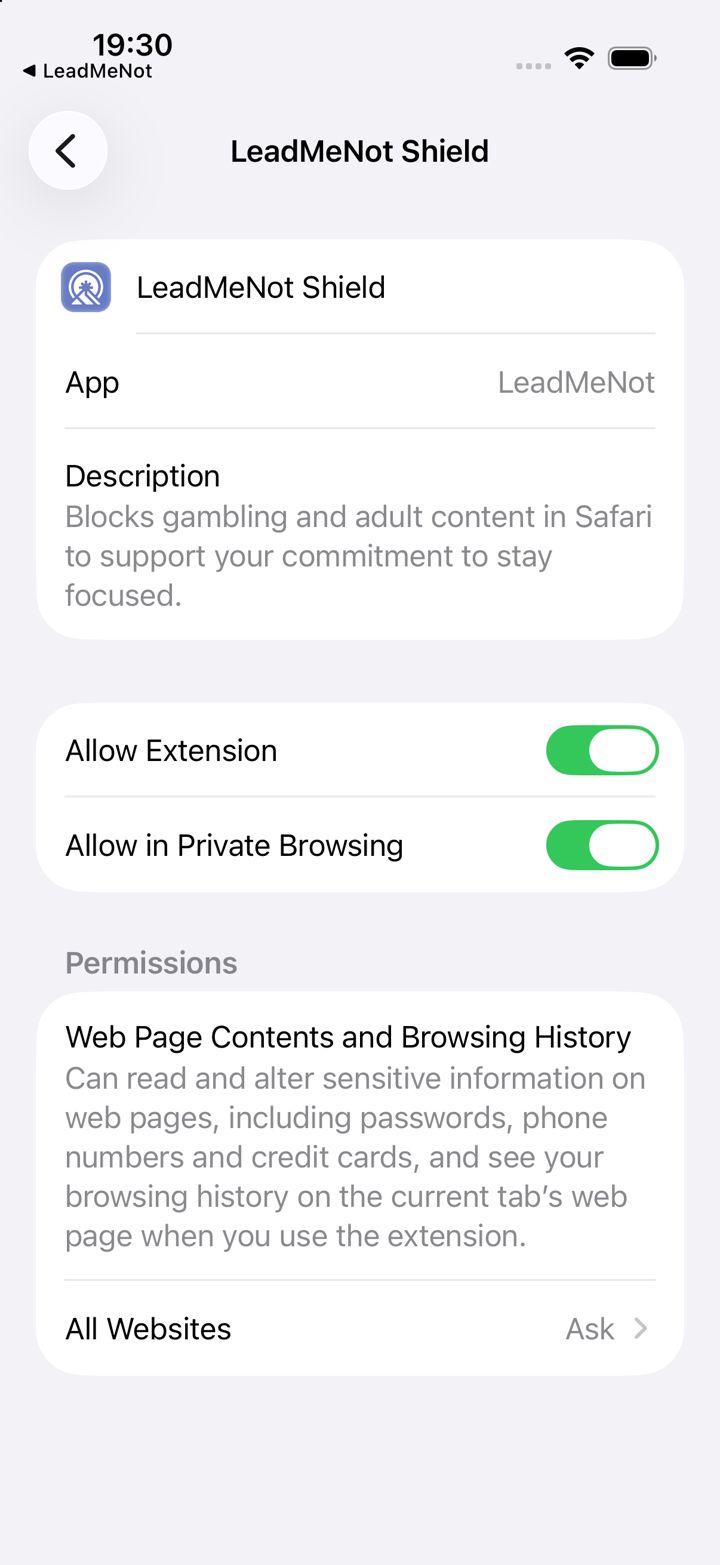
Switch it on, then tap All Websites
Switch on Allow Extension and Allow in Private Browsing. Then tap All Websites at the bottom.
Leave Allow in Private Browsing off and private tabs aren't protected.
Chapter 7 of 8 · Make sure it works
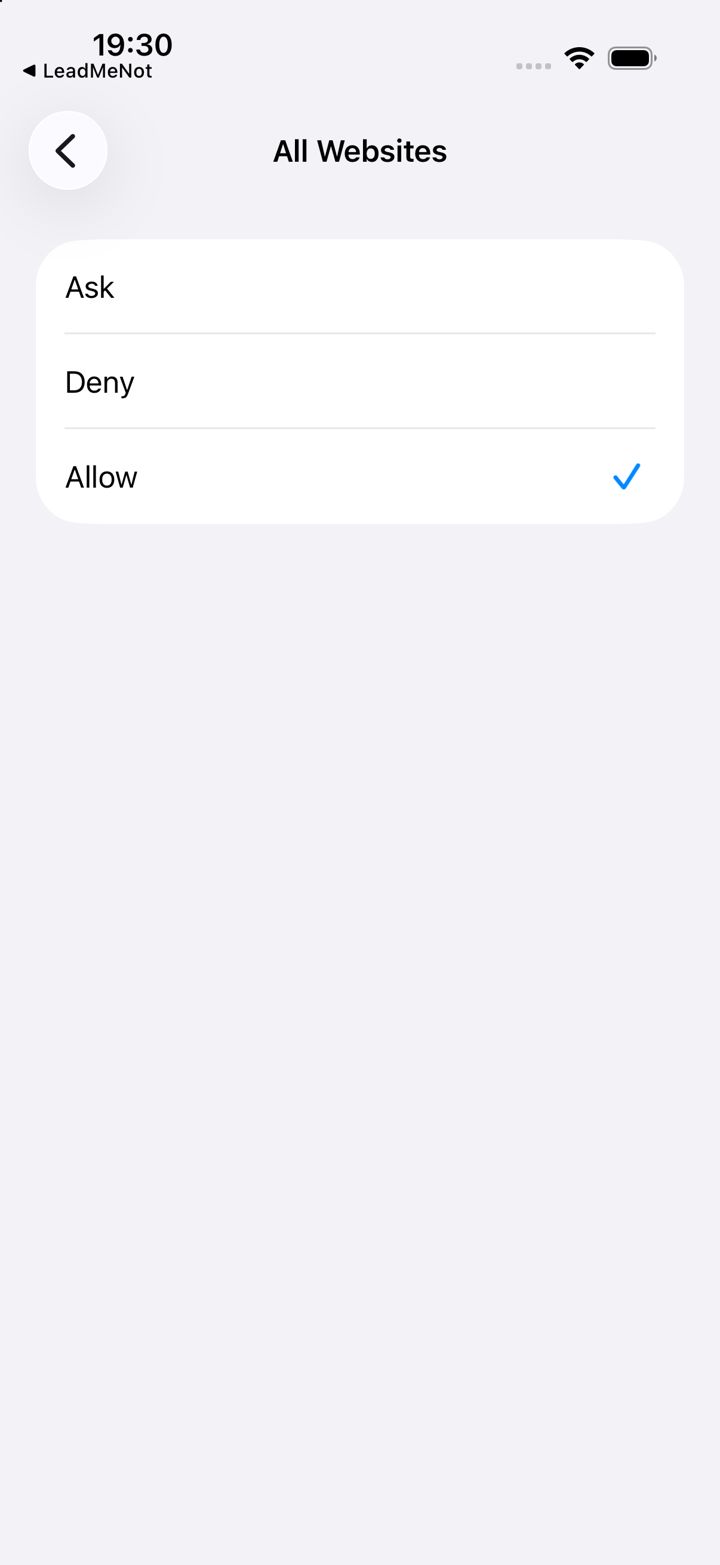
Choose Allow
Pick Allow, so the extension works on every website, not just one. Then go back to LeadMeNot.
Chapter 7 of 8 · Make sure it works
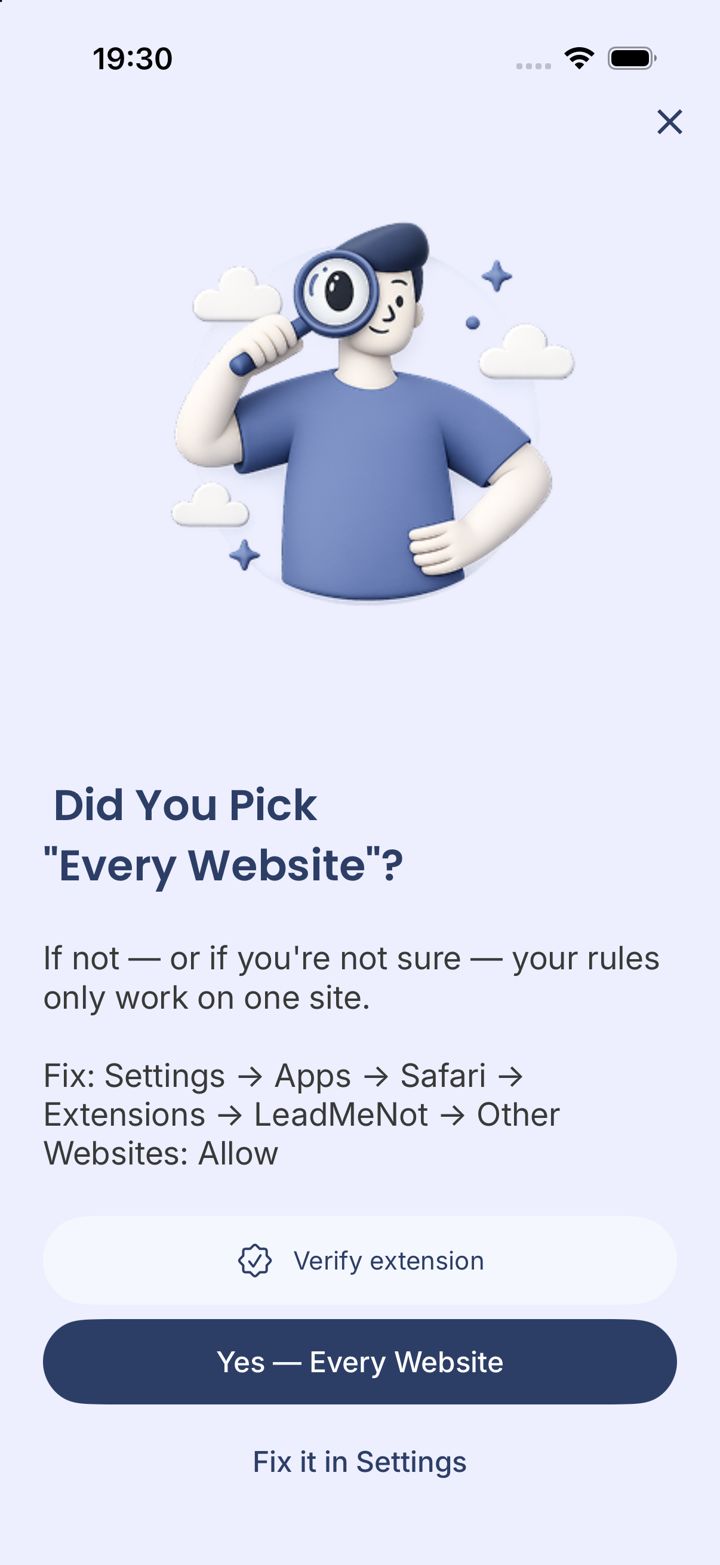
Confirm: Yes, Every Website
Back in LeadMeNot, tap Yes — Every Website. Not sure? Tap Verify extension and LeadMeNot checks for you.
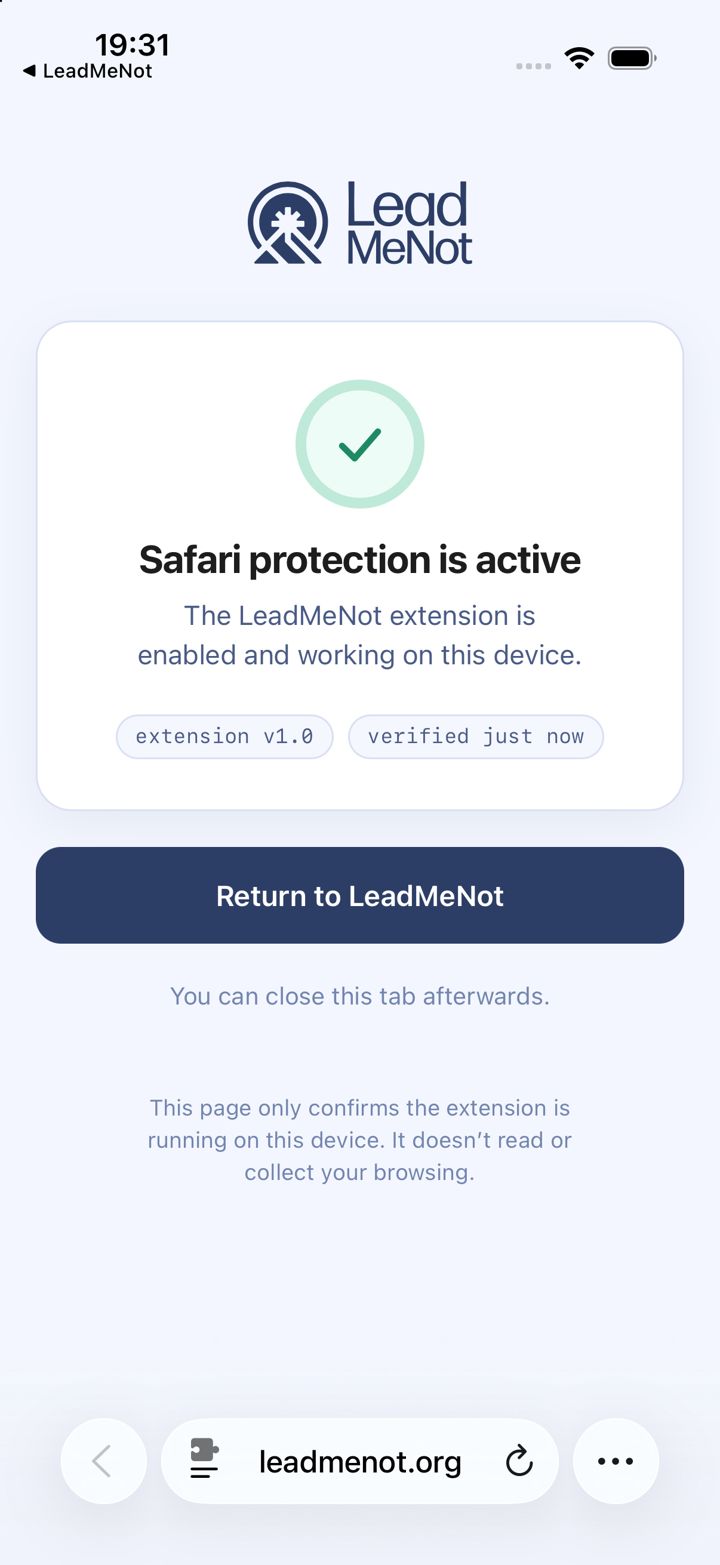
Chapter 7 of 8 · Make sure it works
Safari protection is active
If you tapped Verify, Safari opens a page that confirms the extension is running. Tap Return to LeadMeNot.
This page only checks the extension is running. It doesn't read your browsing.
Chapter 7 of 8 · Make sure it works
Do you have any other browsers on your phone?
Chrome, Firefox, Edge, Brave, DuckDuckGo, Opera... The extension only works in Safari, so those need blocking.
Chapter 7 of 8 · Make sure it works
Tap Add Rule
Tap Add Rule in the bottom right corner. A small menu opens.
Chapter 7 of 8 · Make sure it works
Choose App
Tap App.
Chapter 7 of 8 · Make sure it works
Search for each browser
Tap Search, find Chrome, Firefox, Edge, Brave or any other browser you have, and select each one.
Chapter 7 of 8 · Make sure it works
Keep Always and Access them, then Next
Leave Always and Access them selected, tap Next, pick what you see instead, and save.
Turn on Install Protection too, so a new browser can't be downloaded later.
Chapter 7 of 8 · Make sure it works
VPN protection: only if you need every browser
If you'd rather keep other browsers and have them all monitored, switch on VPN protection here instead.
Like every VPN on iPhone, it comes with limits that no app developer can get around: iPhone can switch it off in the background, it can't run at the same time as another VPN (like a work or school VPN), and it can slow your connection or stop some apps and Wi-Fi networks working properly.
Safari
Chapter 7 of 8 · Make sure it works
Test it: type leadmenottest
Open Safari, type leadmenottest into the address bar and go. If LeadMeNot blocks the page, everything is working.
Not blocked? Every permission has to be on. Check the Safari Extension is switched on, with no red message under You › Protection Settings (or VPN protection, if you use that instead), Screen Time access is allowed, and the Blocker says Active on Block & Monitor.
The test only works while blocking is on, for example with Adult Websites & Apps switched on.
LeadMeNot
Guides › Lock it down so you can't undo it
Chapter 7 of 8 · Make sure it works
Close the gaps
For extra strength, have your partner set a Screen Time passcode and block the Settings app. Our Lock it down guide walks you through it.
Chapter 8 of 8 · What happens next
When you try to change something
Later, if you tap a switch to turn protection off, your Safe Wall steps in.
Chapter 8 of 8 · What happens next
Which Safe Wall did you choose?
Here's what you'll see.
Chapter 8 of 8 · What happens next
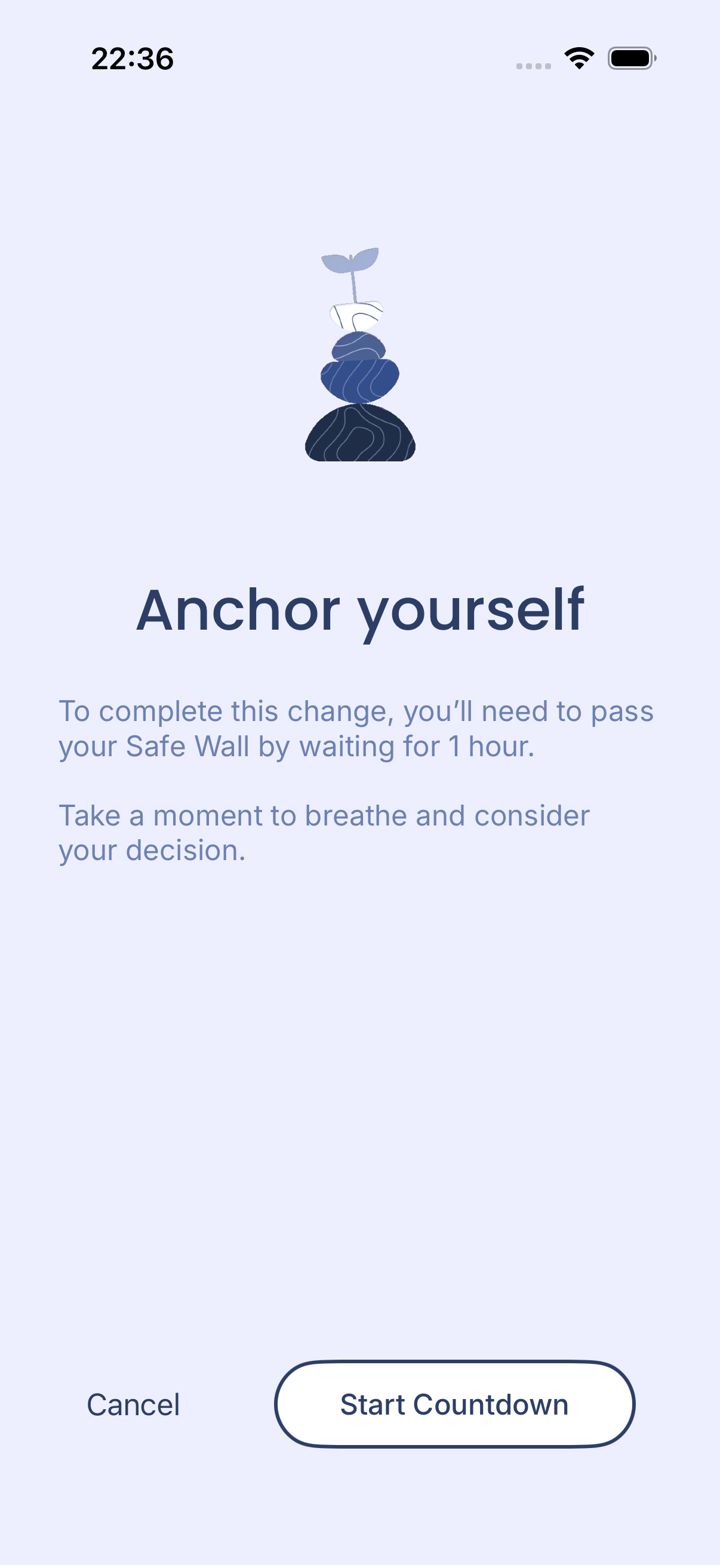
A moment to pause
You're asked to anchor yourself first. Tap Start Countdown to continue, or Cancel to keep things as they are.
Chapter 8 of 8 · What happens next
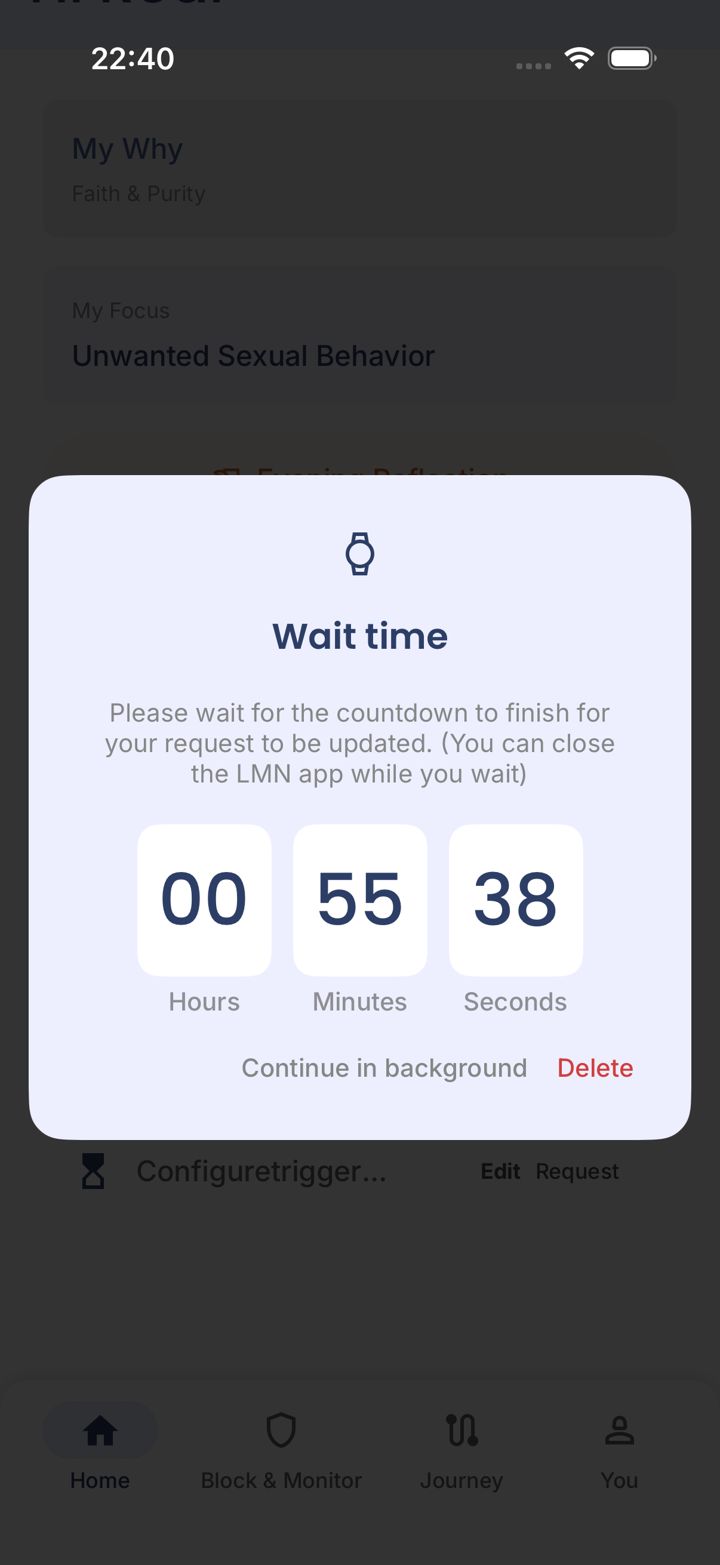
The countdown
The change happens when the timer ends. You can close the app. Tap Delete to cancel it.
Chapter 8 of 8 · What happens next
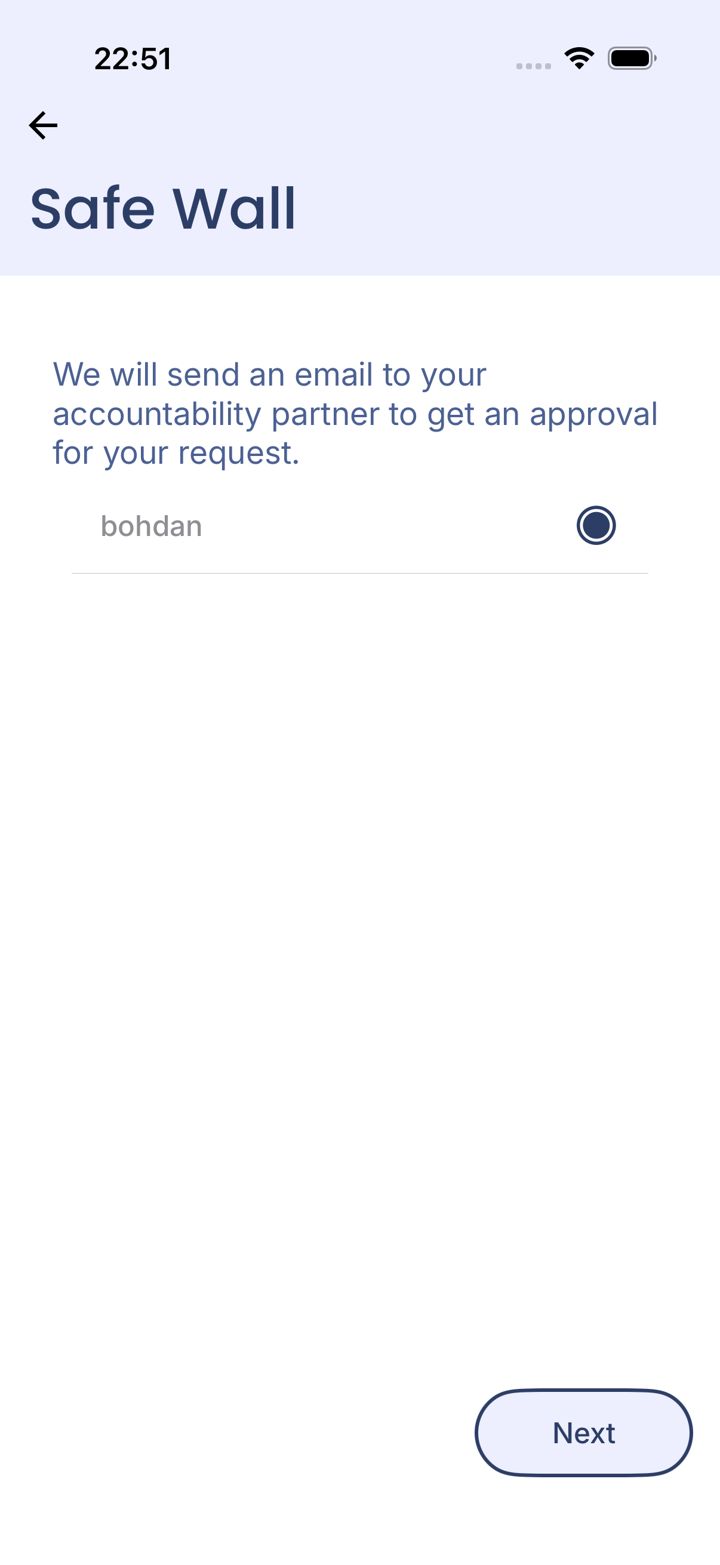
Pick which partner to ask
Choose a partner and tap Next.
Chapter 8 of 8 · What happens next
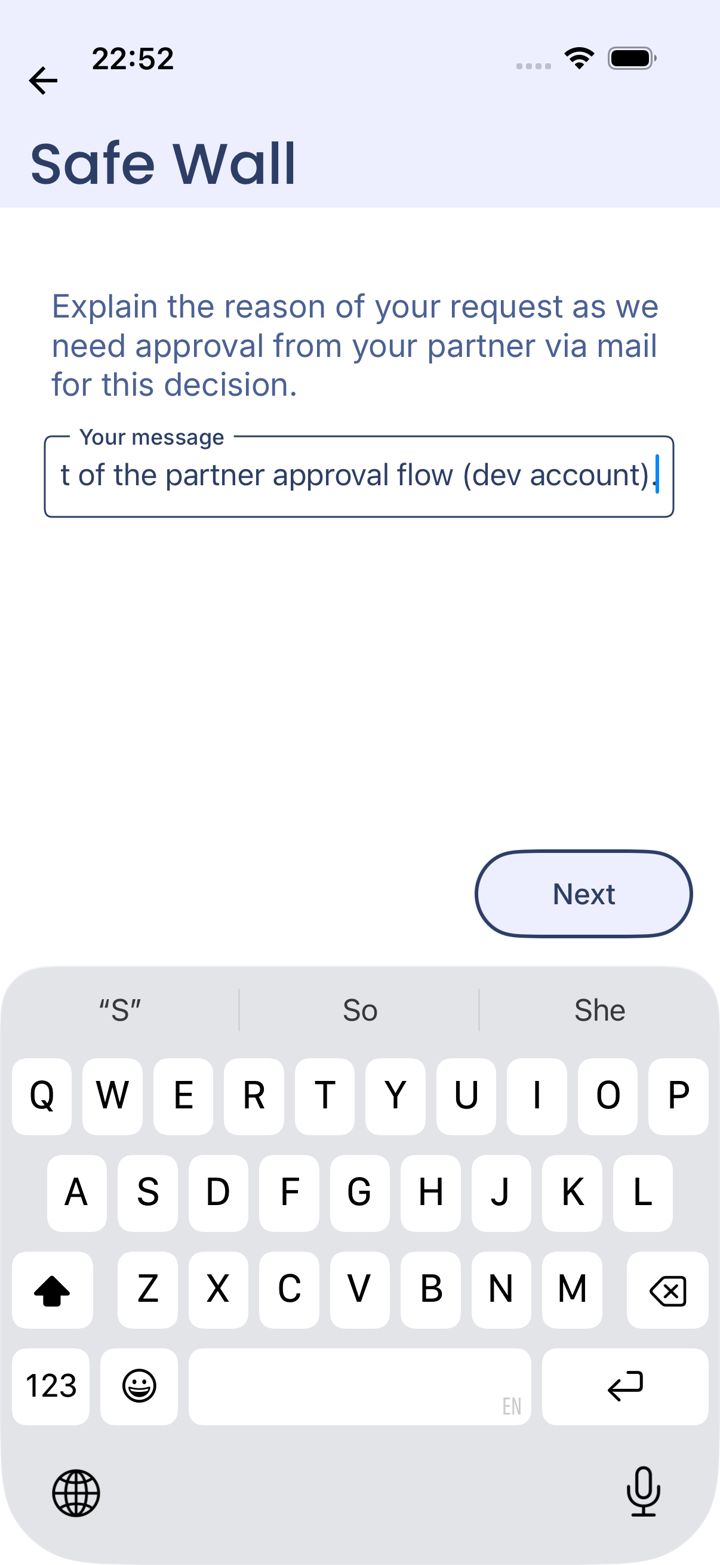
Explain why
Write a short reason. Your partner sees it in the email.
Chapter 8 of 8 · What happens next
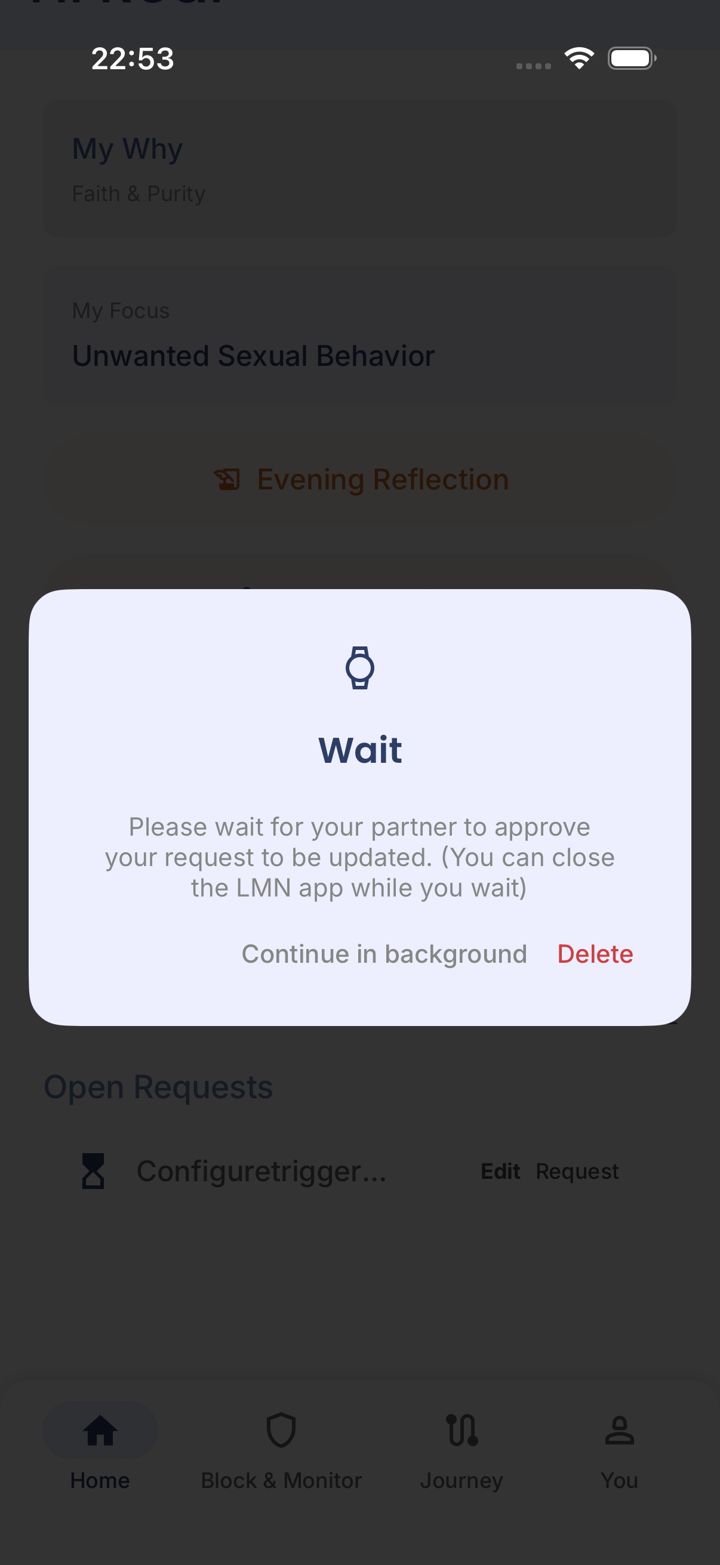
Wait for their answer
You'll get a notification when they approve or decline.
Can't reach your partner and genuinely need the change? Email jason@leadmenot.org.
Chapter 8 of 8 · What happens next
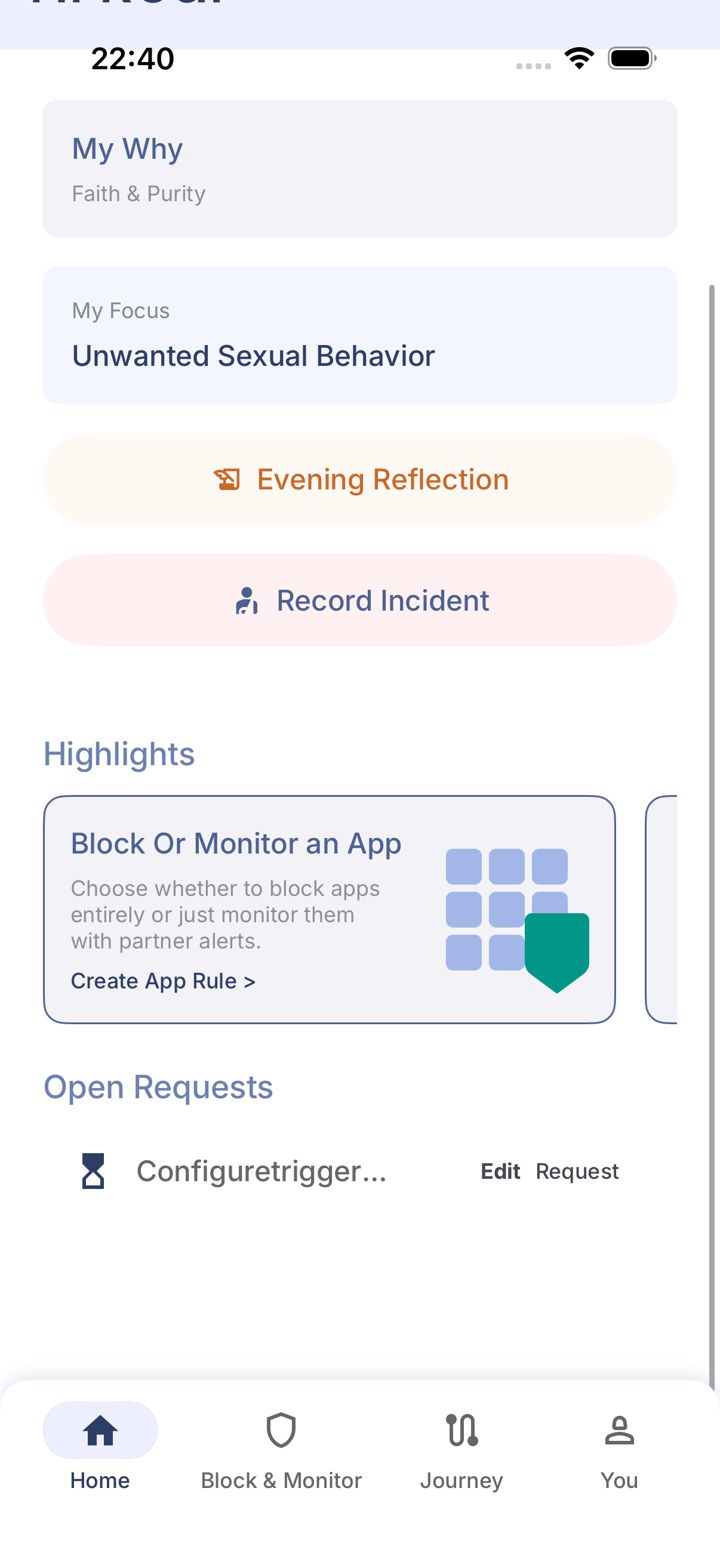
Find it under Open Requests
Pending changes are listed under Open Requests on Home.
Chapter 8 of 8 · What happens next
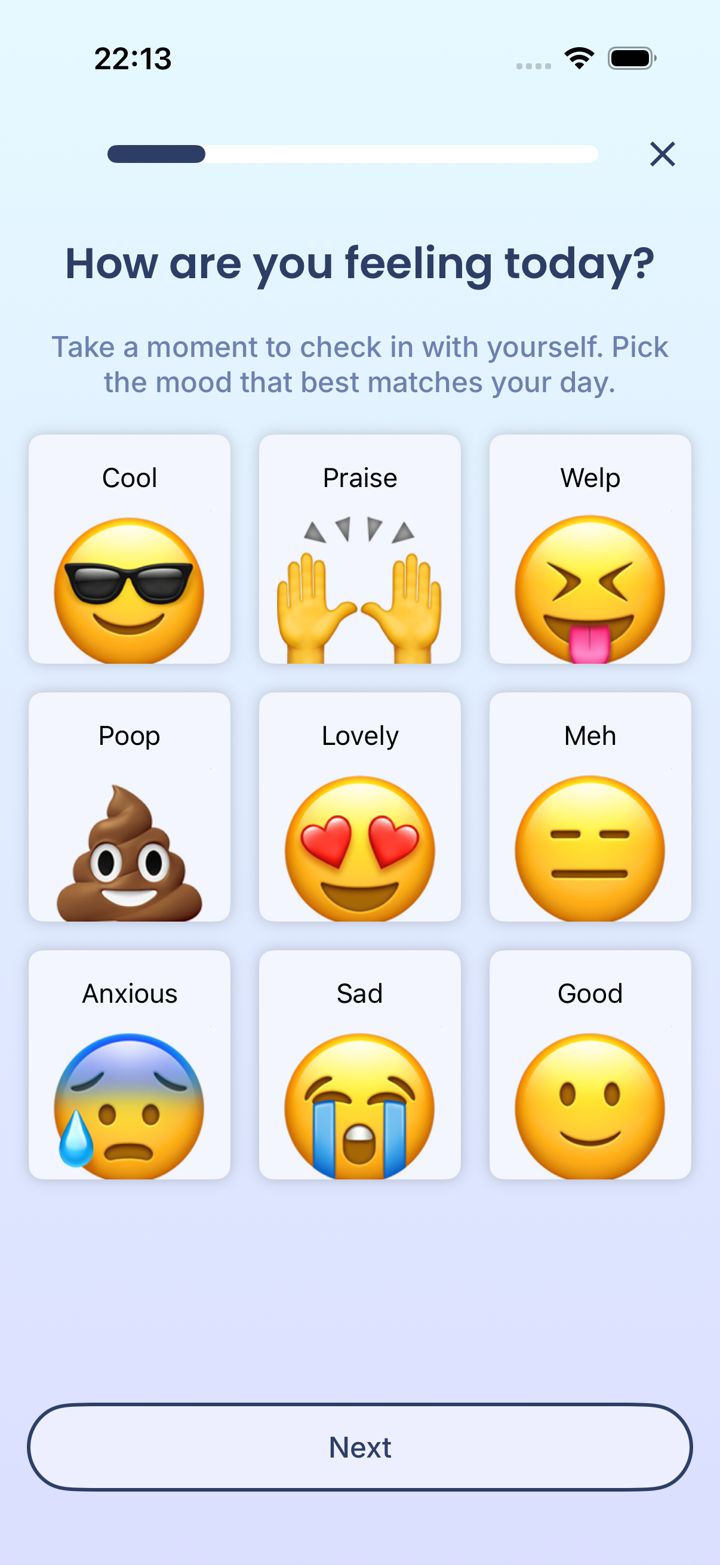
Each evening, check in
Tap Evening Reflection on Home to log how your day went. It takes a minute, and your partner receives it, so they hear about the good days too.
Chapter 8 of 8 · What happens next
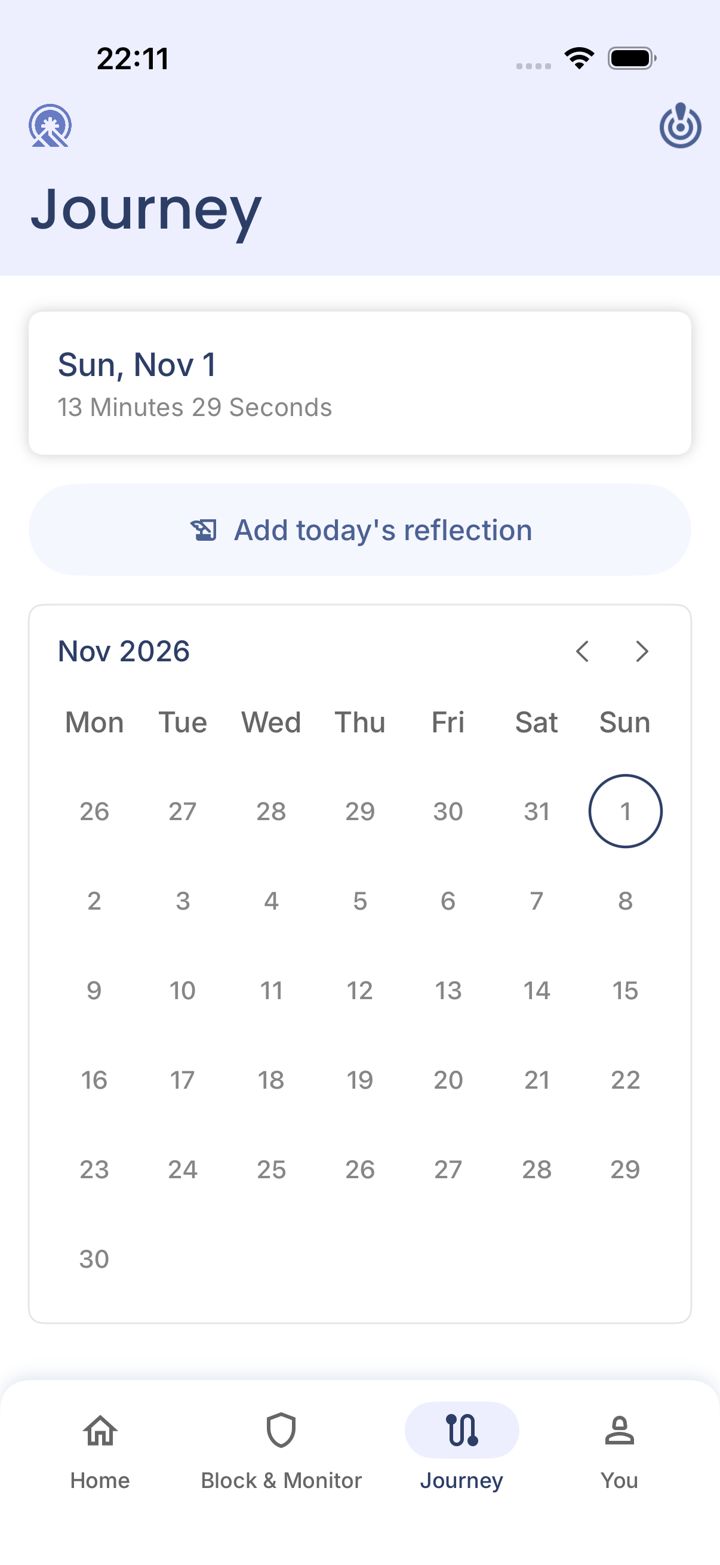
Watch your progress
The Journey tab shows your days and reflections.
LeadMeNot · Home
Chapter 8 of 8 · What happens next
If you slip
Tap Record Incident on Home and log it honestly. A slip isn't the end of the road. Tell your partner too.
Help
Chapter 8 of 8 · What happens next
Help is always here
Search this help center, ask the assistant in the chat bubble, or email jason@leadmenot.org. Jason answers personally.
Did this work?
Great. Here's what people usually do next:
Sorry about that. Email Jason and we'll include which guide and step you were on, or ask our assistant.