
iPhone & iPad · Get started
Set up with a partner from the start
Make your partner approve any change to your protection, right from setup.
LeadMeNot · Setup
Step 1 of 11
Get to the Setup screen
Follow Set up LeadMeNot for the first time until you reach the Setup screen, then come back here.
Step 2 of 11
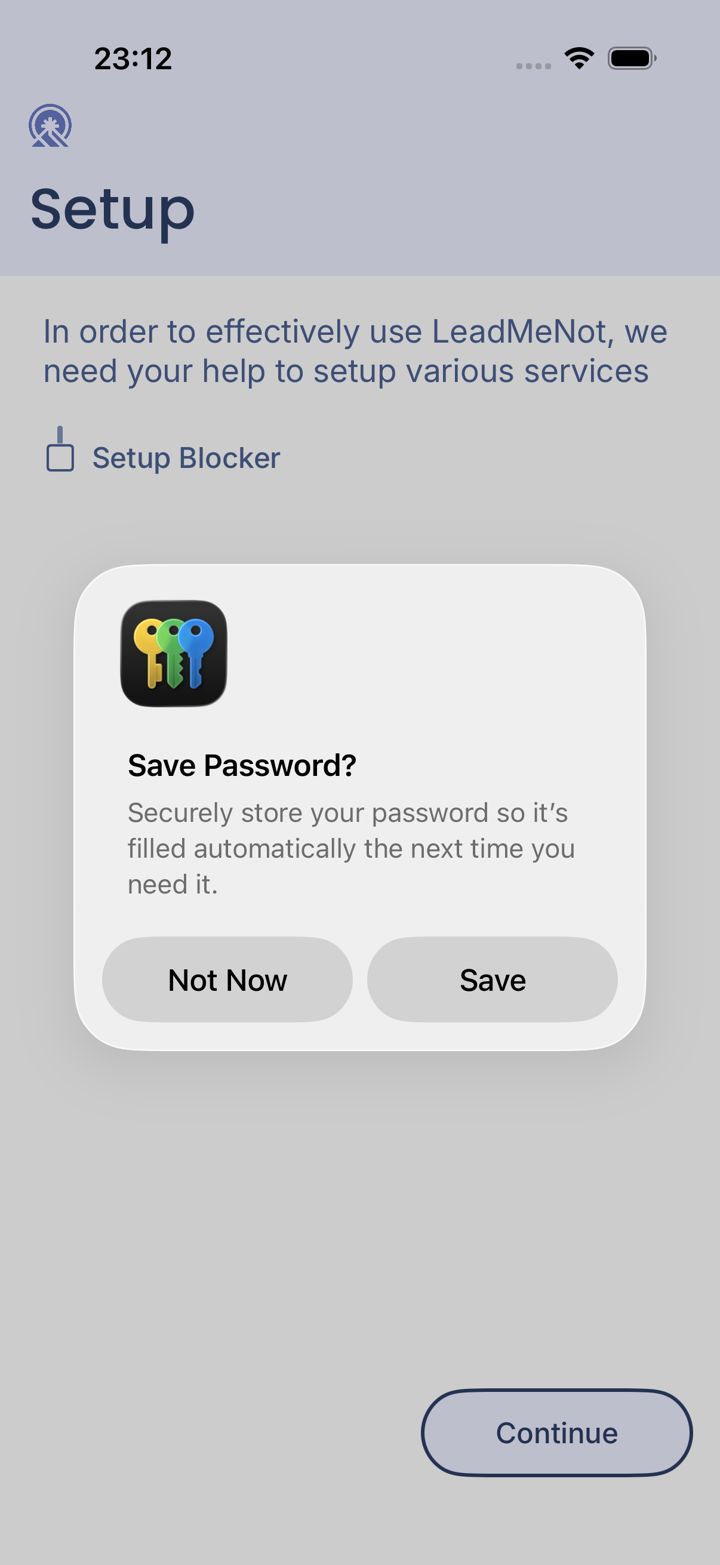
Tap Continue
On the Setup screen, tap Continue.
Step 3 of 11
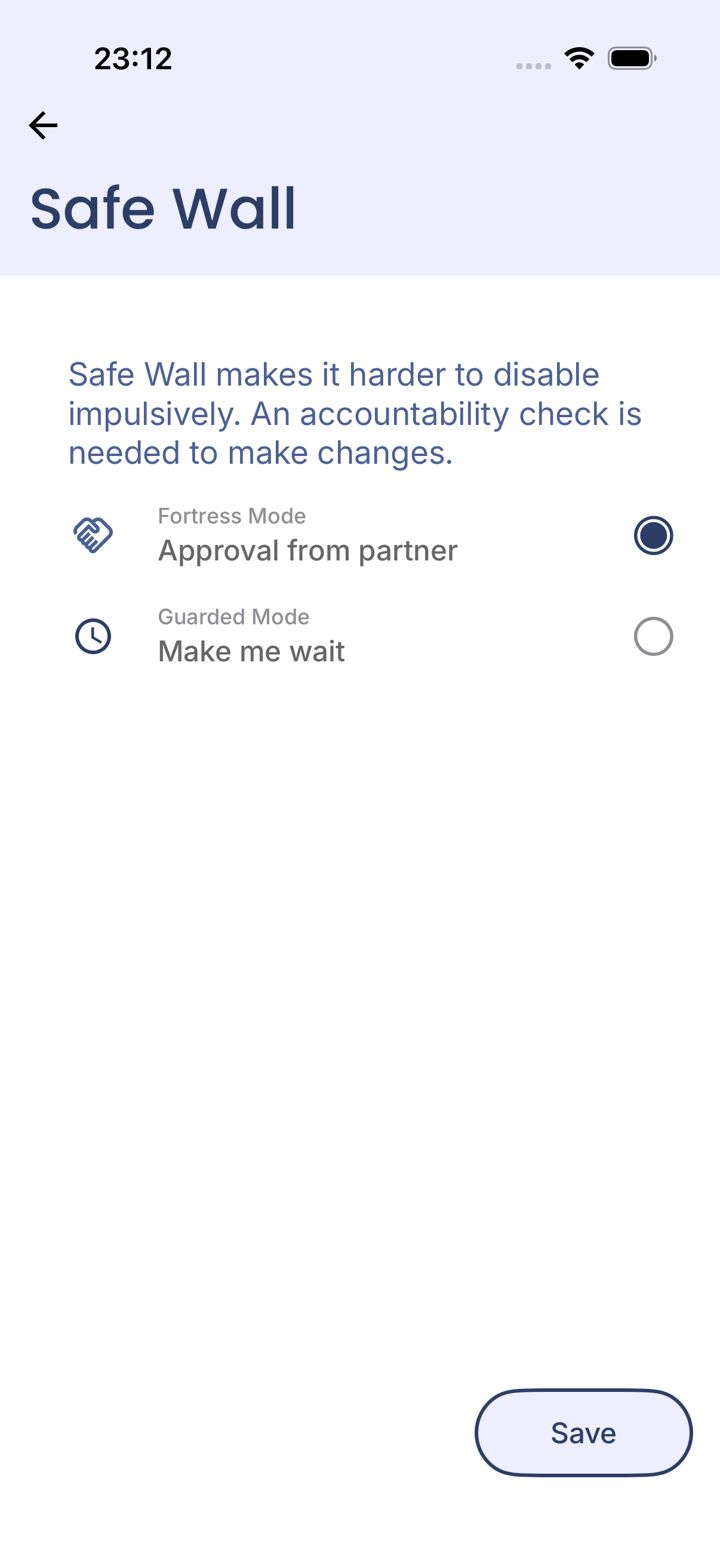
Choose Approval from partner
Pick Approval from partner (Fortress Mode), then tap Save.
With this on, nothing can be switched off until your partner says yes by email.
Step 4 of 11
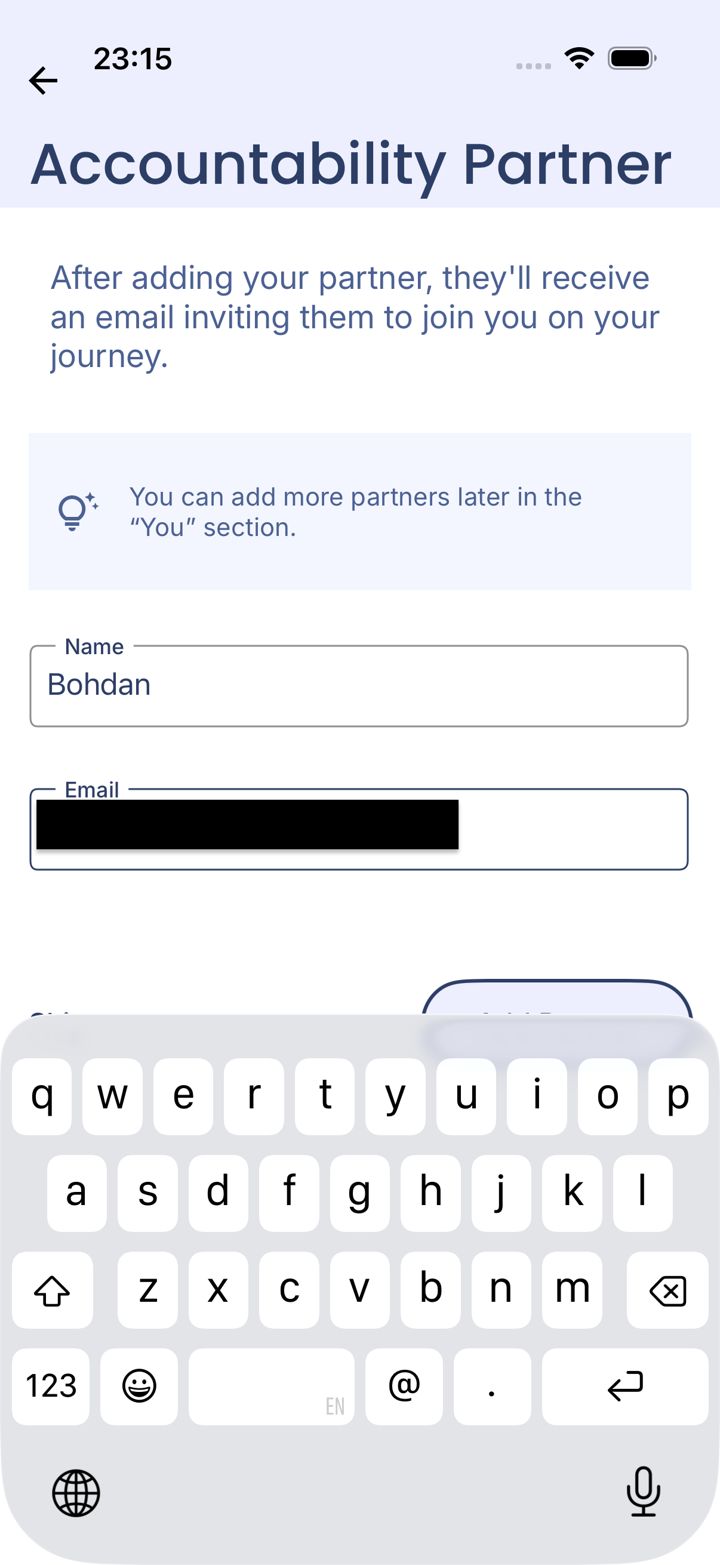
Add your partner
Enter your partner's name and email, then tap Add Partner.
Step 5 of 11
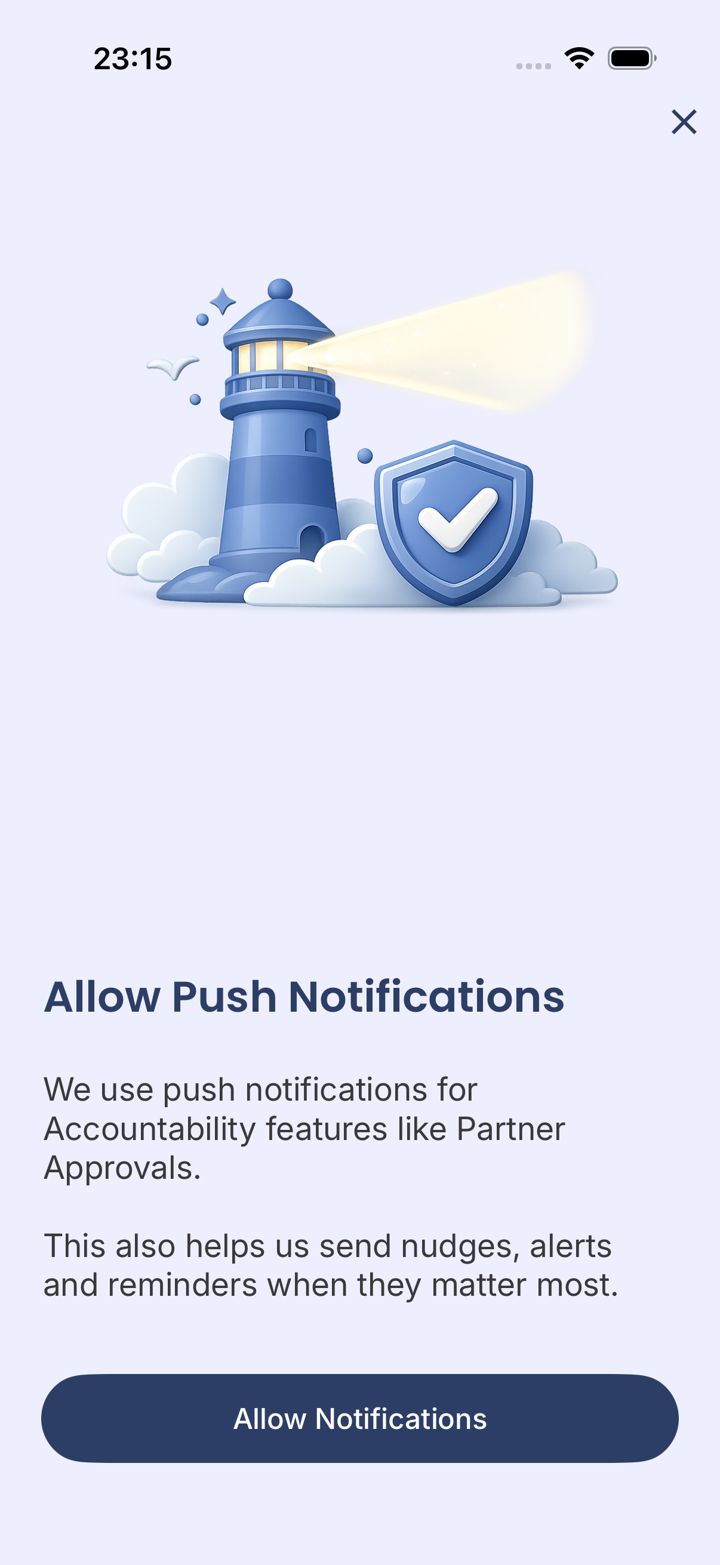
Allow notifications
Tap Allow Notifications so you hear back when your partner responds.
Step 6 of 11
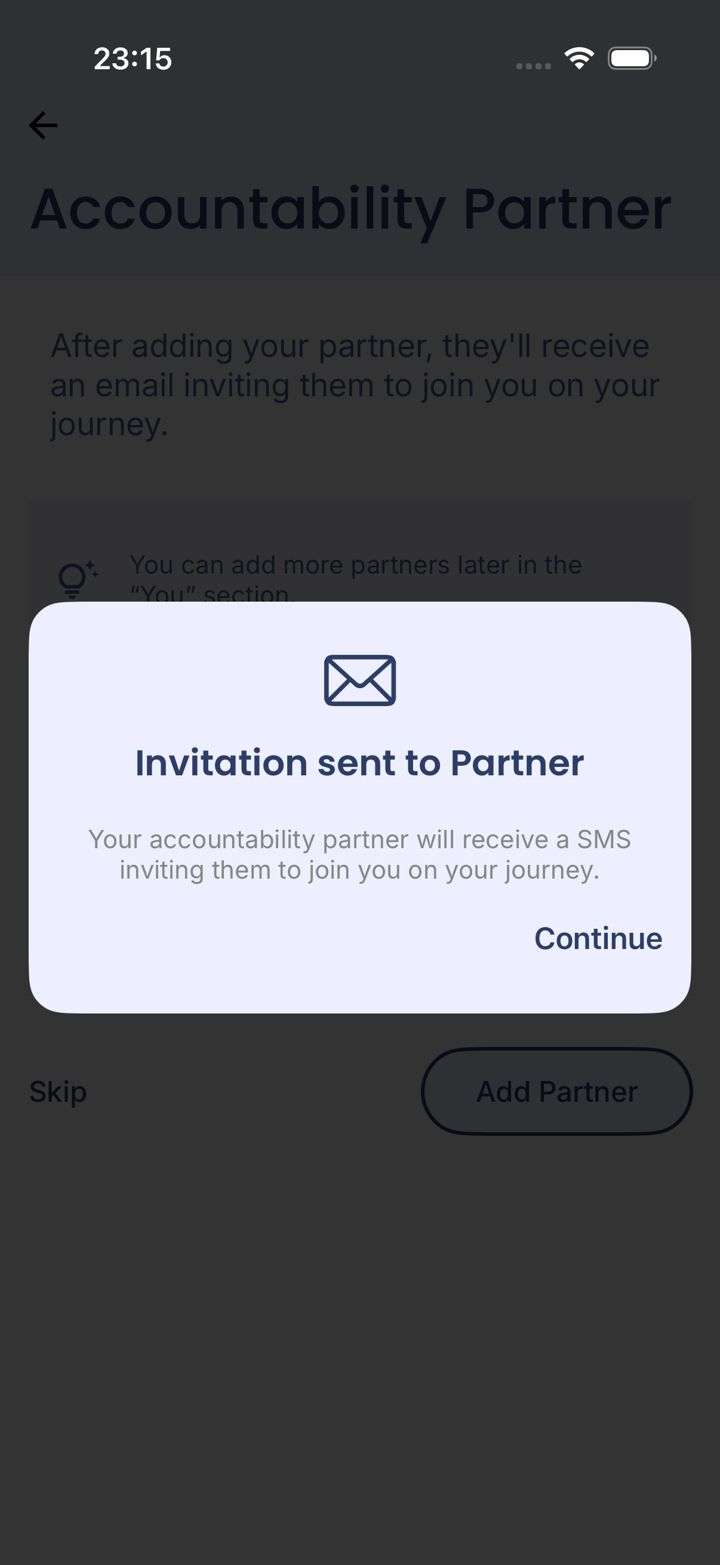
Invitation sent
Your partner gets an invitation. Tap Continue.
Step 7 of 11
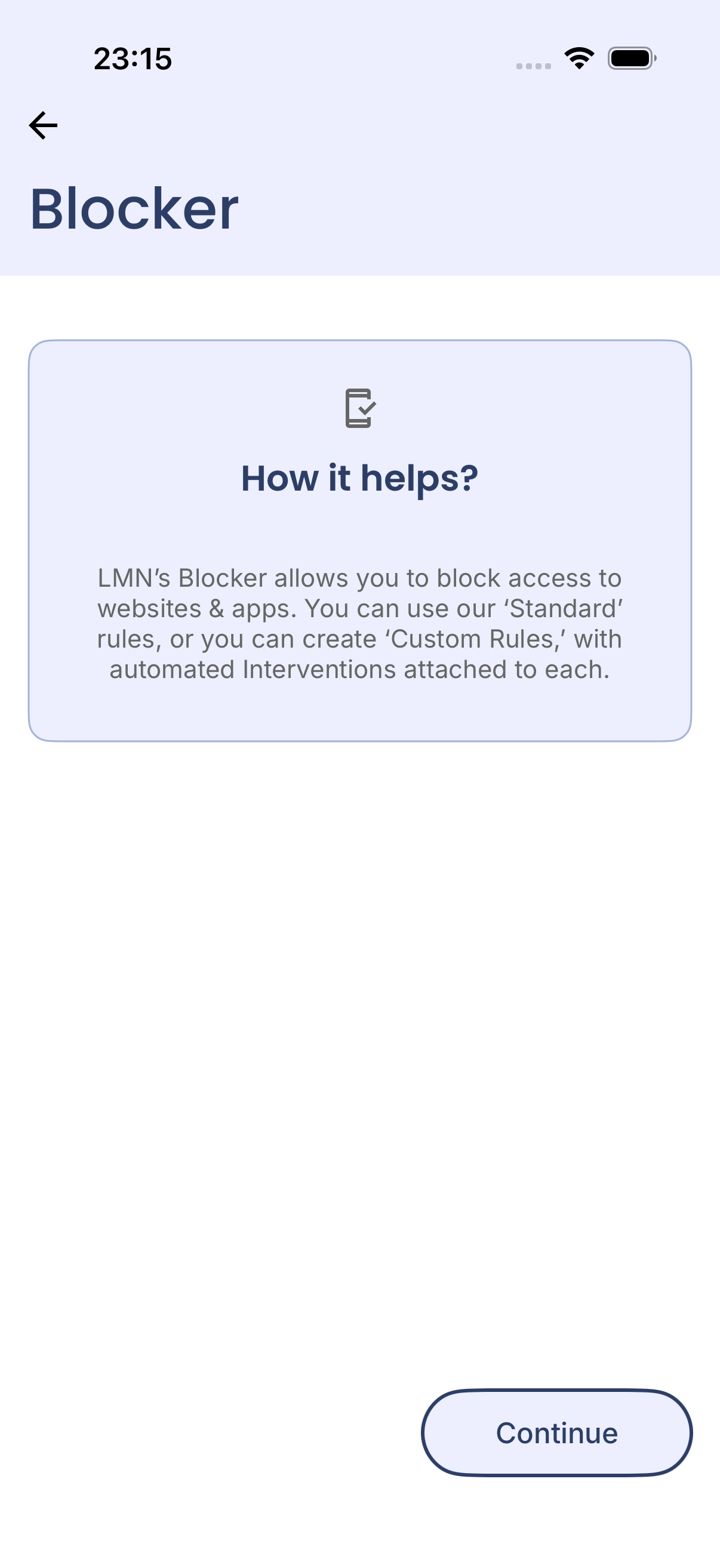
Continue to the Blocker
Tap Continue.
Step 8 of 11
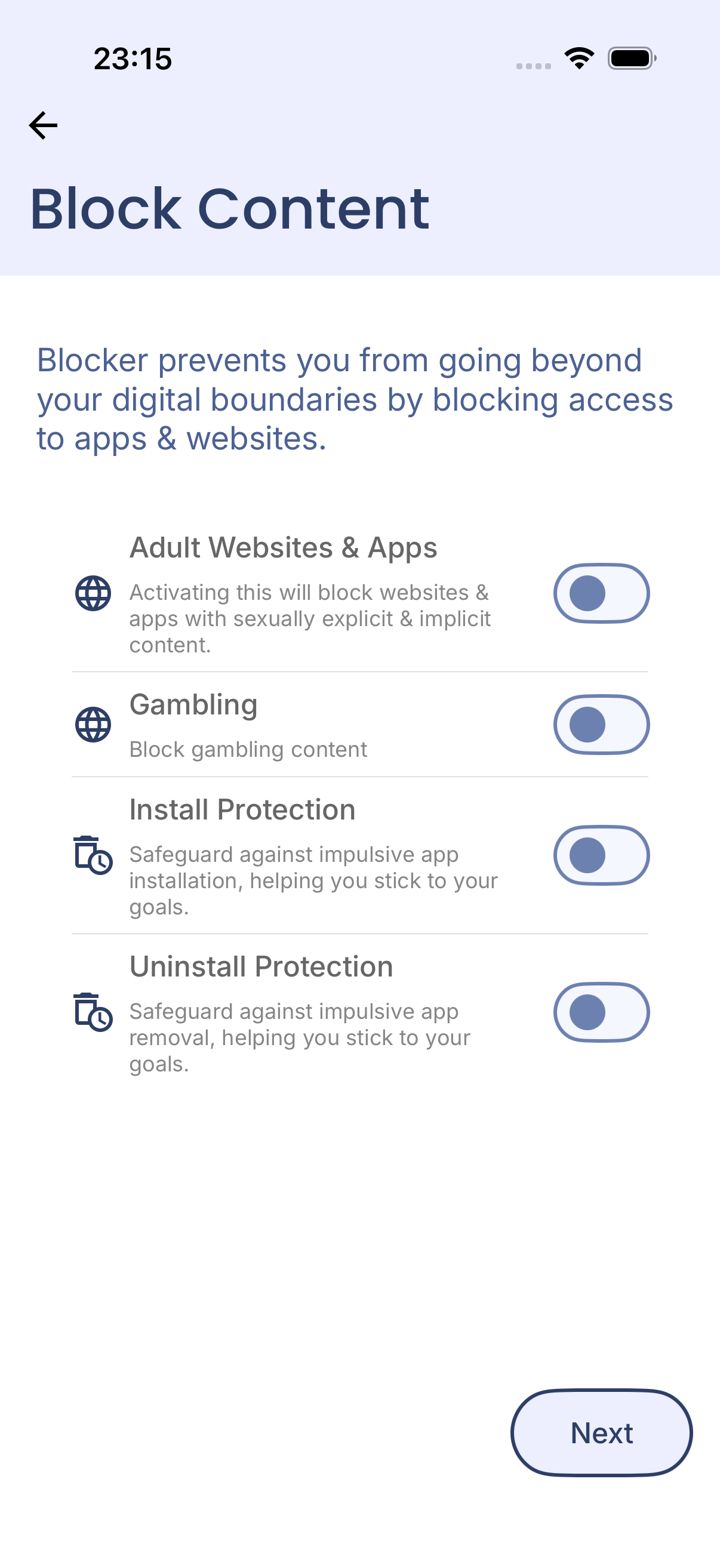
Switch on what you want blocked
Turn on the switches you want, then tap Next.
These switches start off. Leave them off and nothing is blocked.
Step 9 of 11
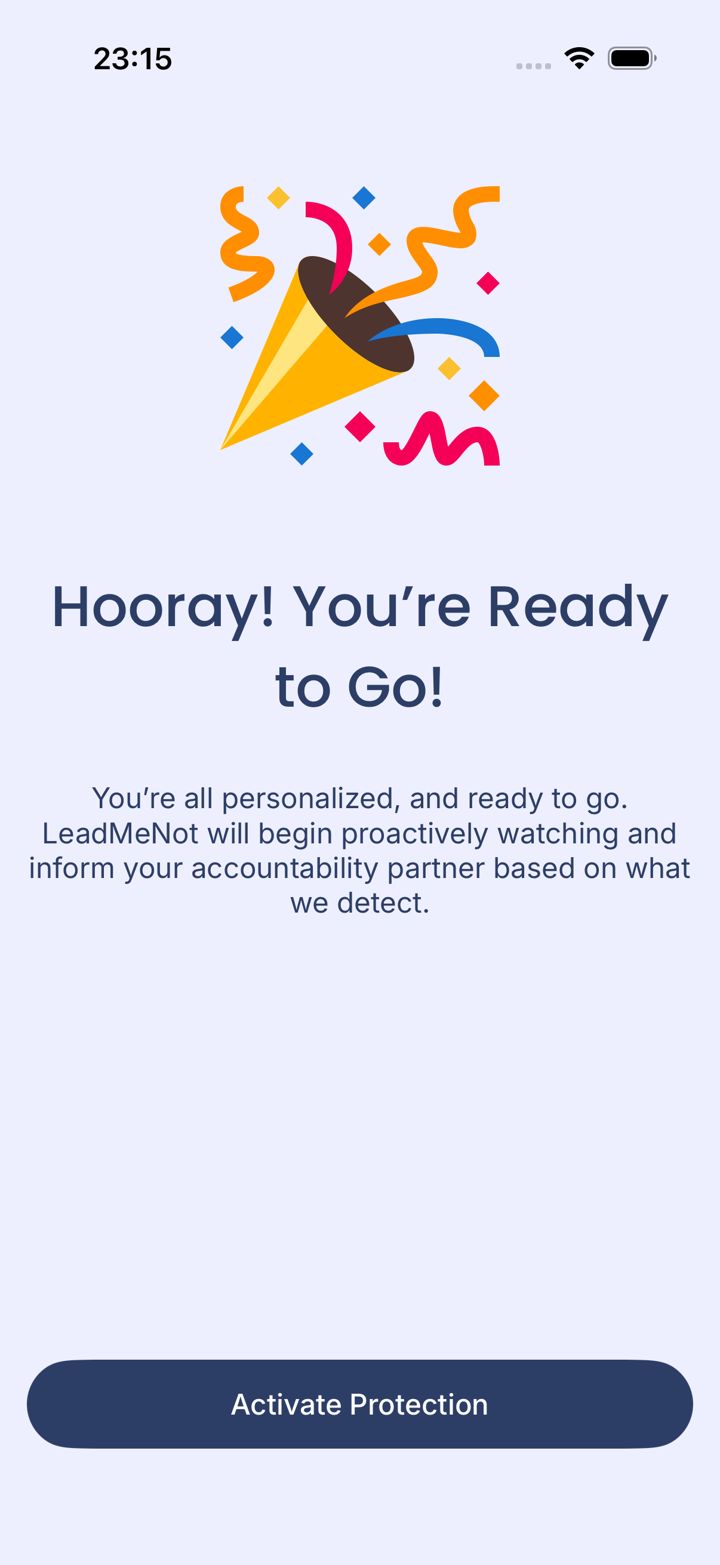
Activate protection
Tap Activate Protection.
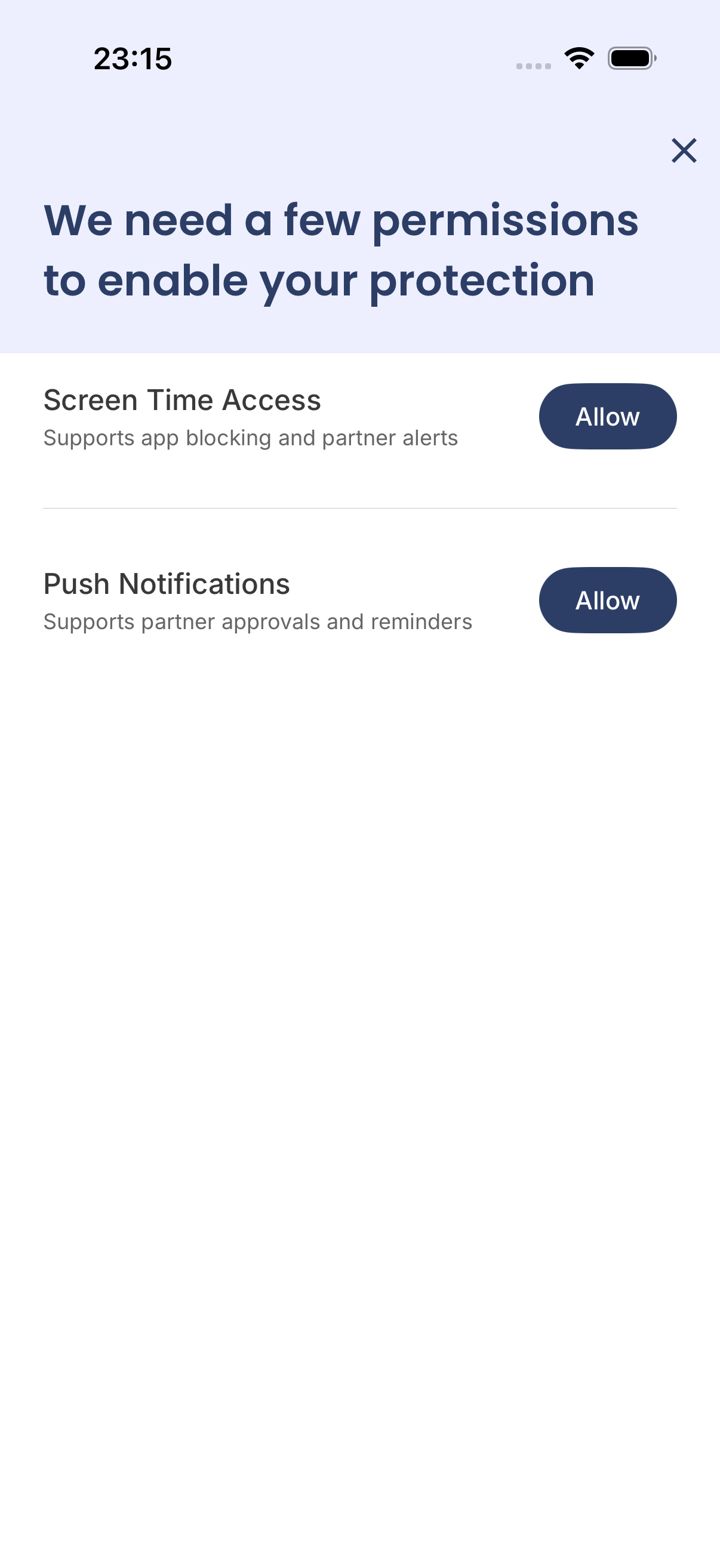
Step 10 of 11
Allow the permissions
Tap Allow for Screen Time Access and Push Notifications.
Safari
Step 11 of 11
Test it: type leadmenottest
Open Safari, type leadmenottest into the address bar and go. If LeadMeNot blocks the page, everything is working.
Not blocked? Every permission has to be on. Check the Safari Extension is switched on, with no red message under You › Protection Settings (or VPN protection, if you use that instead), Screen Time access is allowed, and the Blocker says Active on Block & Monitor.
The test only works while blocking is on, for example with Adult Websites & Apps switched on.
Did this work?
Great. Here's what people usually do next:
Sorry about that. Email Jason and we'll include which guide and step you were on, or ask our assistant.