
Mac · Limit or block apps & sites
Block a keyword or phrase
Block or monitor pages that contain words you choose, in every app and browser.
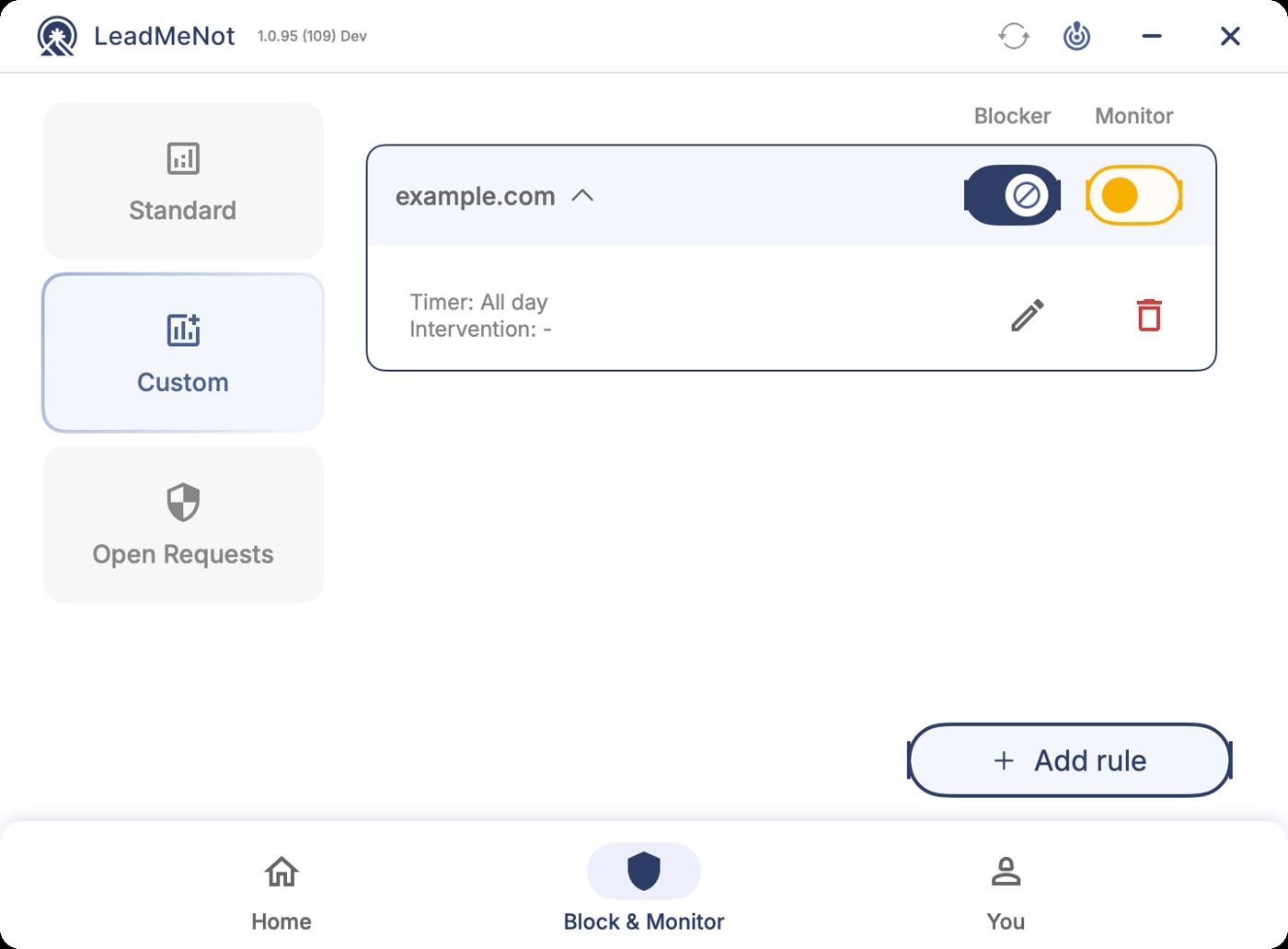
Step 1 of 6
Open Block & Monitor › Custom, then Add rule
Click Block & Monitor, then Custom, then Add rule.
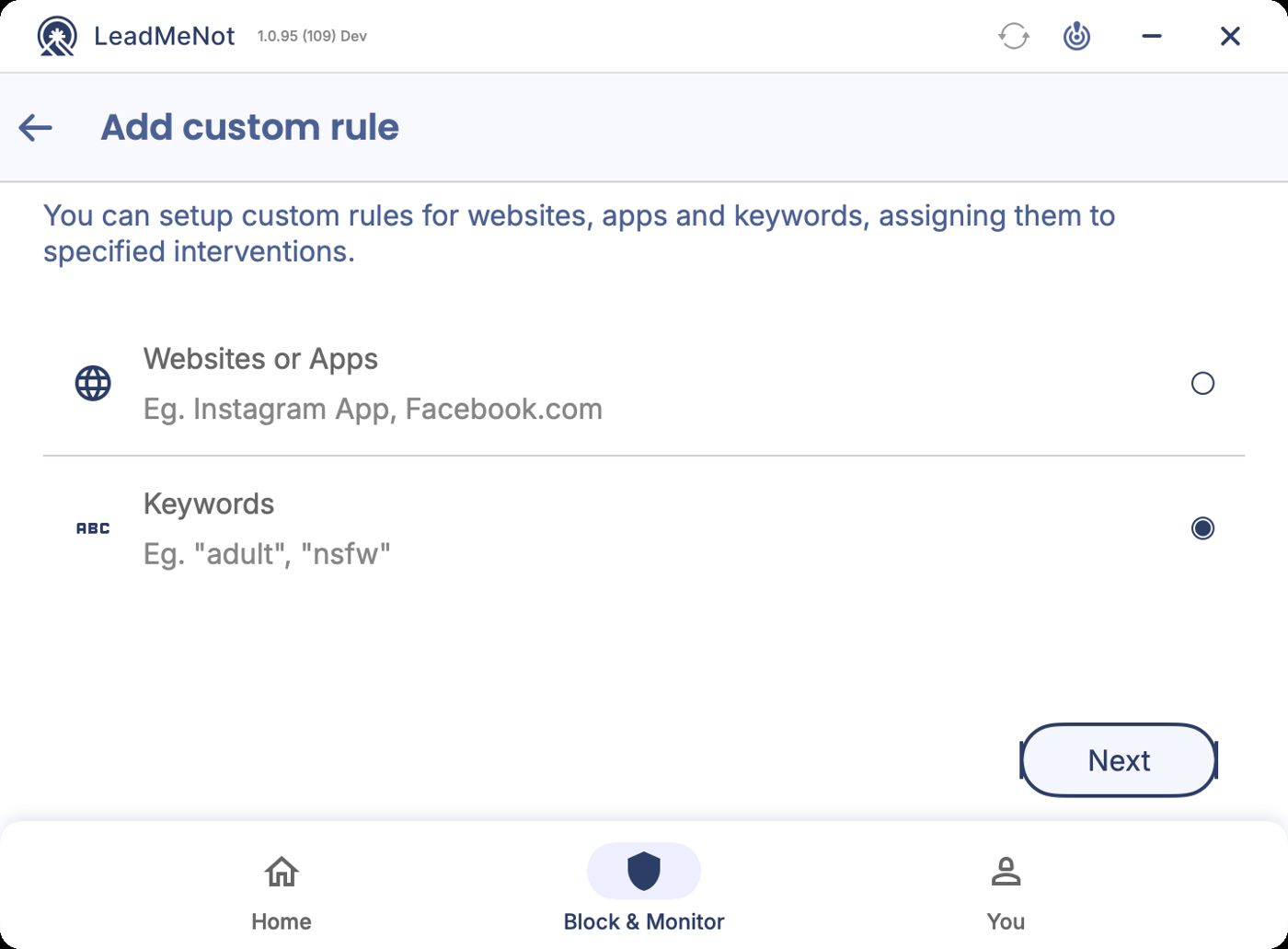
Step 2 of 6
Choose Keywords
Select Keywords and click Next.
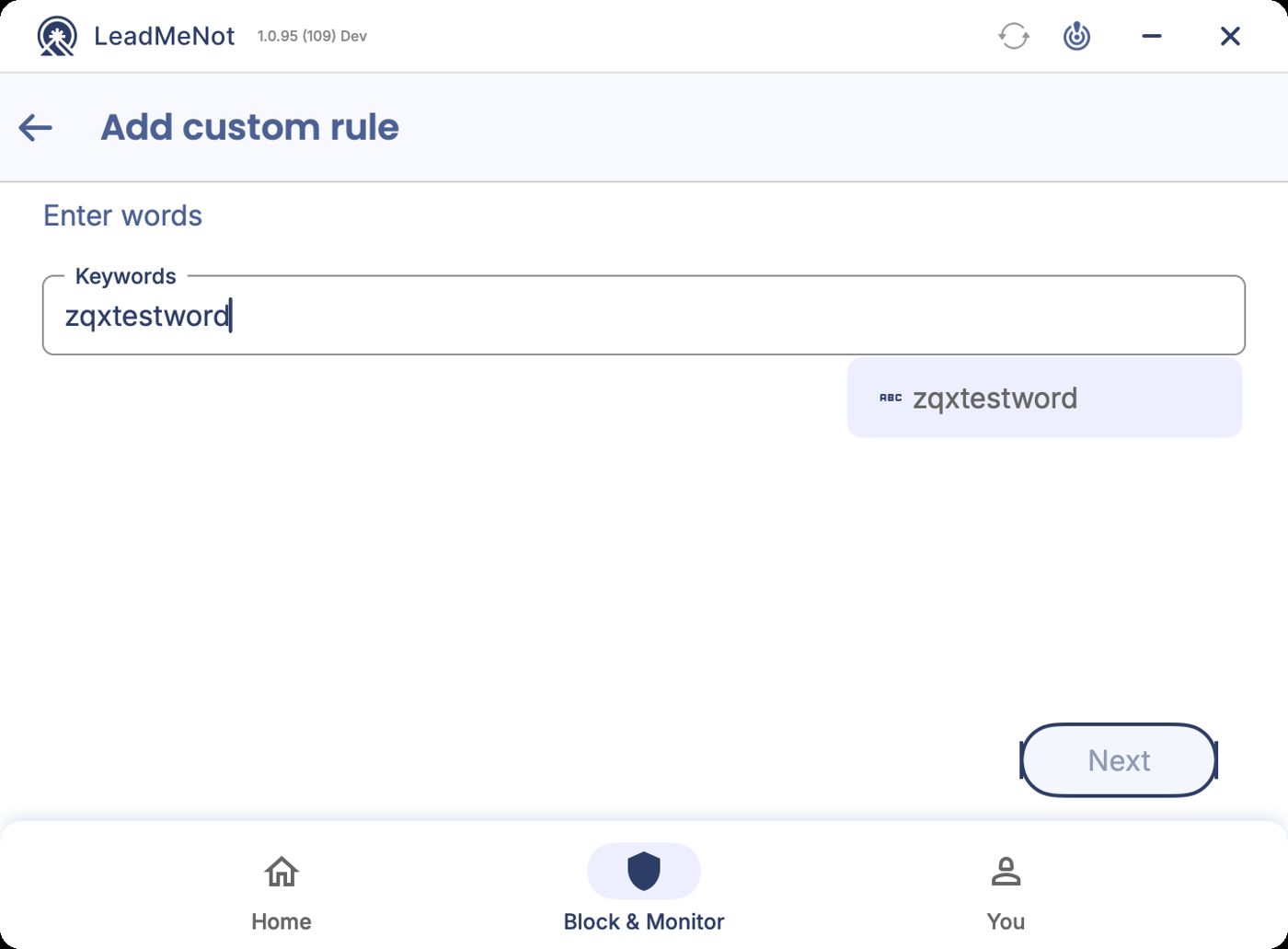
Step 3 of 6
Type each word, then Next
Type a word or phrase and click the suggestion to add it as a chip. Add as many as you like, then click Next.
Keep words specific. A short word also matches inside longer words.
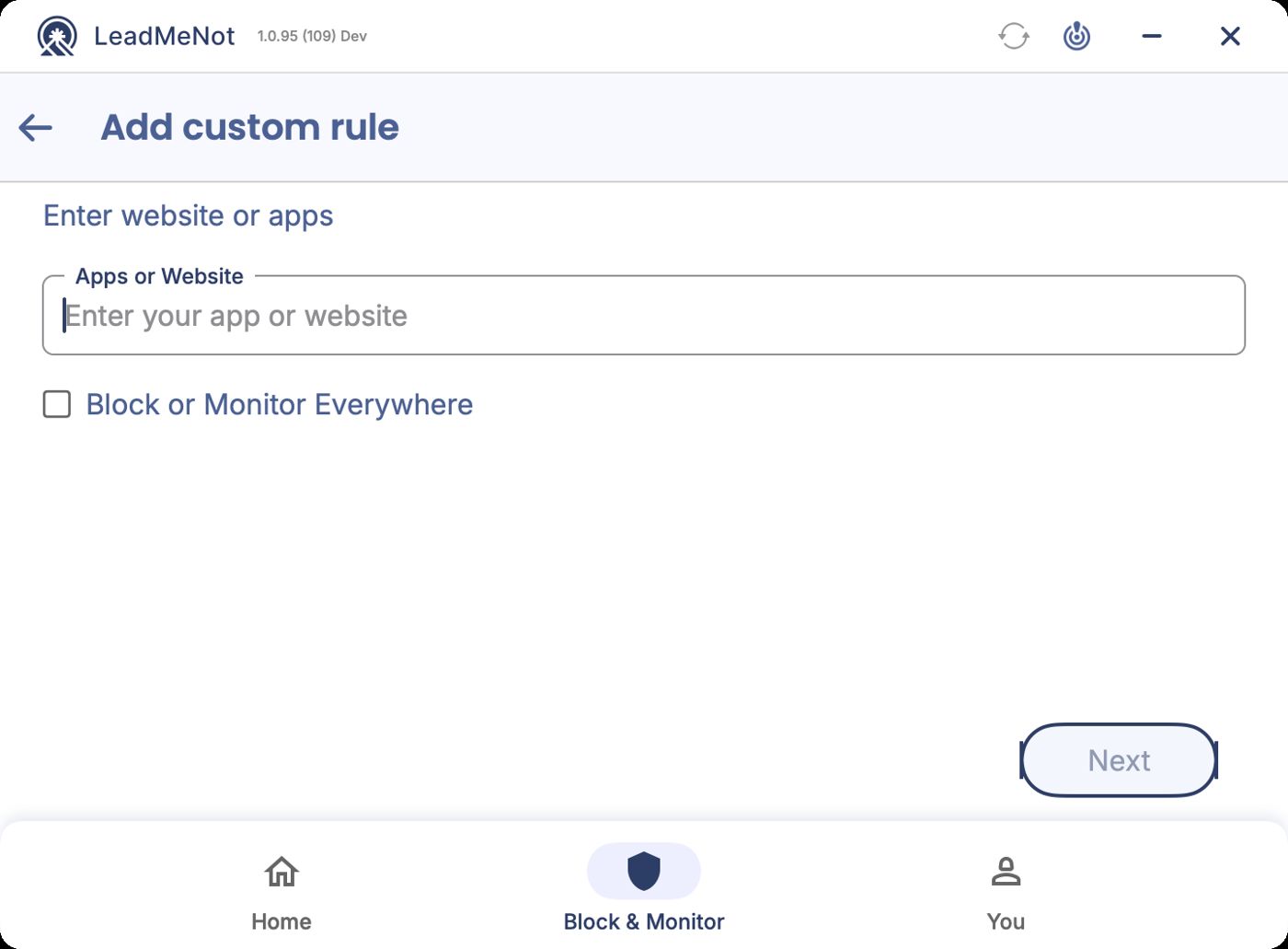
Step 4 of 6
Decide where it applies
Type specific websites or apps to limit the rule to them, or tick Block or Monitor Everywhere so it applies in every app and browser. Then click Next.
Everywhere with a common word will block a lot, including documents and chats that mention it. Start narrow.
Step 5 of 6
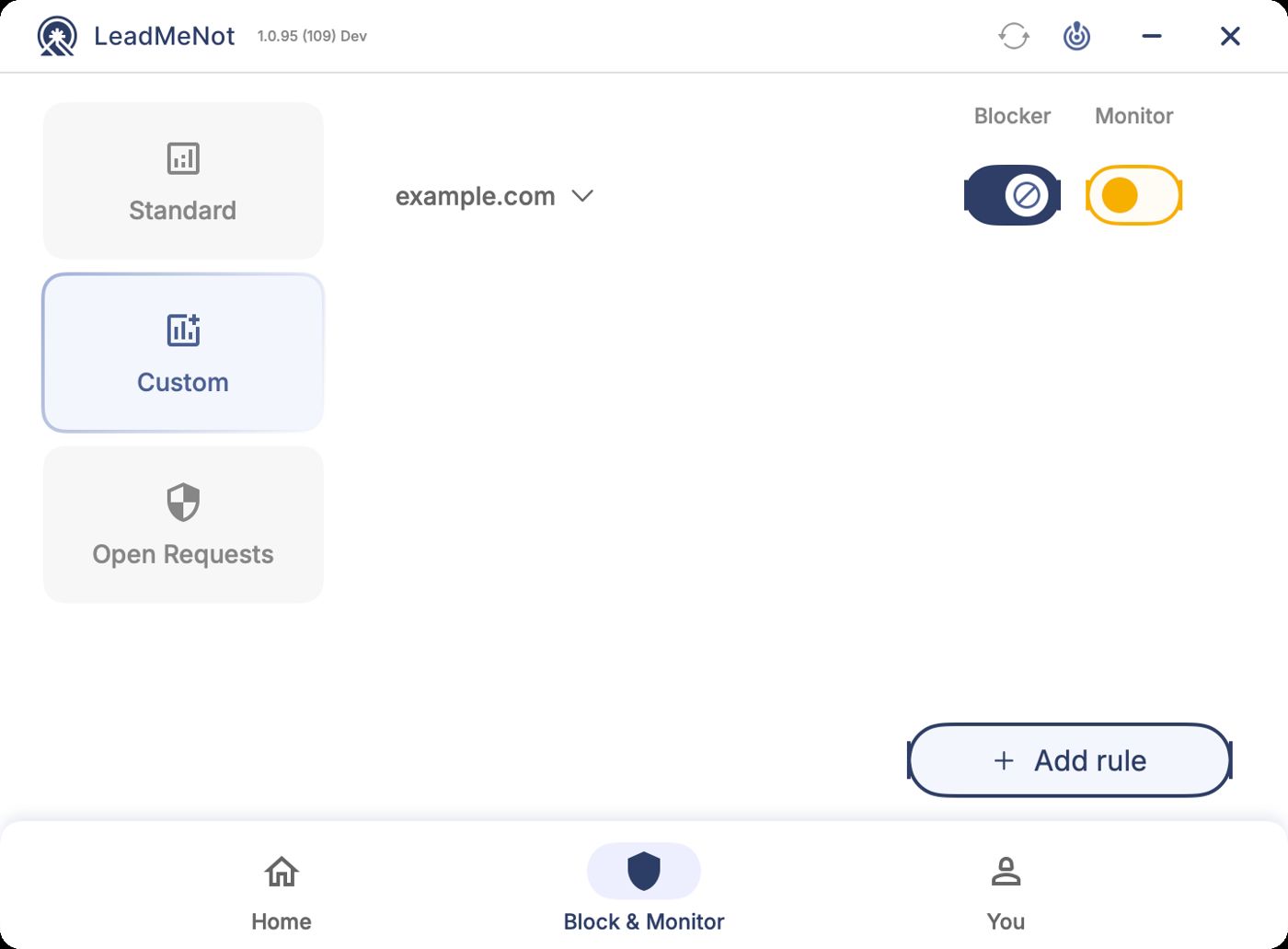
Your keyword rule is on
It's listed under Custom with its own Block and Monitor switches.
Browser
Step 6 of 6
Test it: type leadmenottest
Open your browser, type leadmenottest into the address bar and go. If LeadMeNot blocks the page, everything is working.
Not blocked? Every permission has to be on. In System Settings › Privacy & Security, check LeadMeNot is switched on under Accessibility and under Automation, then restart your Mac.
The test only works while blocking is on, for example with Adult Websites & Apps switched on.
Did this work?
Great. Here's what people usually do next:
Sorry about that. Email Jason and we'll include which guide and step you were on, or ask our assistant.