
Windows · Get started
Your first day with LeadMeNot
Everything from creating your account on the web to your first rule in the Windows app.
Browser
Open app.leadmenot.orgChapter 1 of 8 · Create your account on the web
Start at app.leadmenot.org
On Windows, you create your account and set everything up in the browser first. The app is where you sign in afterwards. Open app.leadmenot.org and click Create an account.
Already have a LeadMeNot account from your phone? Skip to the download step: sign in to the app with the same account.
Chapter 1 of 8 · Create your account on the web
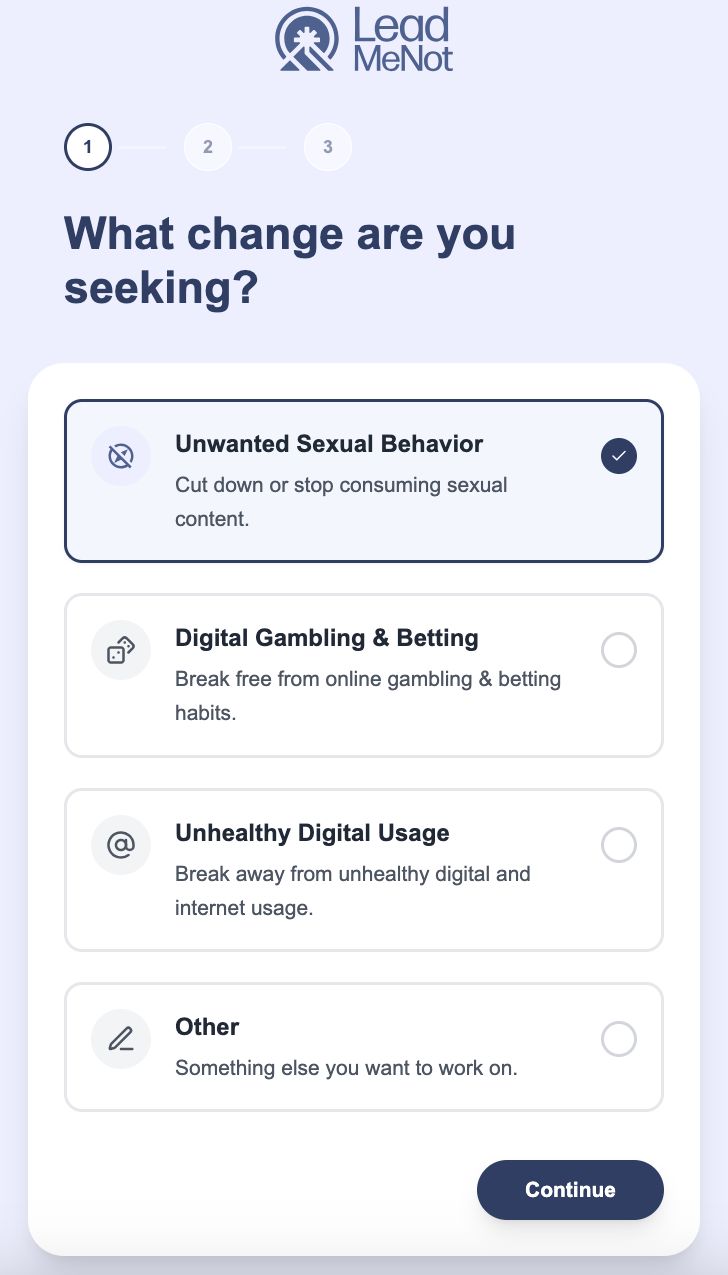
Pick the change you want to make
Choose the area you want to work on first, then click Continue. You can add more later.
Chapter 1 of 8 · Create your account on the web
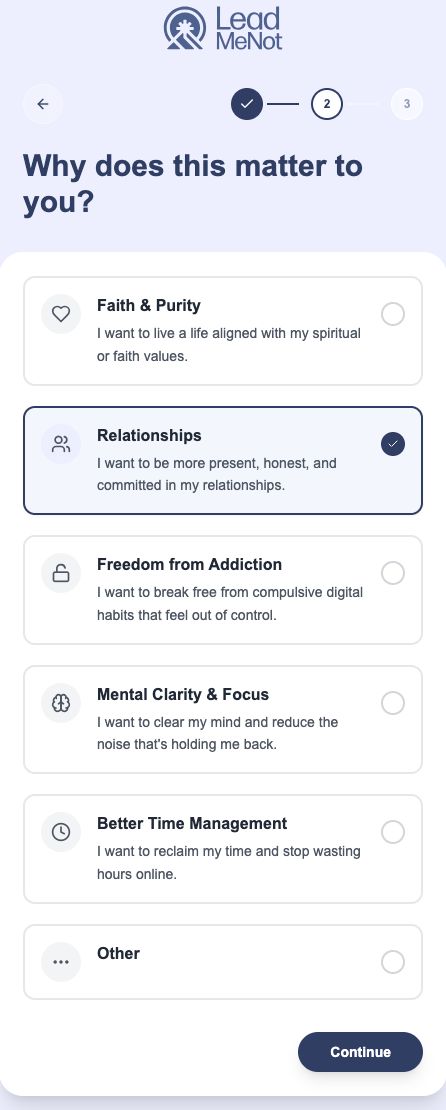
Tell us why
Pick the reason behind the change. We show it back to you as My Why.
Chapter 1 of 8 · Create your account on the web
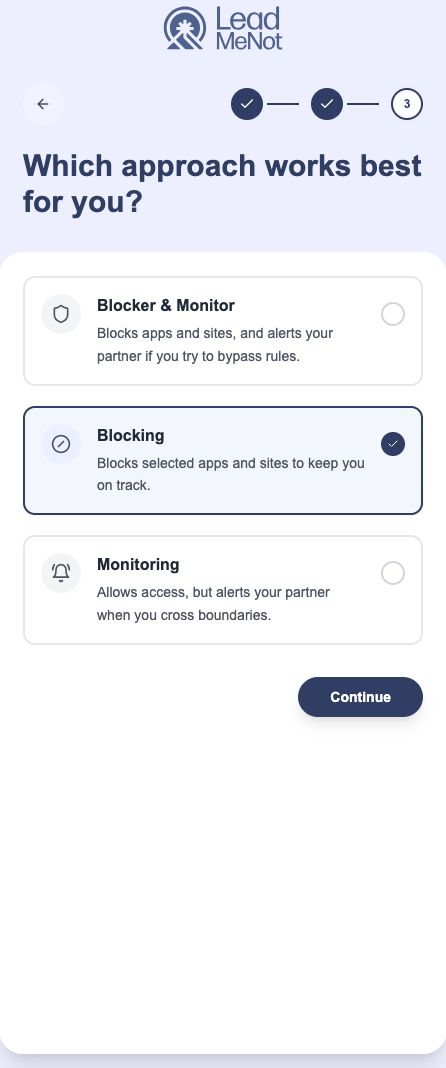
Choose how you want to be protected
This is the most important choice. Blocker & Monitor blocks content and tells your partner. It's what most people want.
Blocking only: things are blocked, but setup won't ask for a partner and nobody is told. Monitoring only: your partner is told, but nothing is blocked.
Chapter 1 of 8 · Create your account on the web
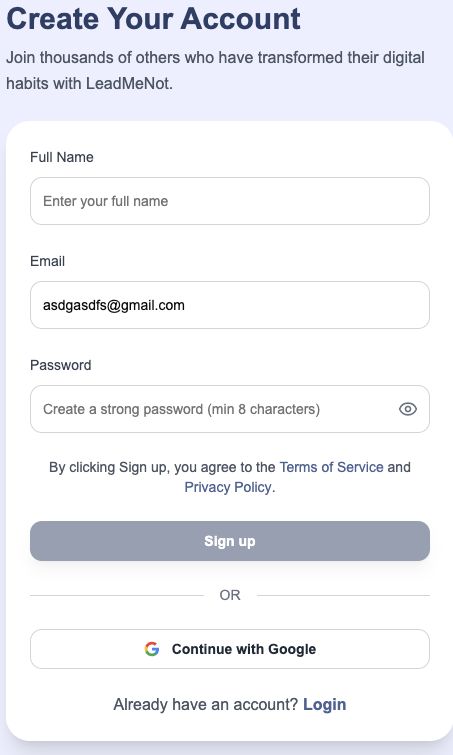
Create your account
Enter your name, email and a password and click Sign up, or use Continue with Google.
Remember which one you used. Signing in a different way later creates a new, empty account.
Chapter 2 of 8 · Plan or organization code
Did a church, ministry, school or group give you a code?
A code replaces the plan screen. Enter it before paying for anything.
Chapter 2 of 8 · Plan or organization code
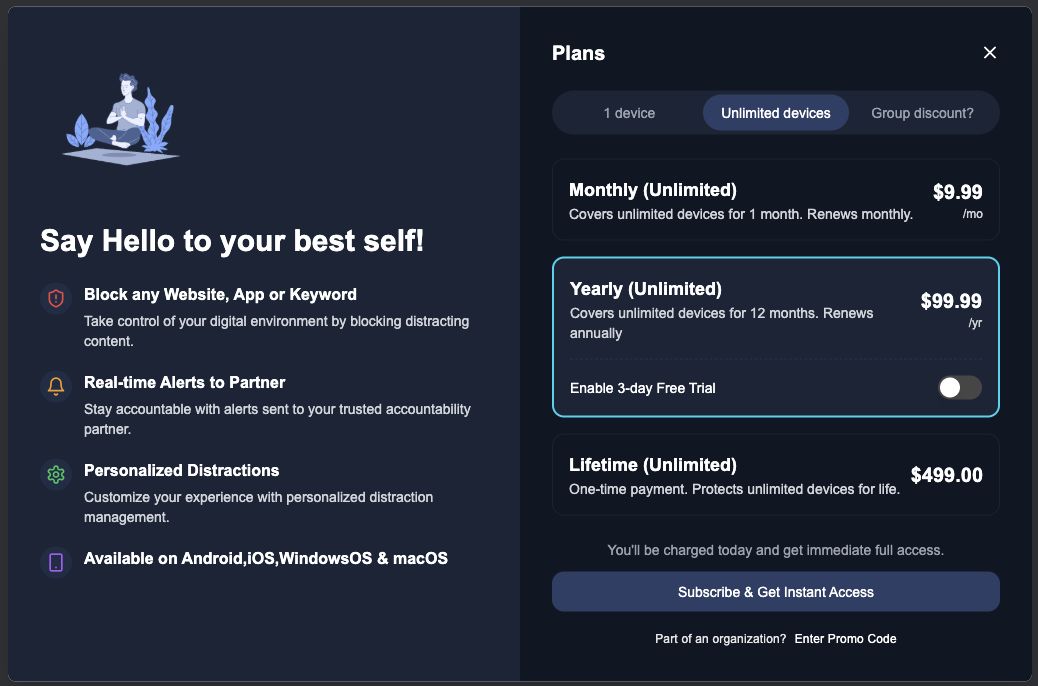
Click Enter Promo Code
At the bottom of the Plans screen, click Enter Promo Code.
Chapter 2 of 8 · Plan or organization code
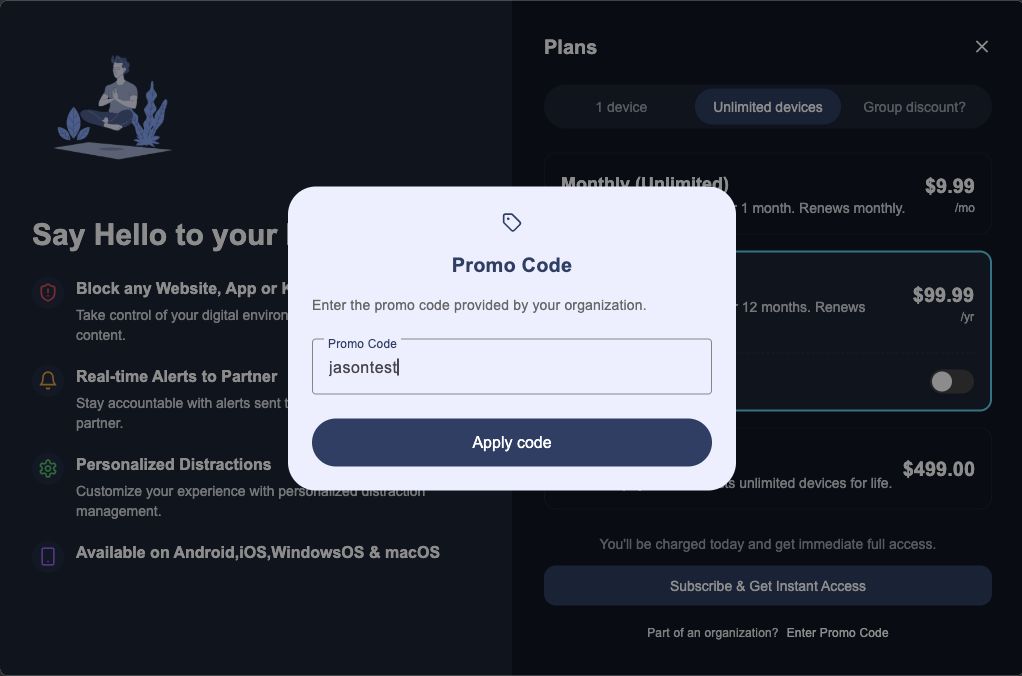
Type your code and Apply
Type the code exactly as it was given to you and click Apply code. Your organization's plan is applied and there's no payment.
Code not working? Check for typos, then email jason@leadmenot.org with the code and your organization's name.
Chapter 2 of 8 · Plan or organization code
Pick a plan
Choose 1 device or Unlimited devices at the top, then Monthly, Yearly or Lifetime. The Yearly plan has a 3-day free trial switch. Click Subscribe & Get Instant Access.
Want LeadMeNot on your phone too? Pick Unlimited devices. If cost is a barrier, email jason@leadmenot.org.
Chapter 3 of 8 · Set up protection on the web
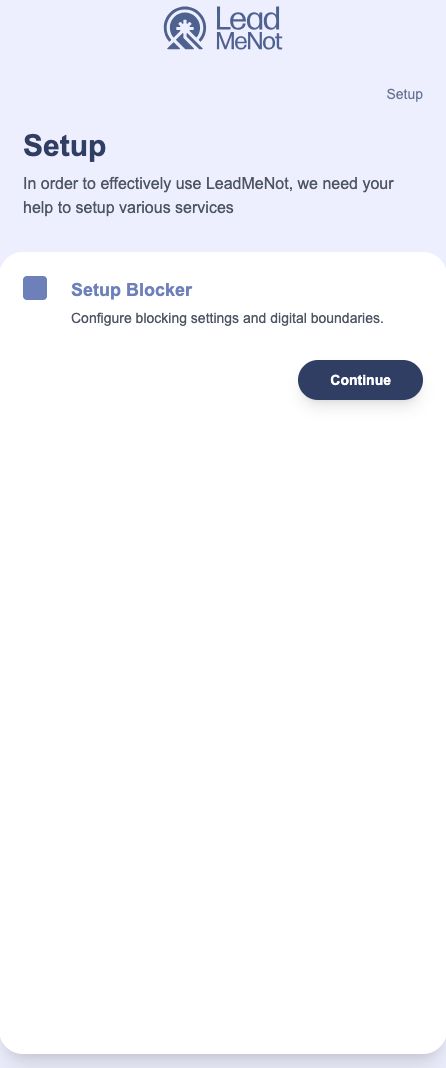
Set up the Blocker
Click Continue next to Setup Blocker.
Chapter 3 of 8 · Set up protection on the web
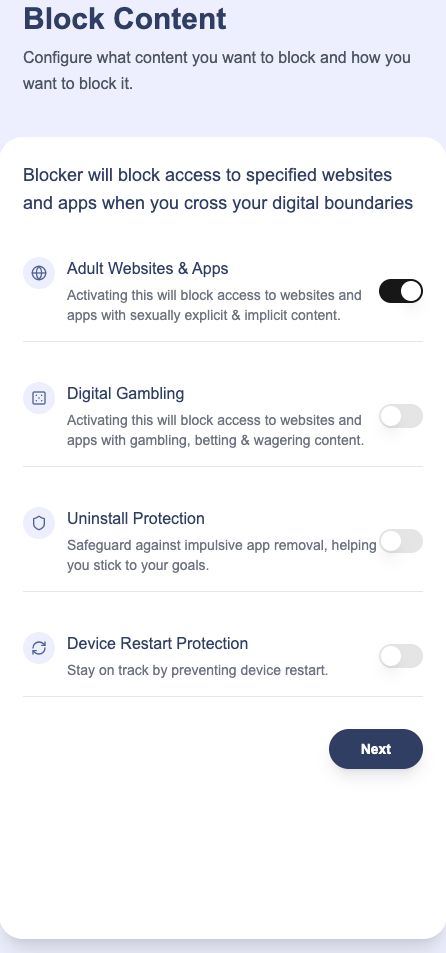
Switch on what you want blocked
Turn on Adult Websites & Apps, Digital Gambling, Uninstall Protection and Device Restart Protection as you need them, then click Next.
Every switch here starts off except the first. Device Restart Protection applies to Android only.
Chapter 3 of 8 · Set up protection on the web
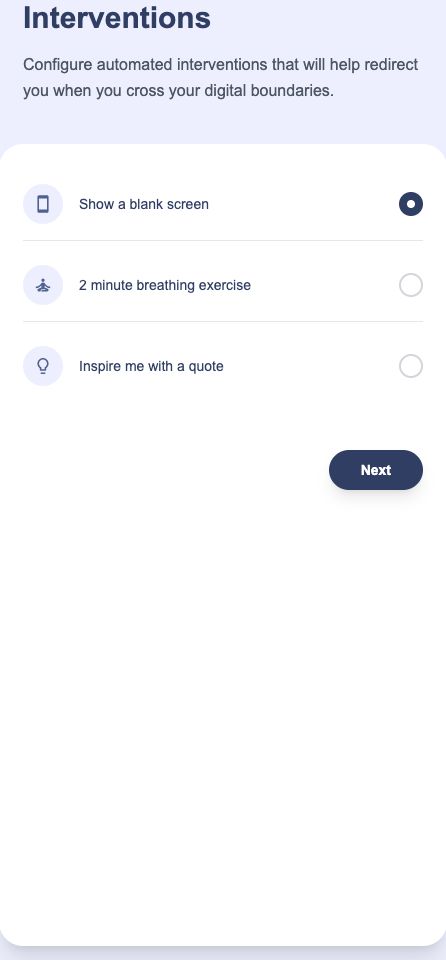
Choose what you see instead
Pick what appears when something is blocked: a blank screen, a 2-minute breathing exercise, or a quote. Click Next.
Chapter 3 of 8 · Set up protection on the web
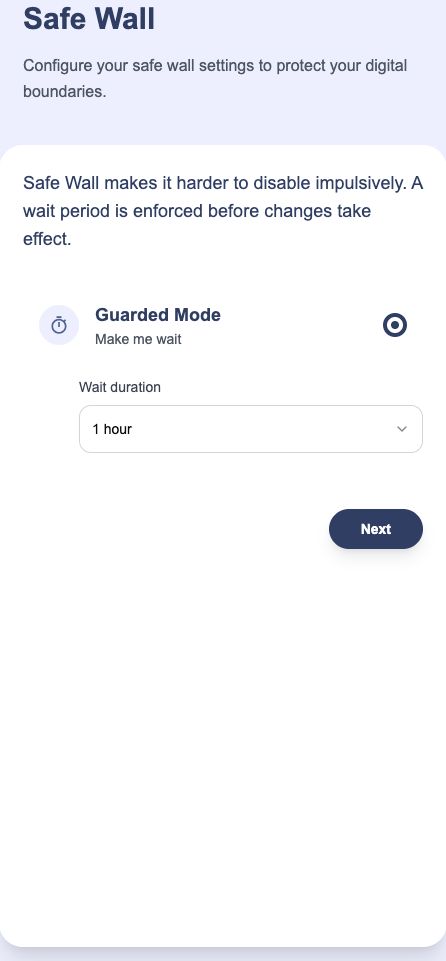
Choose your Safe Wall
Guarded Mode (Make me wait) adds a countdown before any change to your protection. Pick the wait time and click Next.
The wait applies to everything, even fixing a rule you just made.
Want your partner to approve changes instead (Fortress Mode)? You can switch to it in the app under You › Safe Wall once you've added a partner.
Chapter 3 of 8 · Set up protection on the web
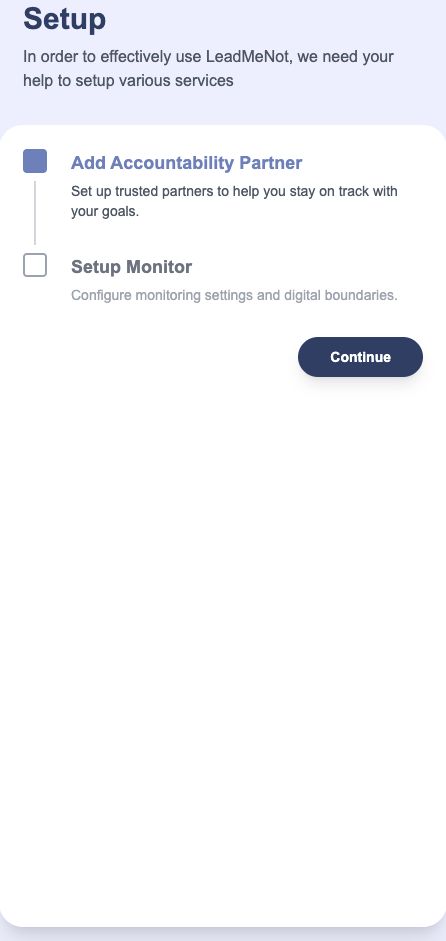
Add your partner and set up Monitor
If you chose Blocker & Monitor or Monitoring, you'll also be asked to Add Accountability Partner and Setup Monitor. Click Continue.
Chapter 3 of 8 · Set up protection on the web
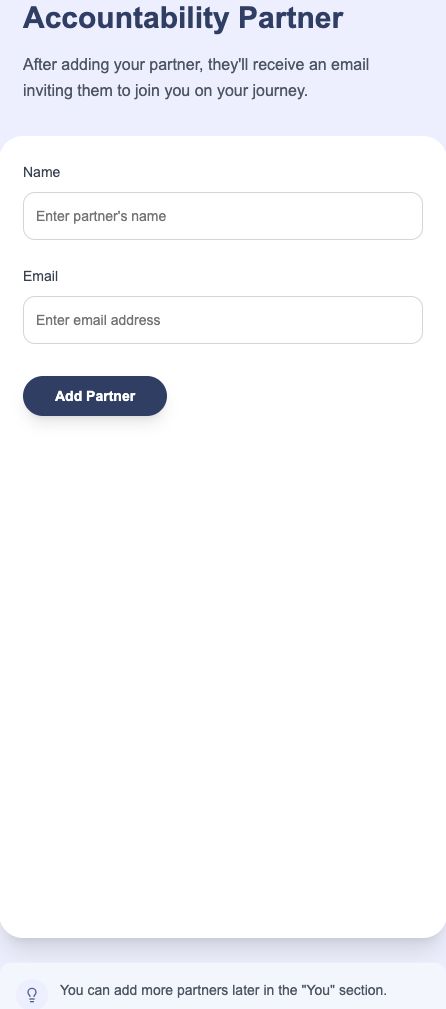
Enter your partner's name and email
They get an email inviting them to join you. Click Add Partner.
You can add more partners later in the app's You section.
Chapter 3 of 8 · Set up protection on the web
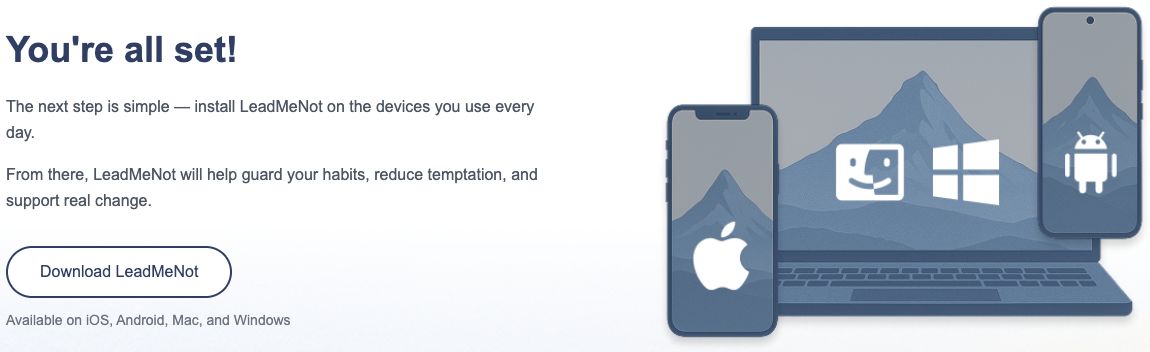
You're all set: download the app
Click Download LeadMeNot and pick your device. That takes you to the installer, or the Chrome Web Store for Chromebook.
Windows
Download for WindowsChapter 3 of 8 · Set up protection on the web
Download and install
Download the installer, right-click it and choose Run as administrator. Restart when it finishes.
Chapter 4 of 8 · Install, sign in and allow permissions
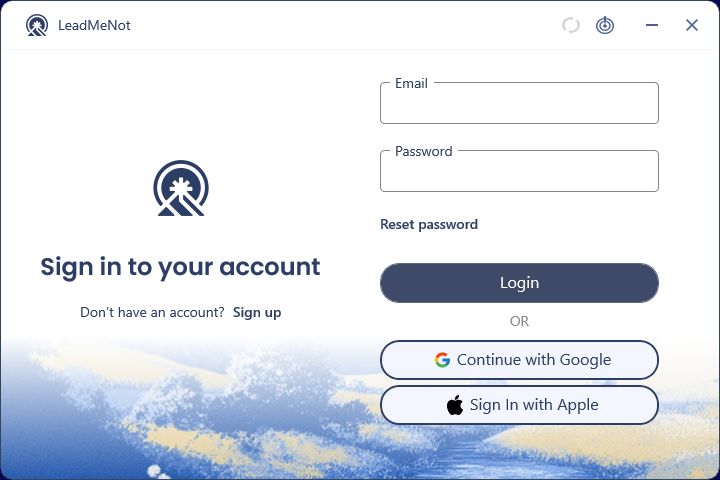
Sign in with the account you just made
Use the same email and password, or the same Google sign-in, as on the website.
Windows
Chapter 4 of 8 · Install, sign in and allow permissions
Allow the permissions and restart
Click Yes when Windows asks to let LeadMeNot make changes, then restart your computer once.
Chapter 4 of 8 · Install, sign in and allow permissions
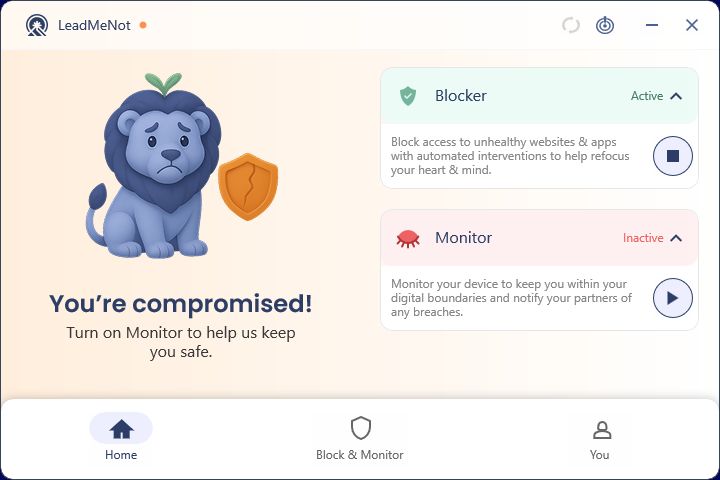
Check Home: Blocker and Monitor Active
If either card says Inactive, click its play button.
LeadMeNot
Chapter 5 of 8 · Your accountability partner
Already added on the web?
If you added a partner during web setup, you're done here. Otherwise add one now from You › Partner.
Chapter 5 of 8 · Your accountability partner
Add your partner
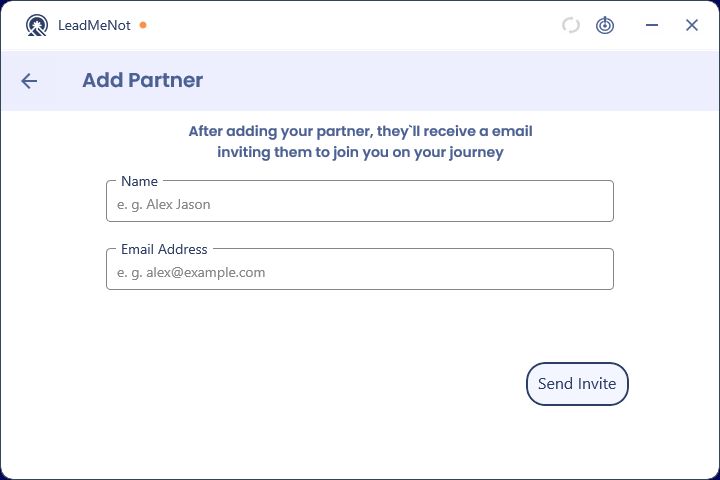
You › Partner › Add Partner: name and email, then Send Invite. They don't need to install anything.
Your partner
Chapter 5 of 8 · Your accountability partner
What your partner gets
An invitation, then alerts whenever a monitored rule is broken, your evening reflections, and approval requests if your Safe Wall needs their OK.
Why
Chapter 6 of 8 · Your first rule
Decide what you want
Block completely, block at certain hours, or limit time each day. Pick before you start.
Chapter 6 of 8 · Your first rule
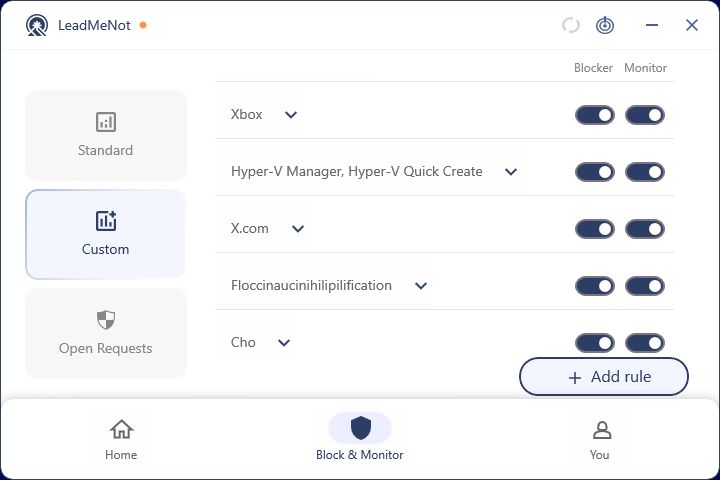
Add rule
Block & Monitor › Custom › Add rule.
Chapter 6 of 8 · Your first rule
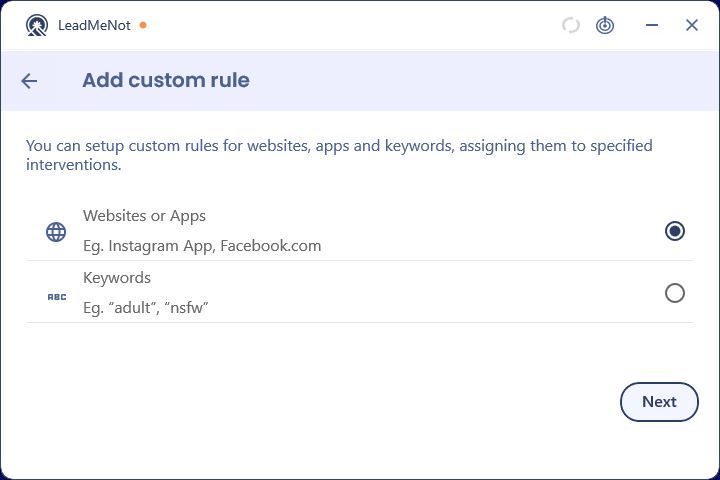
Websites or Apps, or Keywords
Pick what kind of rule and click Next.
Chapter 6 of 8 · Your first rule
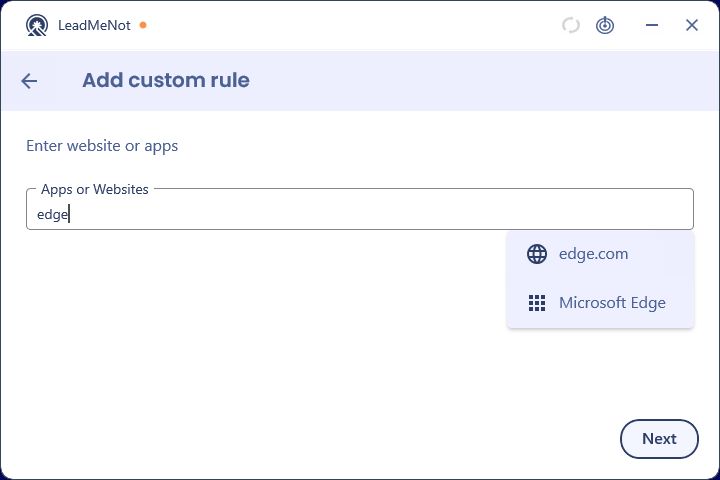
Type it and pick the suggestion
Websites show a globe, apps a grid icon. Click to add a chip, then Next.
Chapter 6 of 8 · Your first rule
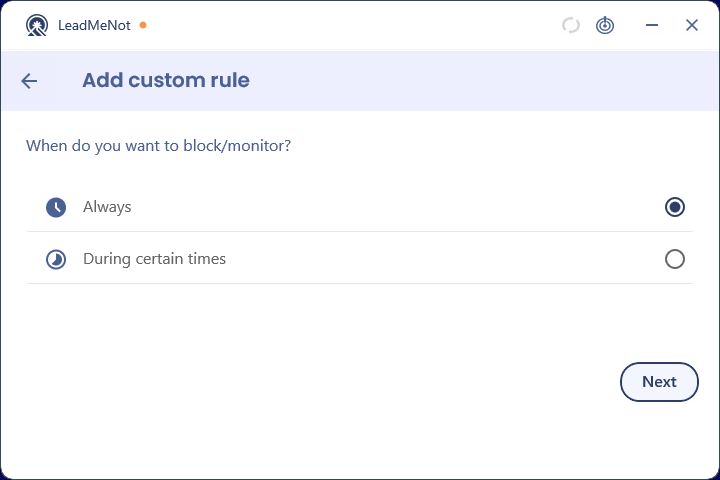
What should this rule do?
This screen decides everything.
Chapter 6 of 8 · Your first rule
Keep Always, then Access them
Leave Always, click Next, leave Access them, click Next.
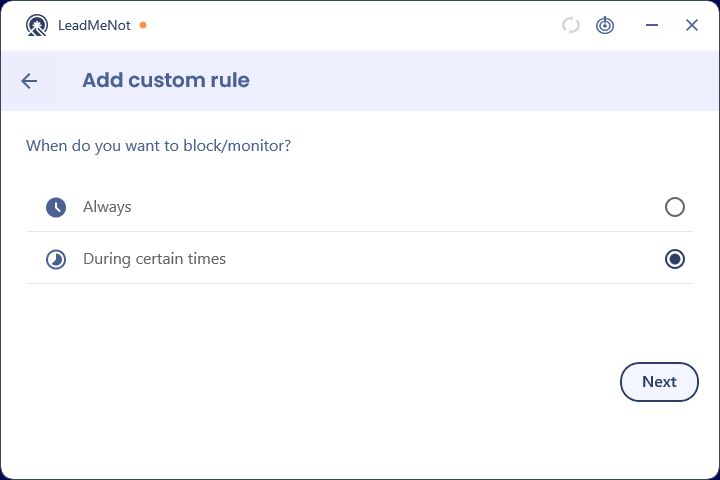
Chapter 6 of 8 · Your first rule
Choose During certain times
Select it and click Next.
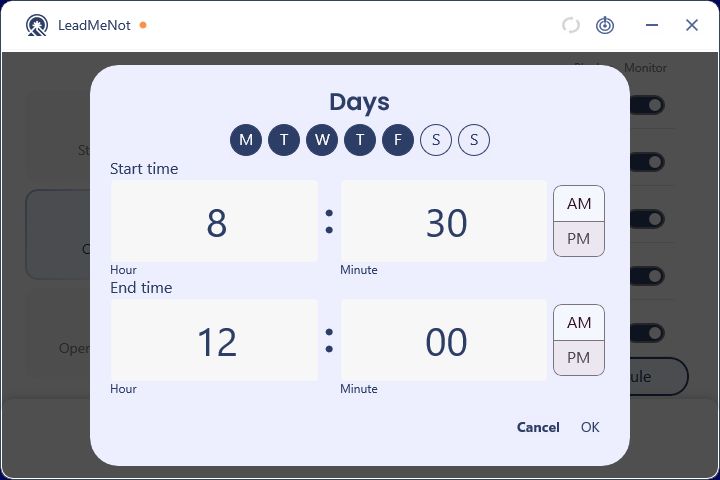
Chapter 6 of 8 · Your first rule
Pick the days and hours
These are the hours it's blocked. Click OK, then keep Access them and click Next.
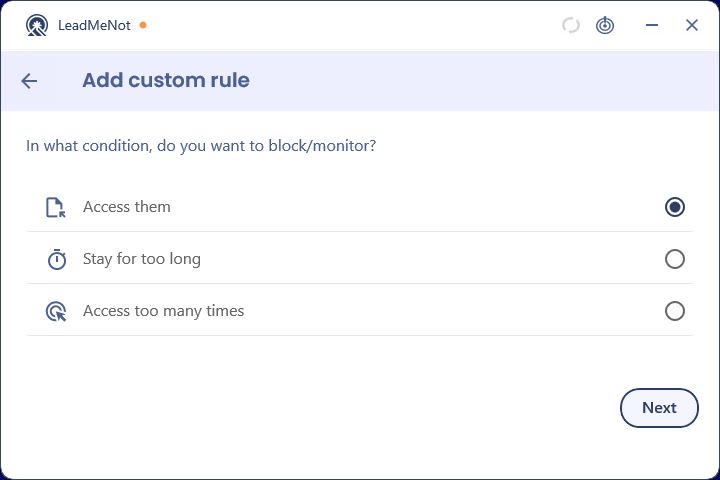
Chapter 6 of 8 · Your first rule
Choose Stay for too long
Select it, set the daily limit, click OK, then Next.
Chapter 6 of 8 · Your first rule
Your rule is on
It's under Custom with Block and Monitor switches.
Browser
Chapter 7 of 8 · Make sure it works
Test it: type leadmenottest
Open your browser, type leadmenottest into the address bar and go. If LeadMeNot blocks the page, everything is working.
Not blocked? Check you installed with Run as administrator, you're signed in and you restarted afterwards. Still not blocked? See Blocking isn't working on Windows.
The test only works while blocking is on, for example with Adult Websites & Apps switched on.
LeadMeNot
Chapter 7 of 8 · Make sure it works
Lock it
Turn on Uninstall Protection under Standard, and set Safe Wall to Approval from partner so a weak moment can't undo this.
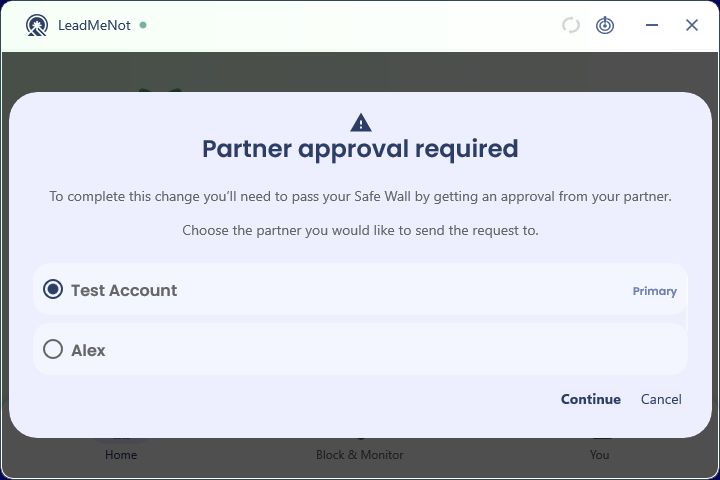
Chapter 8 of 8 · What happens next
When you try to change something
Your Safe Wall steps in: pick a partner to ask, or a countdown starts.
Chapter 8 of 8 · What happens next
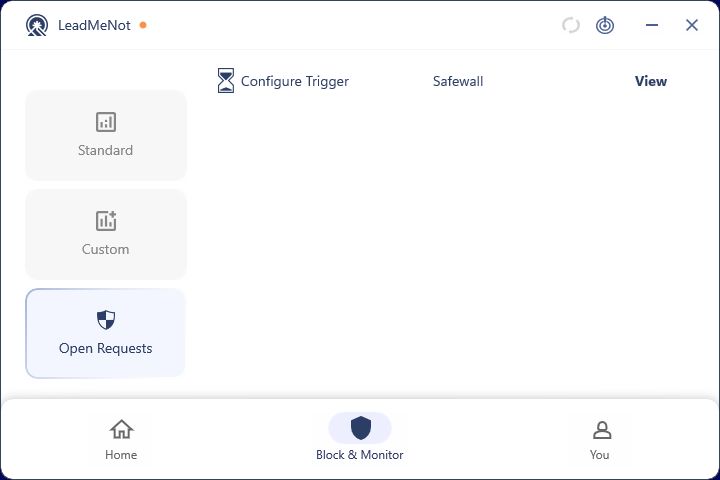
Find pending changes under Open Requests
Block & Monitor › Open Requests.
Chapter 8 of 8 · What happens next
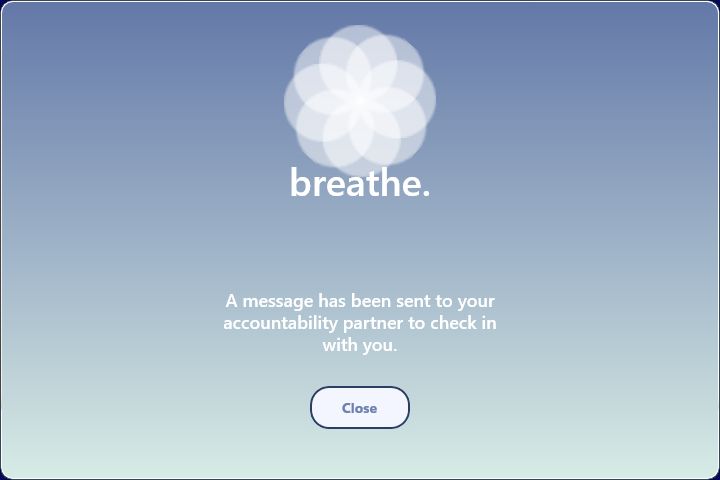
If you're struggling: I'm Triggered
The target icon in the top bar sends a message to your partner and shows a breathing screen.
Help
Chapter 8 of 8 · What happens next
Help is always here
Search this help center, ask the assistant, or email jason@leadmenot.org.
Did this work?
Great. Here's what people usually do next:
Sorry about that. Email Jason and we'll include which guide and step you were on, or ask our assistant.